
Efficient scheduling in Bookablesites relies on a few key components: Working Hours, Days Off, Special Days, and Office Hours. Together, these settings define when your business is available for appointments and when employees are not available.
Let’s explore each element in detail.
Availability of Time Slots (Services)
The availability of appointment slots for your services in Bookablesites depends on the configuration of Working Hours, Days Off, and Special Days tied to your employees.
- For example, if an employee’s schedule is set from Monday to Friday, 09:00–17:00, all services assigned to that employee can be booked during these hours — service availability is determined by the length of each service.
- To fine-tune service availability based on an employee’s specific working hours, you can create multiple working periods in the employee’s profile. For example:
- Employee A handles Service 1 from 09:00 to 12:00.
- Employee A also handles Service 2 from 13:00 to 15:00.
In this scenario, you would then create two separate working periods: for Employee A:
- Period 1: 09:00–12:00 → Service 1
- Period 2: 13:00–15:00 → Service 2
This gives you full flexibility to decide which services are offered during each working period, providing flexibility and control over service availability throughout the day.
Special Days in Bookablesites let you temporarily override an employee’s regular working hours for a specific date or date range. For example, if an employee normally works from 09:00–17:00, you can create a Special Day with adjusted hours—perhaps 09:00–13:00—to accommodate events, partial availability, or schedule changes. During this Special Day, you can set unique working hours that will override the employee’s regular schedule. This feature allows for flexibility in scheduling, accommodating events, holidays, or temporary changes in working hours.
Days Off in Bookablesites are used to block entire days for employees. This feature is handy for managing vacations, sick leaves, or any other personal time off. When a day is marked as a Day Off for an employee, it ensures that no appointments can be booked on that day. This helps in organizing employee schedules and preventing any conflicts with their time off.
Note: Special Days cannot override Days Off.
Working Hours
Working Hours are specific to each employee. You can set unique working hours for each employee based on their schedule. For instance, John’s working hours might be 09:00 – 17:00, while Mark’s could be 12:00 – 20:00. These hours are applied to weekdays (Monday to Sunday) and are automatically repeated every week.
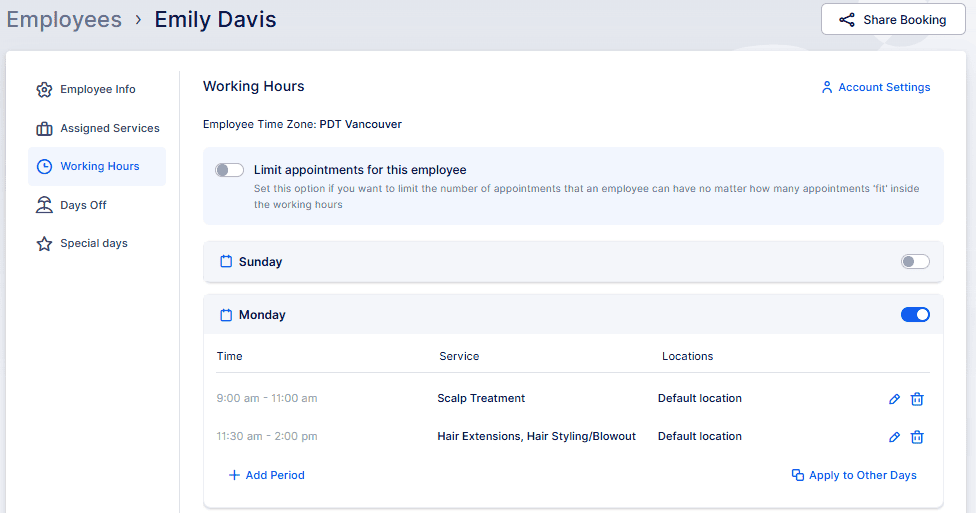
Imagine an employee scheduled with multiple services and locations:
- 09:00–11:00: Scalp Treatment
- 11:30–14:00: Hair Extension, Hair Styling/Blowout
Even if the employee’s default location is Barbershop St. Louis, you can override this setup within specific working periods.
If you leave Default Location and Assigned Services blank within a working period, the employee will automatically be available for all assigned services at their default location — a convenient option for general availability.
As mentioned earlier, the Working Hours set for an employee will repeat every week based on the defined schedule. Using the example from the screenshot, every Monday in the employee’s schedule would follow this configuration.
It’s important to understand that the services and/or locations specified in Working Hours Periods cannot be changed automatically if new or different services are assigned to the employee in the Assigned Services tab. For instance, if the “Beard Trim” is defined in a working period, only this service will be covered during that time. If a new service needs to be included alongside “Beard Trim”, it must also be added to the respective Working Hours period.
Furthermore, if you want the employee to cover all assigned services, it’s recommended not to select specific services when creating Working Hours periods. Leaving the service selection blank will automatically include all assigned services, ensuring that any new services added will also be covered during the defined Working Hours..
Special Days
Suppose your employee will attend a seminar from November 6 to November 10 and will only be available until noon during those dates.
To ensure no one books a full-day appointment in advance, use the Special Days feature. Begin by accessing the employee’s profile and navigating to the “Special Days” tab, which is automatically enabled during your free trial.
- Open the employee’s profile.
- Go to the Special Days tab.
- Click + Add Special Day.
- Select the date range (Nov 6–10) and configure working periods (e.g., 09:00–12:00).
Need detailed instructions? See the dedicated “Creating Special Days” section in your support documentation., please refer to this guide.
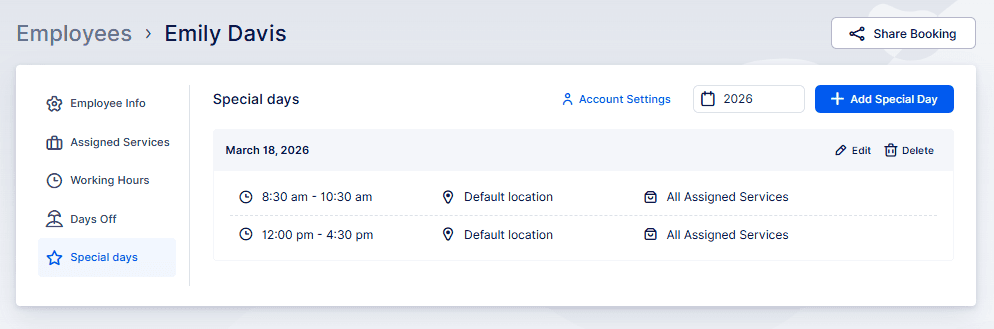
When adding working periods, always list them chronologically — Bookablesites doesn’t allow periods added in reverse order. For example, if you set 09:00–12:00 first, you can’t add 06:00–09:00 afterward without editing the earlier entry.
To fix this, adjust the first period to include the earlier time (06:00–09:00), then add subsequent periods sequentially.
Days Off
Days Off always take precedence over both Working Hours and Special Days, allowing you to mark specific dates when employees are not supposed to work at all.
Days Off can be added either directly in an employee’s profile or in Settings -> Company Days Off. The difference is scope: Company Days Off apply to all employees, while Days Off added in an employee’s profile affect only that employee’s schedule.
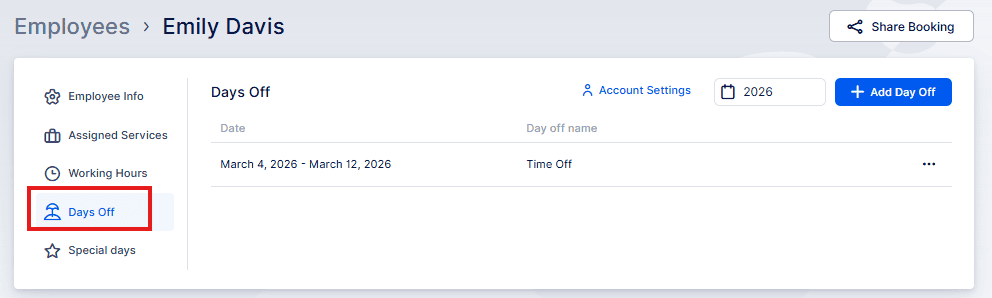
For example, if an employee is on vacation from July 15 to July 28, add this in the Employee’s Profile under Days Off. Click “+ Add Day Off“, enter a name (for example, “Vacation 2024“), and select the date range. You can also double-click to pick a single date, useful for sick days.
There’s also a slider to repeat the day off each year, which is handy for recurring events like birthdays. By selecting a single date and enabling the “Repeat this day off yearly” slider, Bookablesites will automatically mark this day off in future years, saving time and effort.
Calendar Integrations
To further enhance schedule accuracy, Bookablesites integrates seamlessly with Google Calendar, Outlook Calendar, and Apple Calendar.
Each integration provides an option called Remove Calendar Busy Slots, found in the integration’s settings.
For instance (Google Calendar example):
Once your employees are connected to their calendars, this option checks for existing busy slots in the connected calendars and removes availability during these events in the employee’s schedule.
For example, if an employee’s working hours are 09:00–12:00 with no other appointments, special days, or days off set, but their linked Google Calendar shows a busy event from 10:00–12:00, that time will be blocked for bookings in BookableSites when the “Remove calendar busy slots” option is turned on—or if the calendar supplying the event is assigned to the employee in Account Settings.
All calendar events (both free and busy) are visible in the Calendar section in BookableSites.