
In BookableSites, the “Company Days Off” feature lets you control and specify particular dates when your business will be closed or unavailable for bookings. This functionality is crucial for maintaining precise scheduling and ensuring customers cannot reserve appointments during non-operational periods.
Using Company Days Off, you can effortlessly identify holidays, special occasions, or any dates when your business won’t be scheduling appointments. This maintains transparency and consistency in scheduling for your staff and clients alike.
For example, if your business closes for a national holiday on December 25th, you can designate this as a Company Day Off, which automatically makes the entire day unavailable for bookings. This eliminates any appointment reservations for that date.
Please Note: Company Days Off Override Employee’s Days Off and Special Days configured by employees. TThis guarantees that business-wide closures supersede individual scheduling preferences.
To manage and add your Company Days Off, navigate to the Settings page located in the lower left area of your Admin section in BookableSites. Initially, there won’t be any days off set up. To add new days off, click the “+ Add Day Off” button.
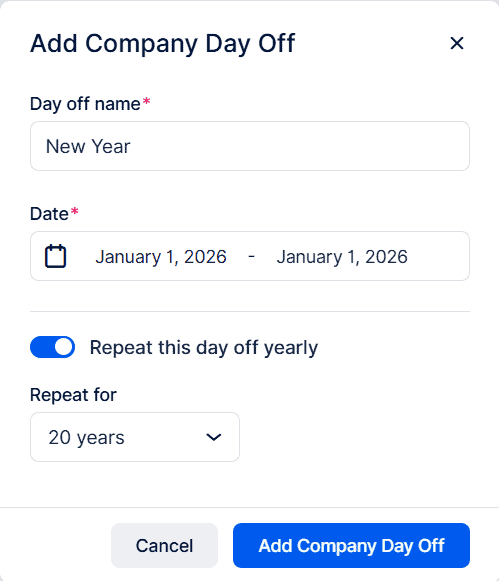
A window will open where you can enter the day off description, set a single date by double-clicking or establish a date range by choosing beginning and ending dates. Additionally, you can determine if this day off should recur annually. When you activate the recurring option, you can specify the repetition duration, from 1 to 20 years..
After adding a Company Day Off, you will see it in the overview. To make changes, you can either delete or edit it by clicking the three-dots menu located on the right of the Day Off entry.
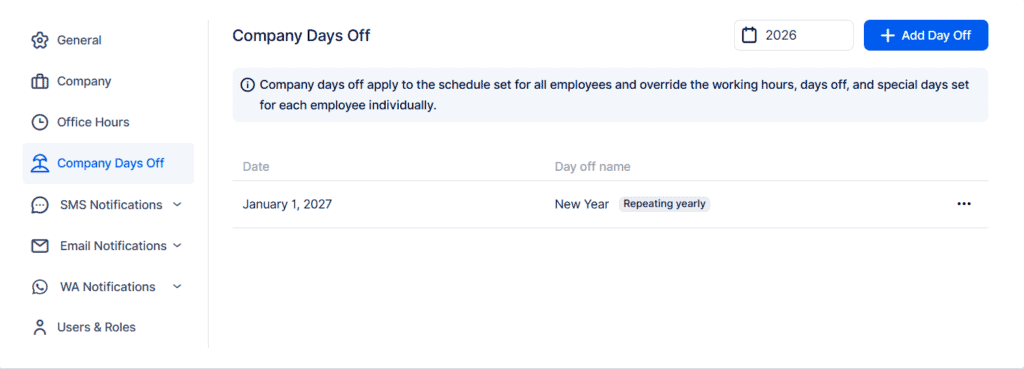
Please Note: When you’ve set up a recurring day off, note that this configuration cannot be changed later. Should you accidentally enable the repeat function for a day off, you’ll need to remove it entirely and establish a new entry with the proper settings.