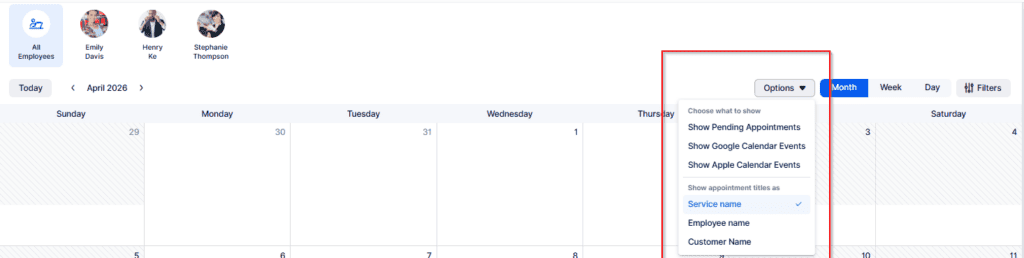
On the Calendar section of bookablesites, you have the ability to track appointments for individual staff members or the entire team using daily, weekly, or monthly layouts. By default, the schedule shows all employees, but you can quickly narrow the view to one person or a selected group by choosing their profile images displayed at the top of the calendar.
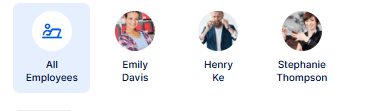
Please be aware that employees without scheduled appointments will not appear in the Calendar view of Bookablesites.
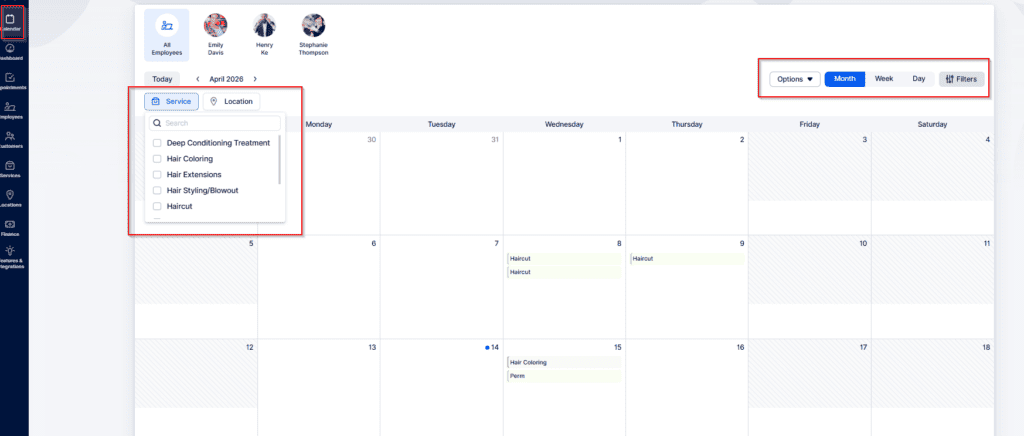
When you select the Filters option located in the upper-right corner, you’ll be presented with choices to refine results by Service or Location.
Once you choose one or more services or locations, the calendar will display only the appointments tied to those criteria. This functionality improves clarity and allows you to quickly review your schedule across daily, weekly, or monthly formats.
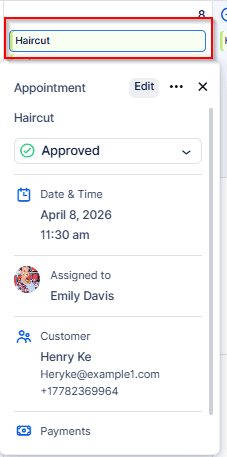
Within the Calendar view of Bookablesites, you can update appointment statuses whenever necessary. Selecting an appointment opens a pop-up window that provides key information such as the service type, scheduling details, client and staff names, along with customer information. From this window, you can also modify the appointment’s status, making it easier to oversee and manage scheduling efficiently.
After an appointment is scheduled, it will automatically appear in the Bookablesites calendar. When a service includes buffer periods before or after the appointment, these intervals are visually marked with distinct colors and labels to indicate buffer time. This functionality is essential for accurately reflecting an employee’s true availability. For example, while an appointment may be set for one hour, the added buffer could extend the time during which the employee is unavailable. By clearly showing these intervals, the calendar helps prevent scheduling conflicts and provides a precise view of availability when arranging additional appointments.
In Bookablesites, the calendar displays time slots according to the Default Time Slot Step defined in the General Settings, which is preset to 30 minutes.
Each appointment card shows essential details such as the client’s full name, the service booked, and the scheduled start and end times, along with any extras and the chosen duration.
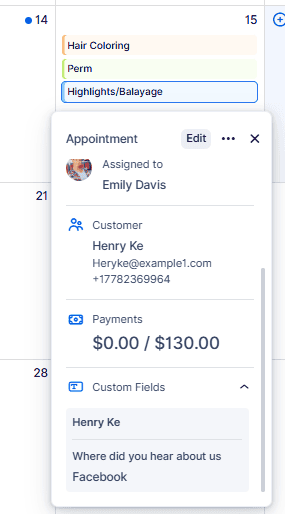
Selecting an appointment opens a popup window where you can use the Edit button to modify the booking. The three-dot menu provides options to duplicate or remove the appointment, while the expanded card beneath these controls reveals further information, including:
- Service title
- Current status
- Date and time of the appointment
- Assigned employee’s photo and full name
- Customer’s name, contact details (email and phone, if available), and any extras included
- Payment information
- Custom field entries
In addition to reviewing appointment details, the Bookablesites calendar lets you move between dates by switching the view to a specific day, week, or month. Selecting Today instantly returns you to the current week so you can stay aligned with ongoing schedules.
Within the Options menu, you can personalize which events appear on your calendar:
- Show Pending Appointments: When enabled, appointments marked as Pending will be visible. If turned off, only Approved bookings are displayed.
- Show Google Calendar Events: Syncs events from your Google Calendar into Bookablesites, helping track staff availability.
- Show Outlook Calendar Events: Displays Outlook Calendar entries, offering additional insight into employee schedules beyond Bookablesites appointments.
- Show Apple Calendar Events: Integrates Apple Calendar events, giving a clearer picture of employee availability.
You can also decide whether each appointment card highlights the service name, the assigned employee, or the customer’s name. This flexibility allows you to tailor the calendar view to match your preferred way of managing schedules.