
Appointments are central to Bookablesites, streamlining scheduling and reducing the need for phone calls while giving you full control over your appointment list.
Creating Appointments
Bookablesites prioritizes easy front-end booking: customers visit your booking page, pick a service, and schedule an appointment.
If you need to create an appointment on a customer’s behalf, do so from the admin area via the Appointments or Calendar page. Click + Add Appointment in the top-right to open a compact booking form. Select the Service, Employee, Date, Time, Location (if multiple locations exist), and Customer.
The popup also lets you choose whether to send an email notification to the customer. The notification type sent (Appointment Approved or Appointment Pending) follows the default status set in General Settings.
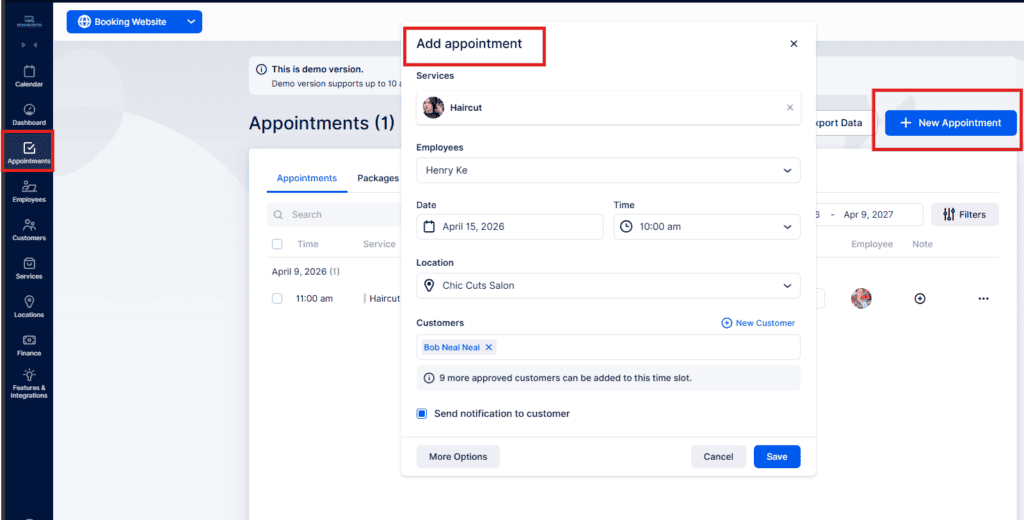
If configured for a service, Group Booking lets you add multiple customers to the same appointment.
The admin booking form includes options not available on the public booking page: you can add Extras, complete custom fields, apply coupons, and enable Recurring Appointments (if that feature is active for the service).
From the compact + Add Appointment popup, open these extra controls by clicking More Options. The expanded form shows the booking details and summary, including:
- Service name
- Service duration
- Service price
- Assigned employee
- Date & time
- Location
- Customers
- Pricing
Use the + New Customer button inside the form to create a customer record on the fly while completing the booking.
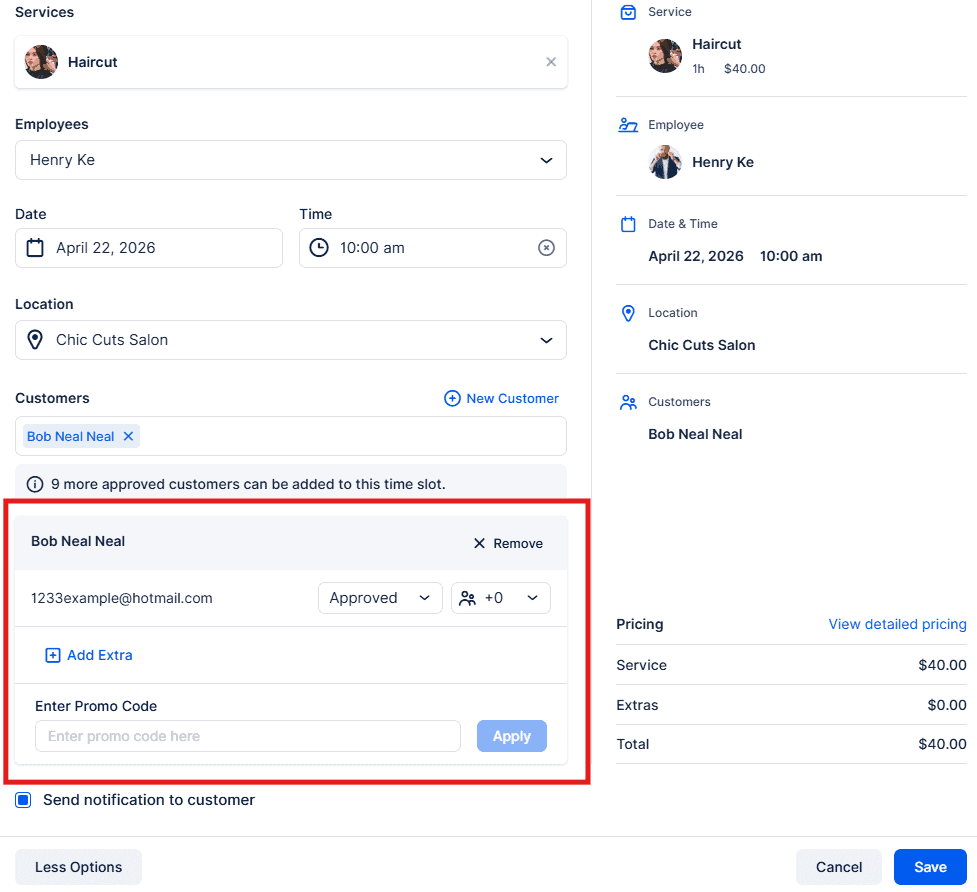
After you finish selecting all appointment details, click Save in the bottom-right corner. The appointment(s) will be recorded and appear in both the Appointments list and the Calendar.
Booking Outside of Working Hours and Over Existing Appointments
y default, bookings are restricted to an employee’s defined working hours. Admins, Superadmins, and any custom roles you create can be granted permissions to override this.
To change those permissions:
- Go to Settings → Users & Roles → Roles.
- Open the three-dot menu next to the role you want to change and choose Edit.
- In the Role Settings, find and enable one or both of these options as required:
- Allow bookings outside working hours
- Allow overlapping appointments
- Enabling these will permit users with that role to schedule appointments beyond an employee’s regular hours and/or create appointments that overlap existing ones in Bookablesites.
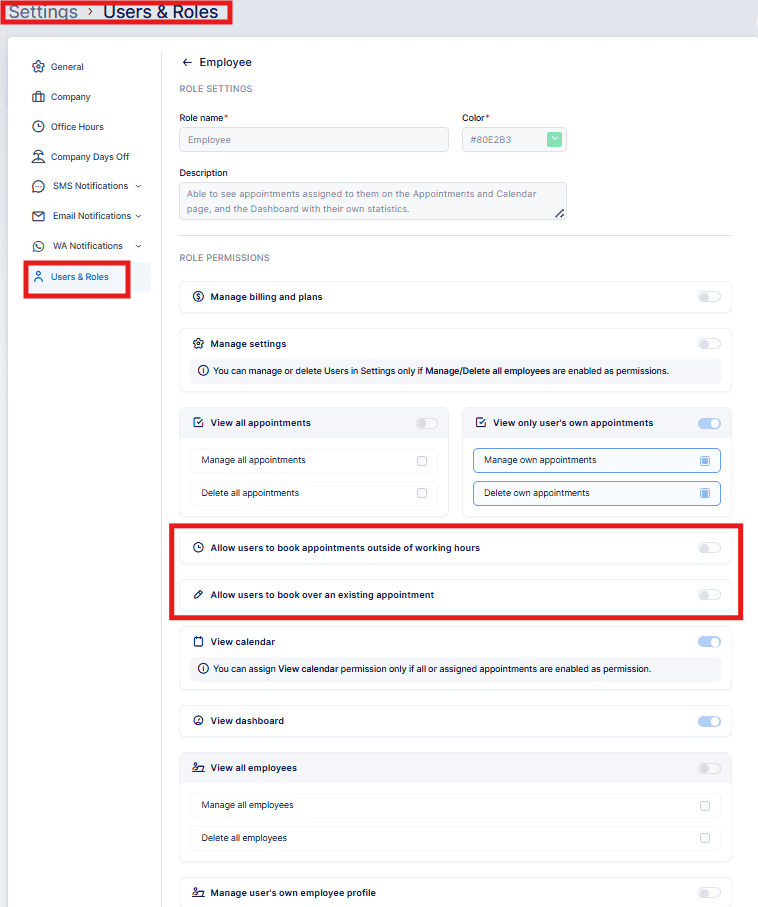
The controls are straightforward; here’s a short explanation:
- The first toggle lets you create appointments at any time of day, ignoring the employee’s defined working hours.
- The second toggle permits creating overlapping appointments from the admin booking form.
When scheduling an appointment in the back end, the Time dropdown will flag slots that are already booked or fall outside the employee’s working hours.
Turning on these options can increase the risk of overbooking employees. Use them with caution — enabling them may impact staff availability and scheduling and is done at your own risk in Bookablesites.
Working With the Appointments List
By default, the Appointments List displays bookings scheduled for the next year. You can change the visible timeframe using the date range filter — to reveal every appointment on record, hover over the right side of the date range field and click the appearing “X”.
Key tools on the Appointments List page:
- Search box: Look up appointments by Service name, Customer name, or Employee.
- Filters: Narrow results by Service, Customer, Employee, Location, or Status.
Columns explained:
- Time: The appointment’s scheduled start time.
- Service: The booked service. Online appointments (Zoom, Google Meet, Microsoft Teams) show the corresponding integration icon beside the service name. Recurring bookings display their recurrence icon next to the service as well.
- Customers: The client(s) linked to the appointment. Group appointments show a “+X” next to the primary booker’s name, where “X” indicates additional attendees. For bookings where a customer specifies multiple participants at booking time, the “+X” doesn’t appear; instead, the attendee count is visible in the detail pane that opens when you select the appointment.
- Duration: The total length of the appointment; selecting an Extra that has duration will extend this time.
- Status: An interactive field that allows quick status updates.
- Employee: The staff member assigned to the booking.
- Notes: Add or review appointment notes within this section
All appointment management and overview actions are available through these fields in Bookablesites.
Additional Appointment Management Features
- Appointment Details: As elsewhere in Bookablesites, clicking an appointment opens a side panel with full details, including:
- Appointment status
- Service name
- Start time
- Assigned employee
- Customer information
- Total payment (with a “View Detailed Pricing” option for a full breakdown)
- Selected extras
- Any custom fields related to the service
- “Three Dots” Menu: The three-dots menu offers several appointment actions:
- Edit appointment: Update appointment information.
- Duplicate appointment: Create a copy of the appointment; date and time will be cleared so you can choose new ones.
- View activity log: See a history of actions for the appointment (who booked it, timestamps, status changes, rejections, cancellations, reschedules).
- Export data: Export appointments within the current date range to CSV. A popup lets you choose a comma or semicolon delimiter and pick which columns to include. Note that exports only include appointments within the selected date range—adjust the filter if you need a different period.
Roles and appointment access
Access to the Appointments area is granted to Admins, Superadmins, and Employees, with different levels of visibility:
- Admin and Superadmin:
- Full rights to add, view, and edit all appointments and access all related features..
- Employee:
- Can add, view, and edit only appointments assigned to them, see only services they provide, and view customers who have booked with them (but not the full customer database).
Granting broader access via custom roles:
To let staff view all appointments and customers, enable the Custom Roles feature and create a role with permissions such as:
- View all appointments
- View all employees
- View all customers
- View all services
- View all locations
Customizing Roles:
- Role settings can be further adjusted in the Roles section to tailor permissions to your organization’s needs in Bookablesites.