
In Bookablesites, you can assign predefined user roles such as Employee, Admin, or Superadmin, each with its own set of default permissions. You also have the flexibility to create custom roles with tailored permissions to fit your organization’s specific needs. These custom roles let you define exactly what each user can view, manage, or delete within Bookablesites, giving you precise control over user access and responsibilities.
The Custom Roles option in Bookablesites is a premium feature and counts toward your total number of Custom Features & Integrations.
After enabling Custom Roles from the Features & Integrations page and selecting “Set Up,” you’ll be directed to the Users and Roles → Roles section. There, you can review all existing roles or create a new one by clicking “+ Add Role.”
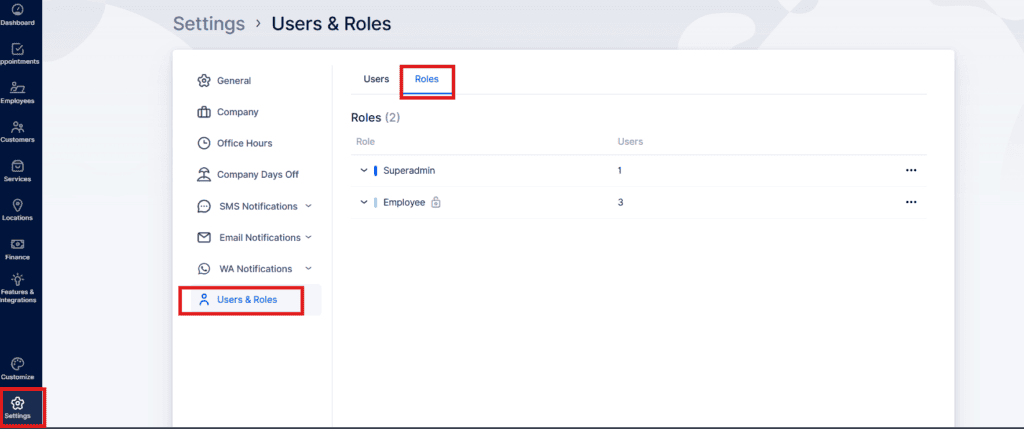
When you select the “+ Add Role” button in Bookablesites, a setup window will appear where you can enter the role name, choose a color, and write a short description. This description will later appear in the Roles list, giving you a quick overview of each role’s purpose for easier identification and management.
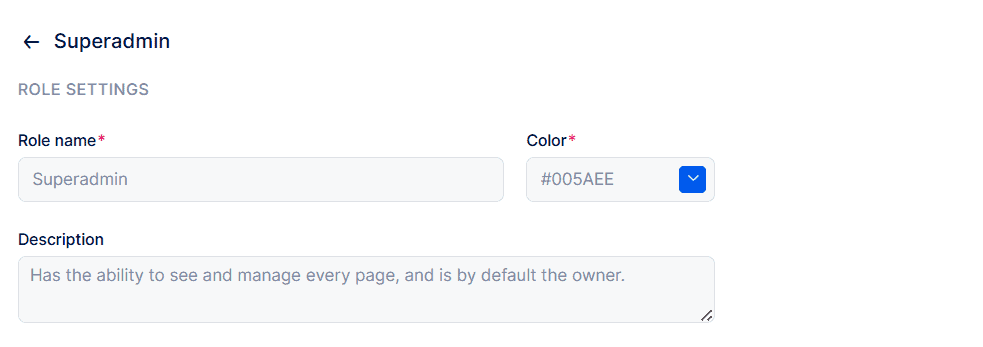
Below these options in Bookablesites, you’ll see a detailed list of permissions that determine the level of access each role has within the platform:
- Manage billing and plans: Grants access to manage and modify plan-related details—such as services, employees, features, integrations, and billing information.
- Manage settings: Allows users to view and update everything located within the Settings and Customize sections.
- View all appointments: Lets users see every appointment created in Bookablesites. Additional permissions, like Manage all appointments and Delete all appointments, allow creating, editing, and removing appointments platform-wide.
- View user’s own appointments: Displays only the appointments assigned to that user. With Manage own appointments and Delete own appointments, they can create, modify, or delete their own bookings.
- Book appointments outside working hours: Enables users to schedule appointments beyond set employee working hours, overriding individual schedules. (Included by default for Admin and Superadmin roles.)
- Book over existing appointments: Gives permission to create overlapping bookings, even on top of existing reservations. (Also available by default for Admin and Superadmin roles.)
- View calendar: Grants access to the Calendar page, displaying appointments according to the user’s appointment visibility permissions.
- View dashboard: Provides access to the Dashboard. The visible data—like bookings, attendance rates, or service stats—will depend on other permissions granted.
- View all employees: Allows users to access the Employees section and view all created profiles. With Manage all employees and Delete all employees, they can add, modify, or remove employee records.
- Manage user’s own employee profile: Lets users adjust their individual settings, such as working hours, days off, and special dates.
- View all customers: Provides access to view every customer in the system. Manage all customers and Delete all customers permissions allow creating, editing, or deleting customer profiles.
- View only user’s own customers: Restricts visibility to customers who have appointments with that user or were added by them. Manage own customers and Delete own customers allow editing or removing only those specific customers.
- View all services: Grants access to the Services page to see all available services. With Manage all services and Delete all services, users can create, edit, or remove services.
- View all locations: Lets users open the Locations page and view every location entered. Manage all locations and Delete all locations give full control to add, modify, or delete location data.
- View taxes: Allows users to open the Taxes section on the Finance page. With Manage taxes, they can create, modify, and assign taxes to services or add-ons; Delete taxes enables removal of tax entries.
- View coupons: Provides access to the Coupons section on the Finance page. Manage coupons and Delete coupons permit adding, updating, or removing coupons. The View coupon history option displays where and when coupons were applied.
- View all invoices and transactions: Lets users open the Invoices and Transactions areas under Finance. Additional settings, such as Change all invoice statuses and Manage invoice settings, allow full control of invoice processing and configuration.
- View only user’s own invoices and transactions: Restricts financial access to appointments linked to that user. With Change own invoice statuses, users can update the status of their own invoices only.
These permission options in Bookablesites give administrators detailed control over what each role can access and manage, ensuring both flexibility and security across the platform