
We’re excited to announce the new Chatbot feature — a powerful tool that will change how customers interact with your booking system. The chatbot actively engages visitors, simplifies workflows, and helps grow your business by improving customer service and streamlining scheduling.
Adding the chatbot brings a major improvement to your operations and customer experience for bookablesites.
Notes and availability
- The Chatbot feature for bookablesites is a premium add-on and counts toward your total Custom Features & Integrations.
- It’s currently in Beta and uses a credit-based system across all plans.
- During Beta, every user receives 100 complimentary credits and can request additional credits from support while the Beta period continues.
How to enable
- Go to Features & Integrations, find the Chatbot card, and click Enable.
- After the card refreshes, you’ll see Set Up and Disable buttons. Click Set Up to open the bot configuration page in the Customize section of your admin dashboard.
Navigation Menu
Chatbot Settings
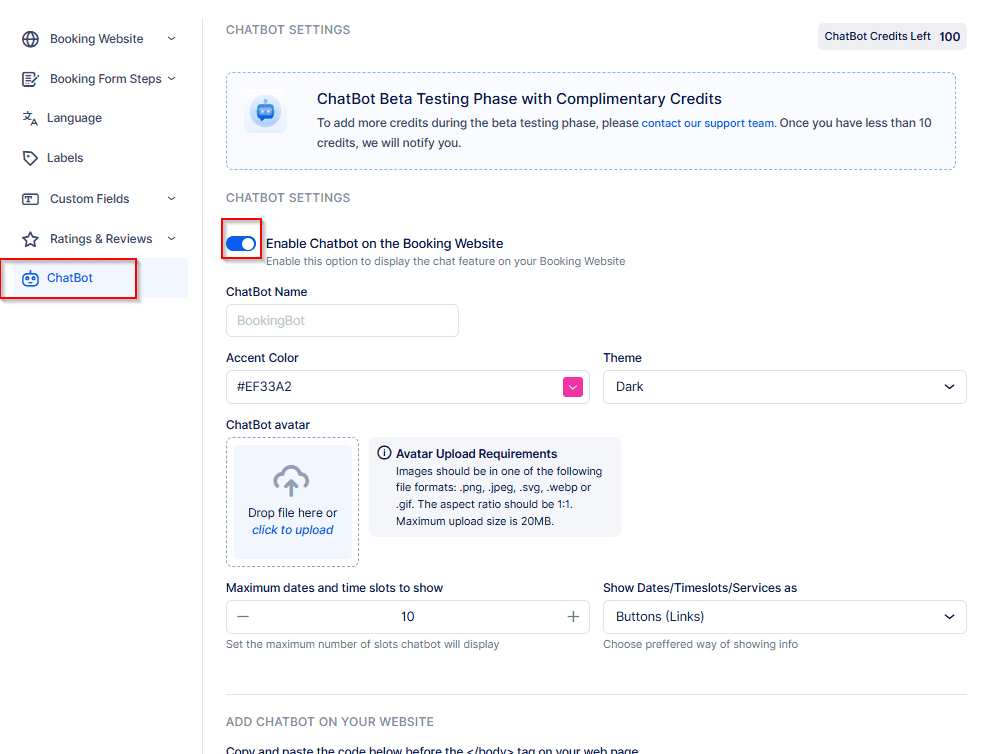
In these settings you can configure several options:
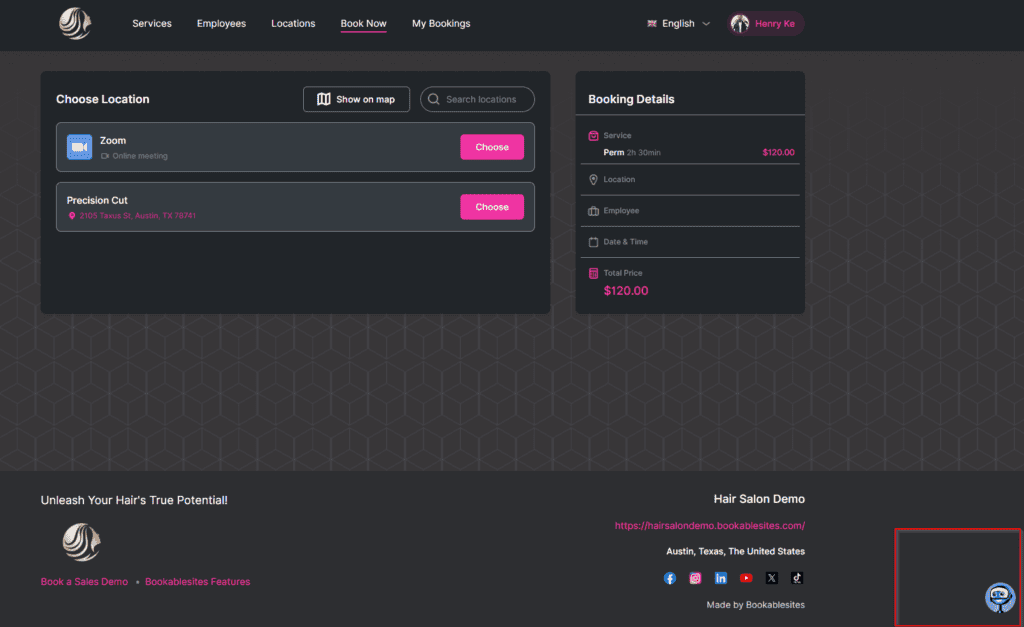
Enable Chatbot on the booking website: Turn this on to embed the Chatbot into your Bookablesites booking form, allowing clients to schedule appointments via the Chatbot interface.
Chatbot Name: Specify the display name for the chatbot (for example, “Bookie Bot,” “Appoint Mate,” “Meet Me Bot,” or any custom name). This name will appear to users when they start a chat on Bookablesites.
Accent Color: Choose the color used for chat text and buttons to match your Bookablesites branding.
Theme: Beside the Accent Color, select either a light or dark background theme for your chat interface on Bookablesites.
Chatbot Avatar: Pick an image to represent the chatbot — a staff photo, your company logo, a GIF, or any picture you prefer. This avatar will be shown alongside the chatbot in Bookablesites.
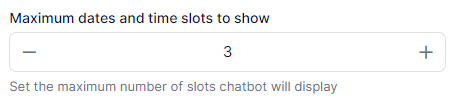
Maximum Dates and Time Slots to Show: Set how many date and time options the chatbot will present to customers during a conversation on Bookablesites.
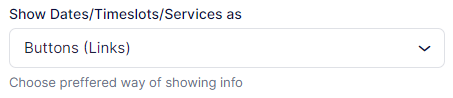
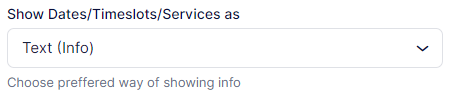
Show Dates/Timeslots/Services As: Choose how the chatbot presents available slots and services to users on Bookablesites — either as interactive “Buttons (Links)” or as plain “Text (Info)”.
Add the Chatbot on Your Website
If you want to embed the bookablesites Chatbot on your own website (for example using an iframe) instead of showing it on the booking page, paste the provided code snippet just before your page’s </body> tag.
Customize Messages
In this area you can edit the prompts and messages the Chatbot uses when talking with customers, letting you match its wording and tone to your brand and communication style on Bookablesites.
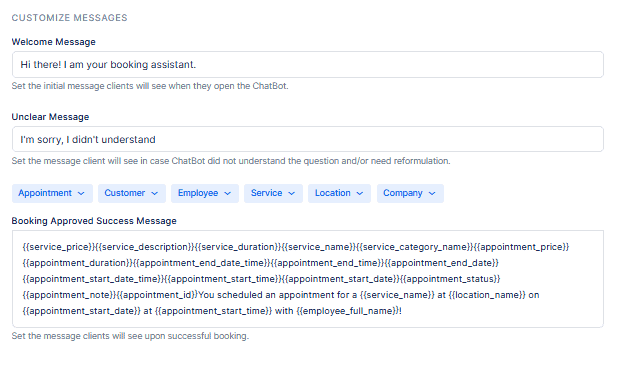
Welcome Message: This is the first text customers see when they open the chat. It establishes the tone and gives brief instructions on how to continue. A default example is provided, but you can replace it to match your Bookablesites tone and style.
Unclear Message: Shown when the Chatbot can’t interpret a request or provide a suitable answer. It helps set expectations and prompts customers to rephrase or try a different option.
Booking Approved Success Message: Sent after a booking is completed to confirm the appointment and share key details like date, time, and any special instructions. You can customize this message with dynamic placeholders to include specific booking information or extra notes for the customer.
Current Limitations
Unsupported features — current limitations of the Chatbot in bookablesites:
- Group Booking: The Chatbot cannot handle bookings for multiple people in the same time slot. Customers must book group services via the standard booking flow or contact your team.
- Service Extras: Extras or add-ons cannot be chosen through the Chatbot. Clients who want extras should complete the regular booking process on your site or reach out to staff.
- Recurring Appointments: The Chatbot does not support creating recurring bookings. Customers must schedule repeat appointments individually using the normal booking form.
- Online Payments: The Chatbot cannot process online payments. Customers must pay using on-site options or other payment methods available on your website.
Note: The product team is actively improving the Chatbot and may add these capabilities in future updates.