
The Recurring Appointments feature lets customers create bookings that repeat multiple times. They pick the date and time for the first appointment, then specify the recurrence pattern and how many repeats they want — all within a single booking flow.
Important: Enabling Recurring Appointments locks the Date & Time step into the 5th position. You won’t be able to move that step because all preceding steps must remain in place for recurring bookings to work.
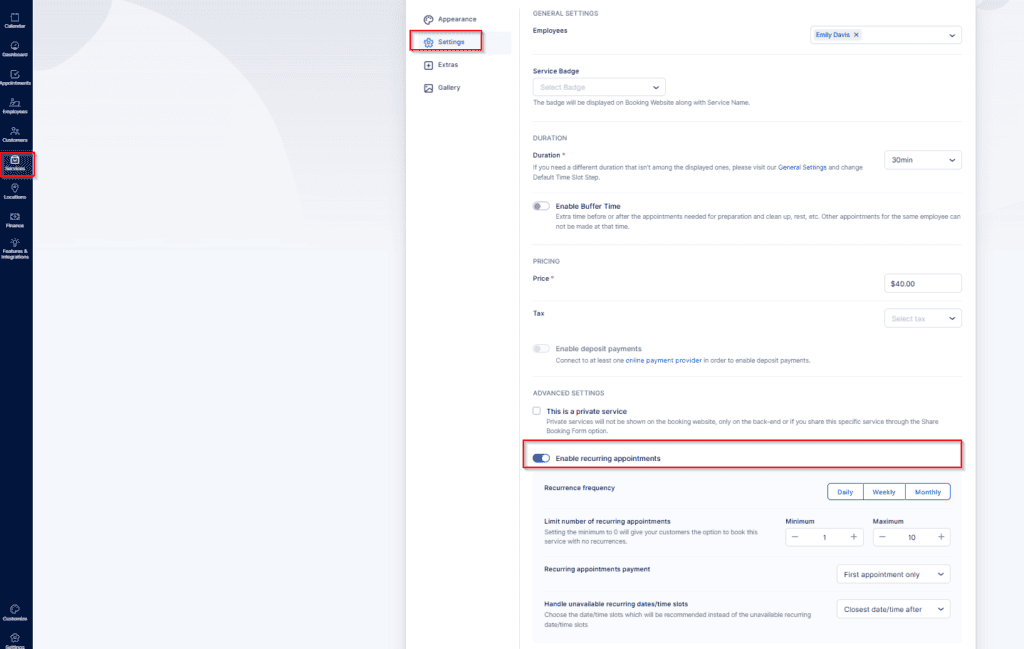
After activating this feature in Features & Integrations, a new option appears when editing a service under the Settings tab. Turning that option on exposes additional controls for recurring bookings:
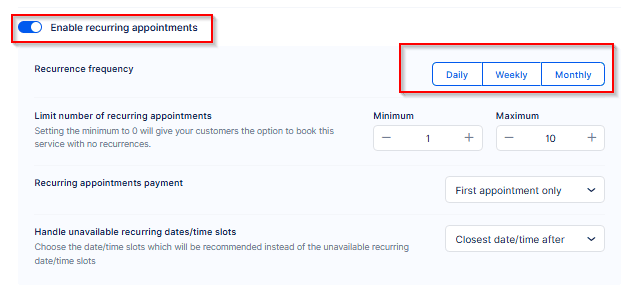
- Recurrence frequency — Choose Daily, Weekly, or Monthly. You can enable more than one frequency to give customers flexibility.
- Limit number of recurring appointments — Set a minimum and/or maximum number of occurrences for a recurring booking. Setting the minimum to 0 lets customers choose either a one-off appointment or a recurring series.
- Recurring appointments payment — Decide how customers pay:
- First appointment only — charge the initial session; remaining sessions are paid on-site or via Payment via Link.
- All appointments — charge the entire series up front.
- Handle unavailable recurring dates/time slots — Define how to react if one of the recurring slots becomes unavailable. Options include moving that occurrence to the closest available slot before, after, or generally nearest to the original time.
Eg. when minimum recurrences = 0:
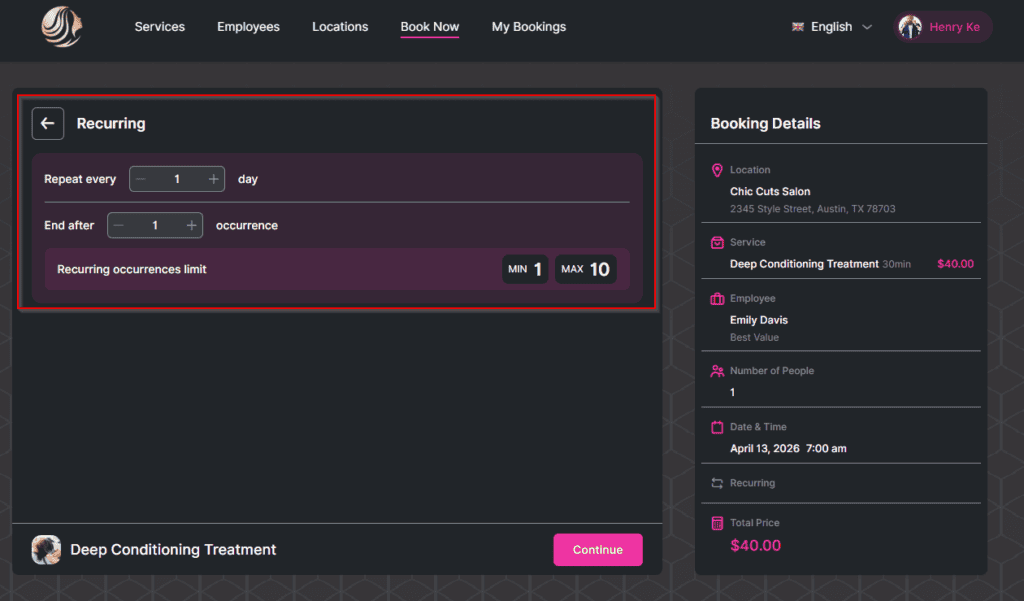
n your booking website, customers will see the recurring options for services where Recurring Appointments is enabled. For Daily recurrences, the Date & Time step shows:
- Repeat this appointment every X day(s) — customers enter the interval (e.g., 3 = every three days).
- End after X Occurrences — customers set how many total occurrences within the limits you configured.
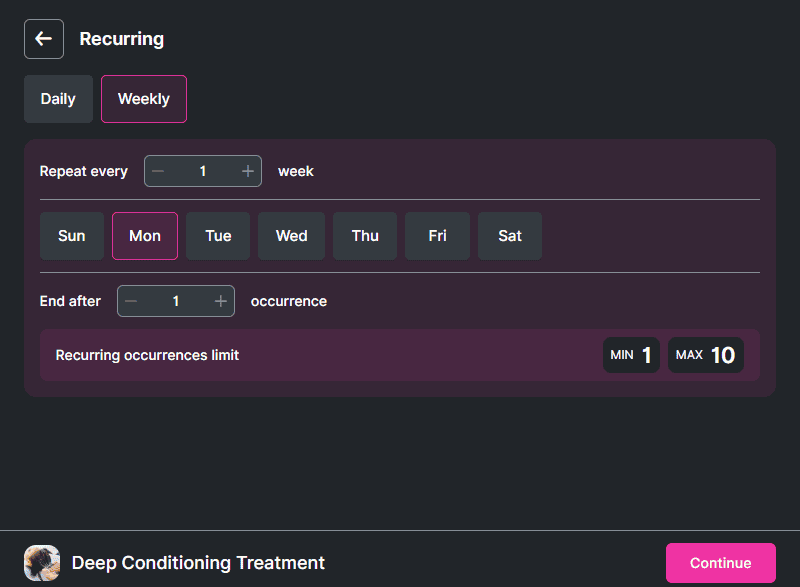
For Weekly recurrences, customers choose:
Repeat this appointment every X week(s) – This option determines how often the appointment will repeat in weeks. For instance, entering “1” means the appointment will be repeated every week.
Repeat this appointment every X day(s) — customers enter the interval (e.g., 3 = every three days).
End after X Occurrences — customers set how many total occurrences within the limits you configured.
For Monthly recurrences, customers choose:
Repeat this appointment every X month(s) — monthly interval (e.g., 1 = every month).
End after X Occurrences — total occurrences within your limits.
Repeat on a fixed date (e.g., “Repeat on 18th every month”) or on a specific day pattern (e.g., “Repeat on every third Monday”), based on their original Date & Time selection.
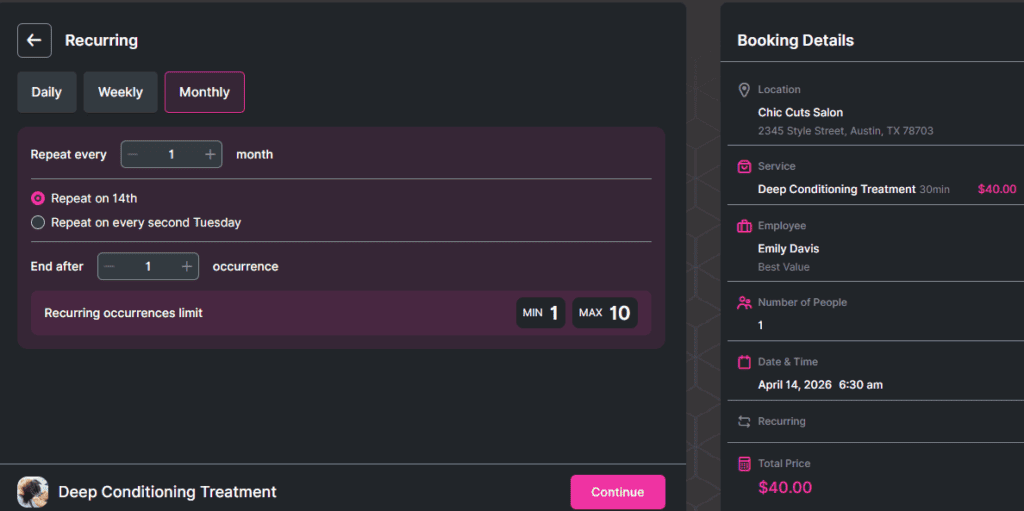
If the service minimum is set to 0, a “No recurrence” option will appear on the booking form, allowing customers to book a single, non-recurring appointment.
Admin-side scheduling and employee bookings After activating the Recurring Appointments feature and enabling it for a service, you can also create recurring appointments from the admin dashboard. Employees can book repeating appointments on behalf of customers.
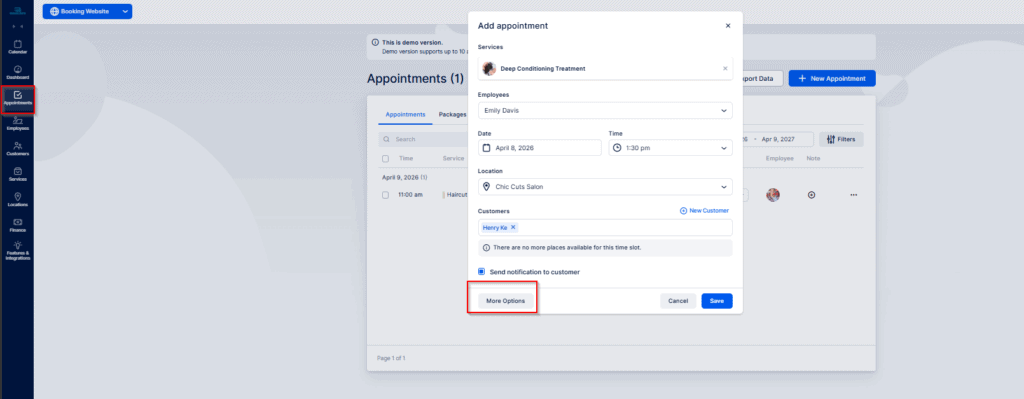
To add a recurring appointment from the back end, open a new appointment and click More Options for the detailed view.
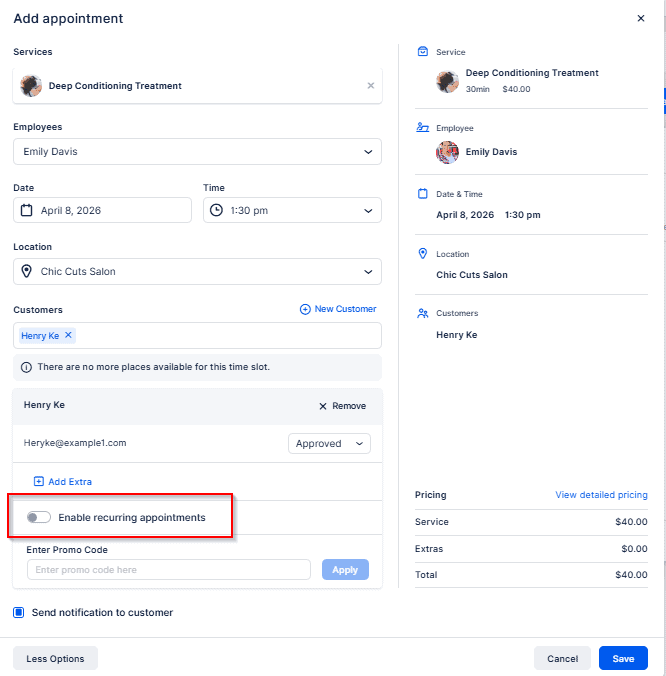
Fill in service, employee, date, time, and customer — the Enable recurring appointments option will appear.
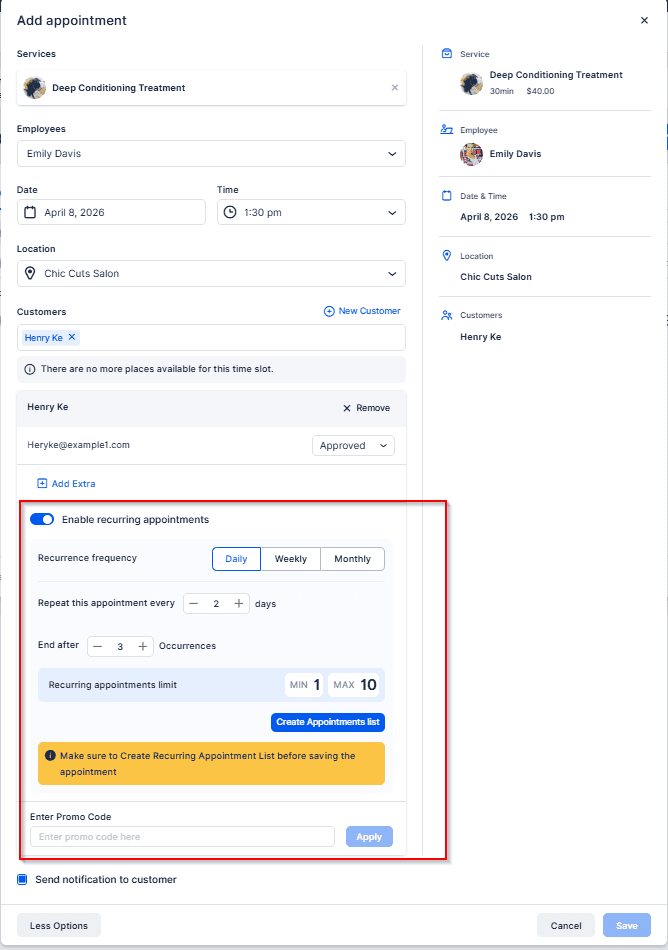
Configure the recurrence, click Create appointments list, then Save.
Booking overview and editing When customers complete their selections, they’ll see a list of all recurring appointments with dates and times. Any occurrences shifted due to unavailability will be marked. Customers can edit individual entries in the list to change times or remove appointments.
On your Appointments page, scheduled recurring appointments are indicated by a repeating symbol next to the service name, making them easy to identify.