
Payment Settings let you set up how transactions are handled. Before you can accept online payments, enable the Online Payments feature on the Features & Integrations page.
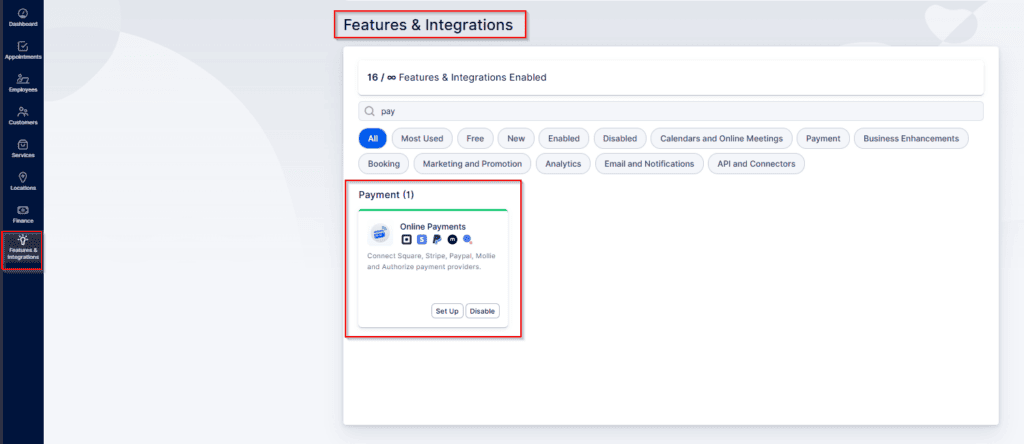
The Online Payments feature for bookablesites is a premium option and counts toward your total Custom Features & Integrations..
After the feature has been enabled, you will see all available online payment methods.
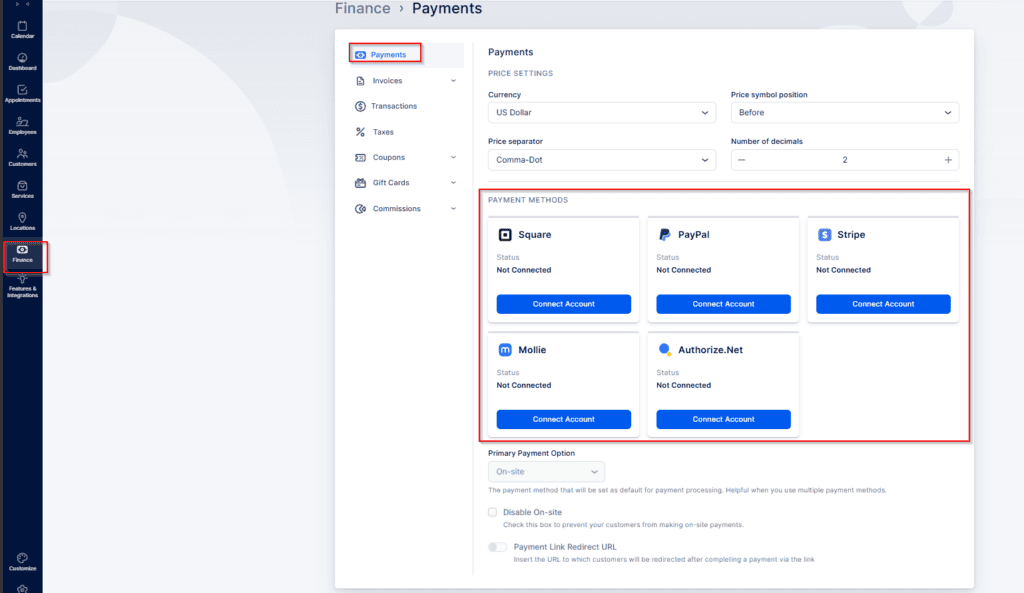
Once at least one online payment method is enabled, you will be able to:
- Once at least one online payment method is active, you can:
- Change the Primary Payment option (default: On-Site).
- Disable the On-Site payment method so bookings require online payment.
- Enable and configure the Payment Link Redirect URL — when used with the Payment via Link feature, customers who pay via link are redirected to this URL.
Square
Go to Features & Integrations → Online Payments → Set Up, then click Connect Account on the Square card. You’ll be sent to Square’s login page to sign in.
Square will request permissions required by Bookablesites.
Click Allow to complete the integration. After returning to Bookablesites, the Square card will show Disconnect Account, confirming a successful connection.
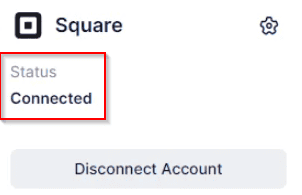
If your Square account has multiple locations, click the gear icon (⚙️) on the Square card to open Square Location Settings. Choose the default location for all Square payments and click Save. Note: different locations can use different currencies, but Bookablesites supports only one currency, so only one location may be selected.
PayPal
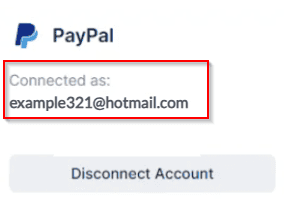
In Features & Integrations → Online Payments, click Set Up, then Connect Account on the PayPal card. You’ll be redirected to PayPal to sign in. After successful login you’ll return to Bookablesites and see confirmation of the connected email.
Note: only verified business PayPal accounts can be connected.
Stripe
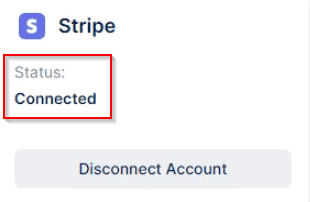
From Features & Integrations → Online Payments, click Set Up, then Connect Account under Stripe. Sign in on Stripe’s site and you’ll be redirected back to Bookablesites with the connection confirmed.
Available payment methods via Stripe
- Available payment methods via Stripe depend on country, currency, and account type, and commonly include:
- Credit/debit cards (Visa, Mastercard, AmEx)
- Apple Pay & Google Pay
- Klarna (pay later / installments)
- SEPA Direct Debit (EU)
- Bancontact, iDEAL, EPS (Europe)
- Alipay & WeChat Pay (China)
To check the full list of supported payment methods based on your country, currency, and use case, visit Stripe’s official guide here.
Note: only verified business Stripe accounts can be connected.
Mollie
- In Features & Integrations → Online Payments, click Set Up, then Connect Account on the Mollie card. Log in to Mollie to authorize website profiles and payment methods.
- Ensure you have at least one website profile and an active payment method in Mollie. In Bookablesites’ Online Payments settings, choose the Website profile to link.
- Note: Mollie requires the currency in bookablesites to be set to Euro, since Mollie supports only EUR across its payment profiles.
Authorize.Net
To connect Authorize.Net, enter your Authorize Login ID and Transaction Key (found in your Authorize.Net account under API Credentials and Keys). Generate a new Transaction Key if needed and follow the verification steps.
After entering credentials, click Save Credentials. Customers will then be able to pay by credit card through Authorize.Net.
This completes the connection between Trafft and Authorize.Net.
Note: Authorize.Net integration requires Bookablesites’ currency to be set to USD or CAD, as those are the supported currencies for Authorize.Net profiles.
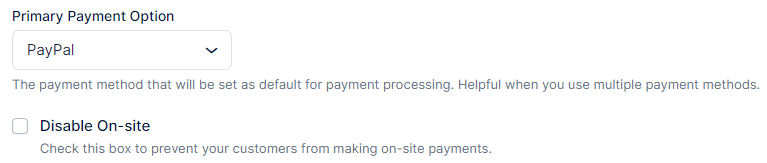
After connecting at least one online payment method, you may disable on-site payment by checking Disable payment on-site.
When you finish configuring payment options, click Save Settings. You can also choose a Primary Payment method from the dropdown to set the default.
Once Online Payments are enabled, you can set each service’s allowed payment methods. If Disable payment on-site is enabled, this is where you control whether a service accepts:
All (default) — customers can pay online or on-site
- Online only
- On-site only
Payment Link Redirect URL
If you use Payment via Link, you can specify the URL where customers are redirected after a successful payment.