
By default, all email notifications are sent from bookablesites’ no-reply@bookablesites.com address. However, to match your brand, you can customize the sender email address that customers see when they receive messages from bookablesites.
The Online Payments feature for bookablesites is a premium option and will count toward your total Custom Features & Integrations.
Enabling the SMTP feature
To set a custom sender email address, follow these steps:
- Open the “Features & Integrations” section in your Bookablesites admin dashboard.
- Find the “SMTP Email” feature and click “Enable” to turn it on.
- After the card refreshes, click the “Set up” button next to the SMTP Email feature to start configuring your custom sender email.
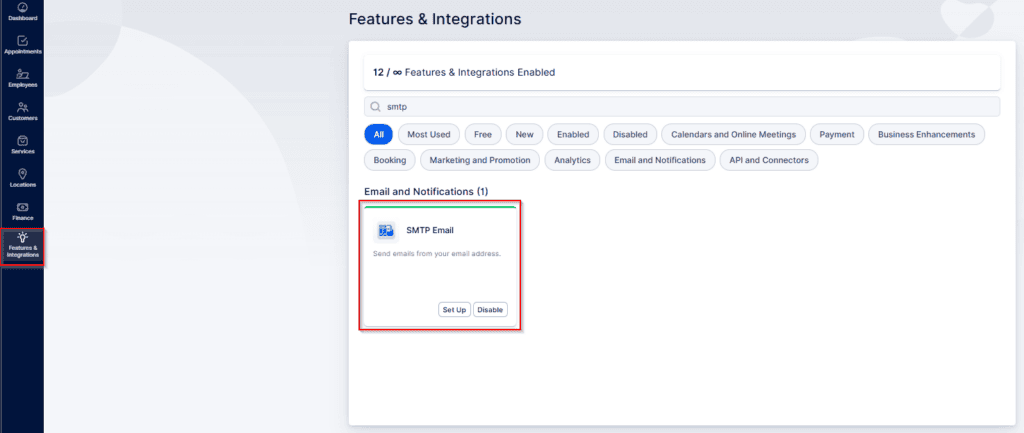
After clicking on “Set up” for the SMTP Email feature, you will be presented with fields to fill in your SMTP server details:
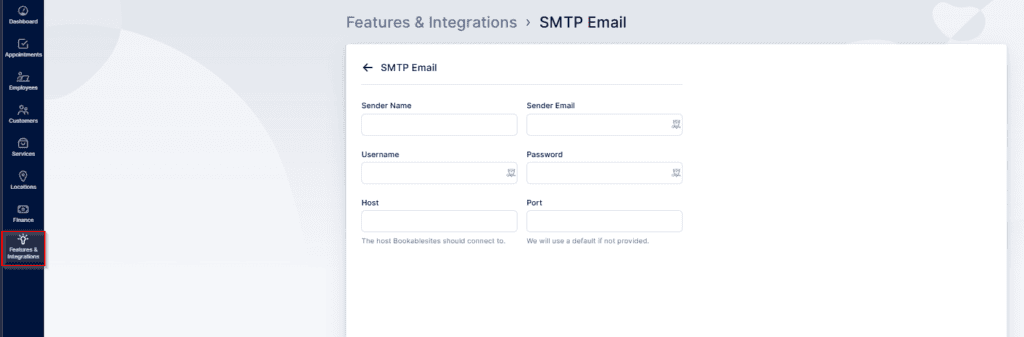
Below are the fields required to configure the SMTP Email feature for bookablesites, along with important setup notes:
Required fields
- Sender Name: Your name or business name — shown as the “From” name in recipients’ inboxes.
- Sender Email: The email address you want to use to send messages.
- Host: The SMTP server hostname provided by your email service (for example, Gmail’s is usually smtp.gmail.com).
- Username: Your full email address.
- Password: The password for that email account (or an App Password when required).
- Port: The SMTP port number from your email provider (common values for Gmail are 465 or 587).
- Save and Test Email: Click this to send a test message and verify the settings.
Bookablesites will then use these settings to send email notifications, displaying the specified sender name and email address to your customers.
Important behavior and limitations
The configured SMTP settings become the default sender for every outgoing email. bookablesites does not currently support separate SMTP configurations per employee. All notifications — appointment confirmations, reminders, updates — will use the same sender name and address.
App Passwords and provider-specific notes
- Gmail: If your account has 2-Step Verification enabled, you must create an App Password for bookablesites. Follow Google’s documentation for detailed steps.
- Microsoft / Microsoft 365: Accounts with 2-Step Verification require an App Password as well. For many business tenants, Security Defaults (enabled for tenants created on/after October 22, 2019) may block older protocols like IMAP, SMTP, or POP3. If that prevents connection, you may need to disable Security Defaults — follow Microsoft’s guidance for this process.
Note on App Password formatting
- App Passwords are often displayed with spaces, for example: “nbkp iezm megp jlgb”.
- When copying the password, the copy button should strip spaces automatically, but to be safe paste it into a plain-text editor (Notepad or similar) first and remove any spaces before pasting into bookablesites.
- If spaces remain in the App Password, connection errors will occur when attempting to authenticate with the SMTP host.