
Introduction to Resources in Bookablesites
The Resources feature in Bookablesites helps businesses manage shared assets, rooms, or equipment used by their services. It prevents double-booking, improves utilization, and ensures required resources are available when appointments are scheduled.
How Resource Booking Works
Add each resource to relevant services and assign them to employees or locations according to availability. bookablesites will check resource availability before confirming a booking so required equipment or spaces are reserved and ready for use.
Example If a service requires a specialized machine or a meeting room, add that item as a Resource and define its availability. bookablesites will automatically validate the resource during booking to avoid conflicts.
Notes on availability and pricing tier The Resources feature for Bookablesites is a premium add-on, counts toward your Custom Features & Integrations total, and is available only on the Scaling plan.
How to configure Resources?
How to enable and configure Enable Resources under Features & Integrations, click Set Up, and the option will then appear in the Services tab for assignment and configuration.
Feature disabled
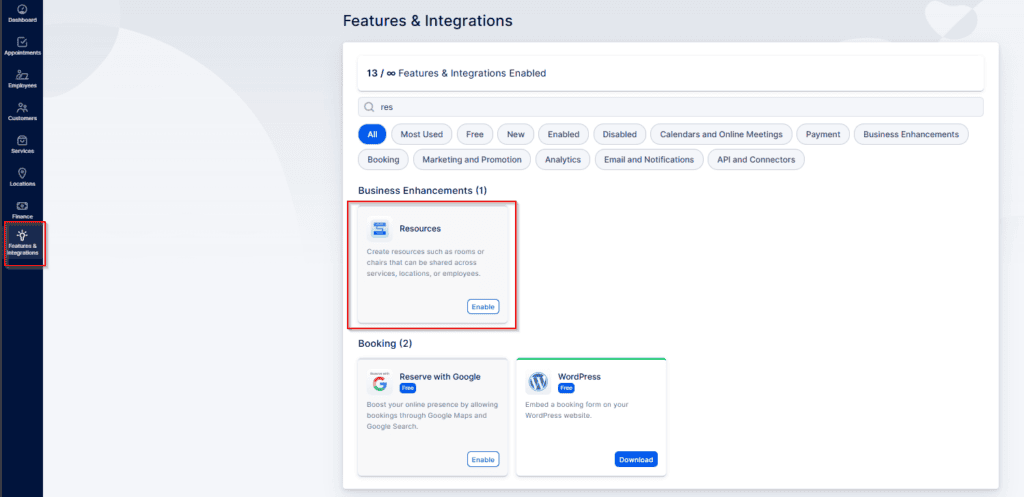
Feature disabled
This tab lists current Resources and lets you add new ones. Click Add Resources to open the following pop-up window:
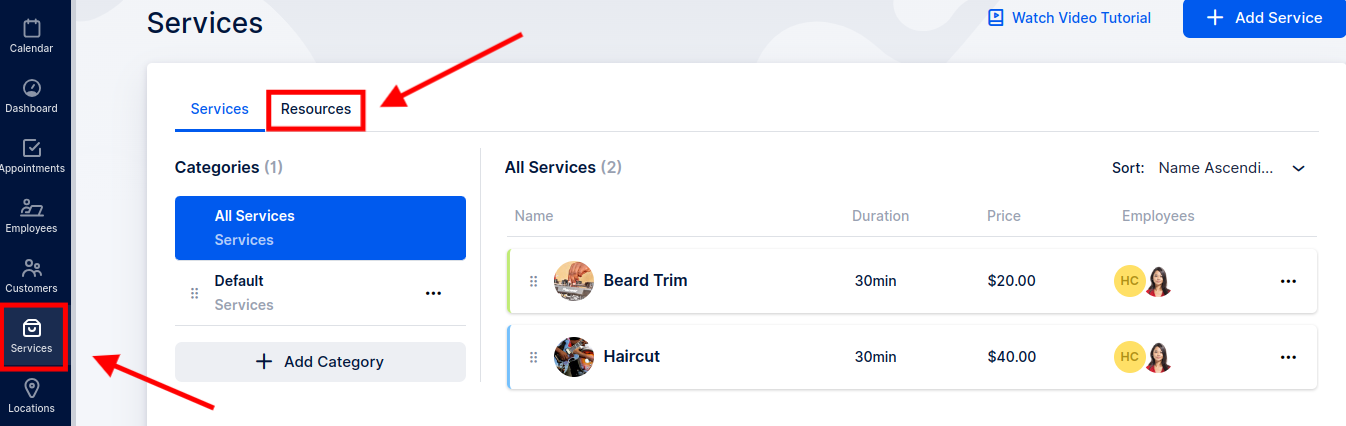
Add Resources
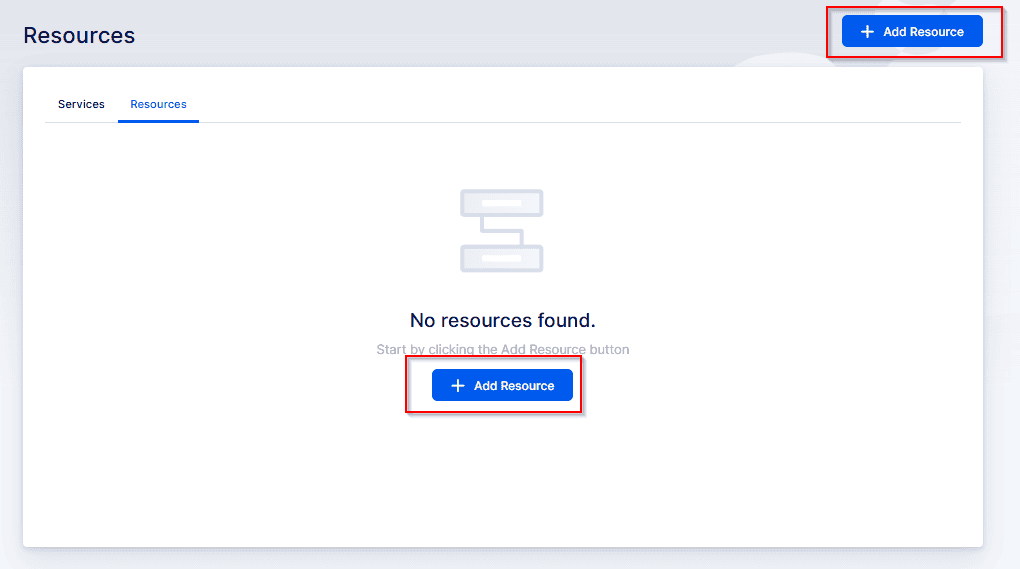
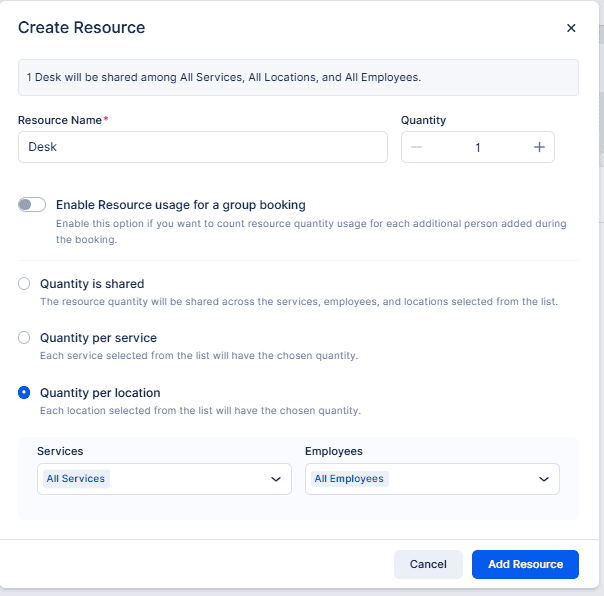
If you don’t have Locations created, the location drop-down menu won’t be visible when creating resources
Enter the resource Name (for example, “Chair”). Then choose whether the resource is counted per booking or per person.
- If “Enable Resource usage for a group booking” is off, the resource is applied per booking (not per person).
- If that toggle is on, the resource is applied per person in a group booking.
Next, set the Quantity of the resource.
Then choose how Bookablesites should allocate the resource:
- Quantity is shared — a single pool of this resource is shared across the selected employees, locations, and services.
- Quantity per service — set a separate quantity for each selected service.
- Quantity per location — set a separate quantity for each selected location.
If you leave services, locations, or employees unselected, Bookablesites will default to applying the resource to all services, locations, and employees.
Booking a Shared Resource
Use this setup when a fixed number of items is shared across the selected locations, services, and employees.
Example: You offer a Paintball service that’s a group booking with a 50-person capacity. Six employees (each with that same capacity) work at two sites: Paintball Field 1 and Paintball Field 2. You have 50 protective vests available per session and must prevent bookings from exceeding that supply.
Create a resource named “Paintball Protective Vests,” set Quantity to 50, and choose “Quantity is shared.” In Services select Paintball, in Locations pick both Paintball Field 1 and Paintball Field 2, and in Employees select All Employees. Enable “Resource usage for a group booking.”
With this configuration, bookablesites will enforce a 50-vest limit per session regardless of which location is used.
If you actually have 100 vests and want that supply applied per location instead, choose “Quantity per location” while leaving the other selections the same. This will allow up to 100 vests to be available per location.
Booking a Unique Resource
You can limit a resource for specific services or locations by using the Quantity per service and Quantity per location options in Bookablesites.
Quantity per Service
This option will assign the quantity of resources to each selected service.
Quantity per service
Example: Beard Trim Service — If you have three chairs dedicated to Beard Trim, set the resource quantity for that service to 3. When all three chairs are booked for the same time slot, no additional Beard Trim bookings can be made at that time, even if other employees are free. This ensures only three Beard Trim clients can be served simultaneously.
Purpose: Allocate a resource amount to each selected service.
Quantity per Location
Purpose: Assign resource quantities to each selected location.
Example 1: Barbershop Brooklyn — If the location has three chairs, set the resource quantity to 3 for that location. When three customers book the same time, the chairs are fully occupied and further bookings for that time are blocked, preventing overbooking of chairs at that site.
Example 2: Mixed services with limited rooms — Suppose you offer Epilation, Barber Trim, and Facial Treatment, each handled by different staff, but you only have two rooms (Room 1 and Room 2). Create the rooms as Locations in bookablesites. Barber Trim runs only in Room 1; Facial Treatment only in Room 2; Epilation can use either room and requires a single epilation machine (resource quantity = 1).
Set the resource allocation to Quantity per location.
In Services select All services (or the relevant ones).
In Employees select All employees (or the relevant ones).
In Locations select Room 1 and Room 2. This setup ensures the system tracks which room (and its resource) is free for Epilation, preventing conflicts and optimizing room utilization.
In this case the resource is the epilation machine (quantity = 1). Configure it as “Quantity per location.” Then set Services to “All services,” Employees to “All employees,” and choose both Room 1 and Room 2 in Locations. This arrangement lets bookablesites track which room (and its machine) is available for epilation at any time, ensuring efficient room usage and avoiding scheduling conflicts.