
The Ratings & Reviews feature in Bookablesites lets customers rate their appointments and the staff who served them. It’s a practical way to collect feedback, measure satisfaction, and make service improvements based on real customer input.
Getting Started
Go to Customize, find (or search for) “Ratings & Reviews,” and click Enable.
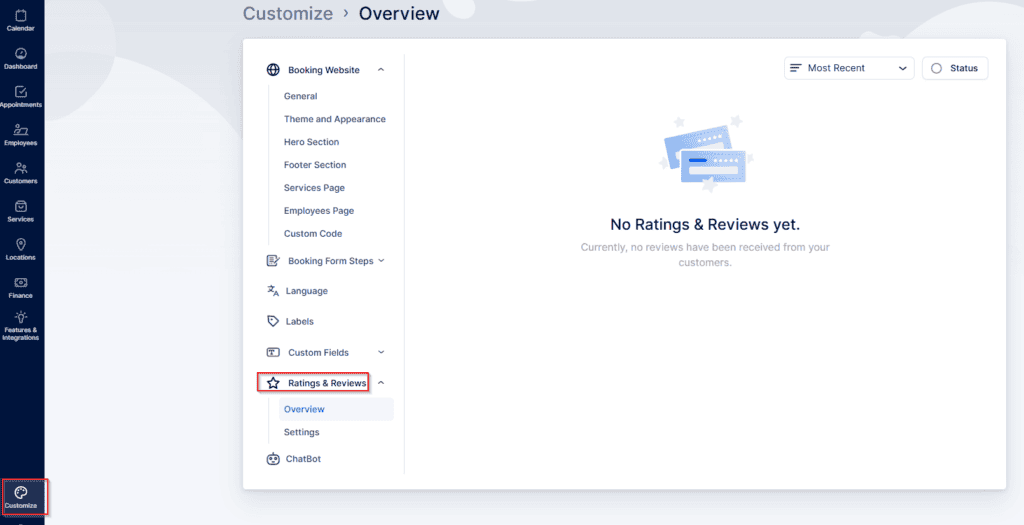
After enabling, click Set Up to open the Ratings & Reviews area. Initially it will be empty; once reviews arrive you can sort them by Most Recent, Lowest to Highest rating, or Highest to Lowest rating, and filter by status (Approved, Pending, Rejected).
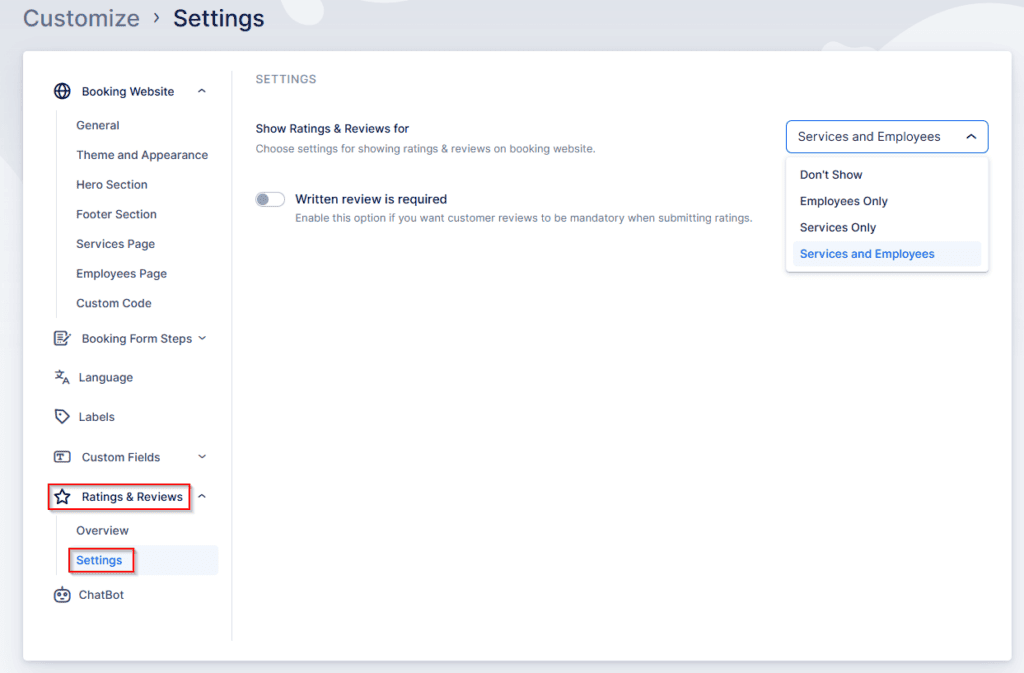
In Settings you can choose whether reviews appear on your booking site for both Employees and Services, only Employees, only Services, or not shown publicly (internal use only).
Optionally require a written review by enabling “Written review is required,” which prevents customers from submitting a star rating without a comment explaining it.
How it Works
- Customers need a direct link to leave a review. Add the review placeholder to any customer-facing email template (recommended: Appointment Follow-up).
- In Settings → Email Notifications, insert the {{appointment_rating_review}} placeholder as a hyperlink (it must be the link target, not used alone). Select the text to hyperlink, click the chain/link icon, and paste {{appointment_rating_review}} into the URL field.
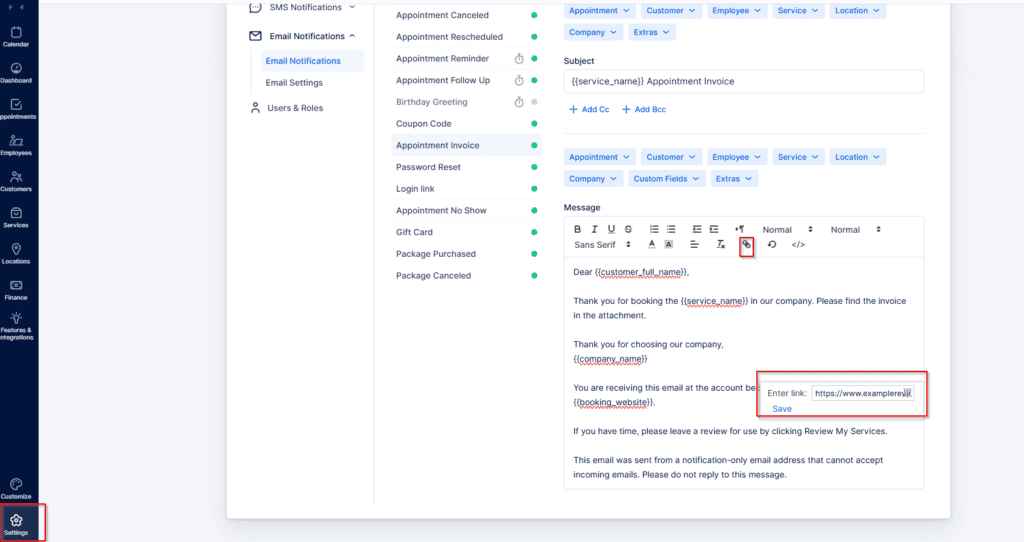

Click on “Save”, and you’ll see it as a hyperlink:

As mentioned before, you can add it to any notification template toward the customer, but since these should be provided after the appointment, we recommend using the “Appointment Follow-up” email template to configure this.
Customers, both guest and registered, can rate their experience on a scale of 1 to 5 stars and provide additional comments if they wish or as required.
Benefits
- Customer feedback: Learn what customers like and where to improve.
- Trust building: Display positive reviews on your booking page to increase credibility.
- Service improvement: Use real feedback to refine offerings and customer experience.