Upon entering the Settings page in BookableSites (found in the lower left area of the Admin section), you can adjust your Office Hours. The standard configuration is 07:00 – 15:00, Mondays through Thursdays. However, you can modify these times to match your business requirements.
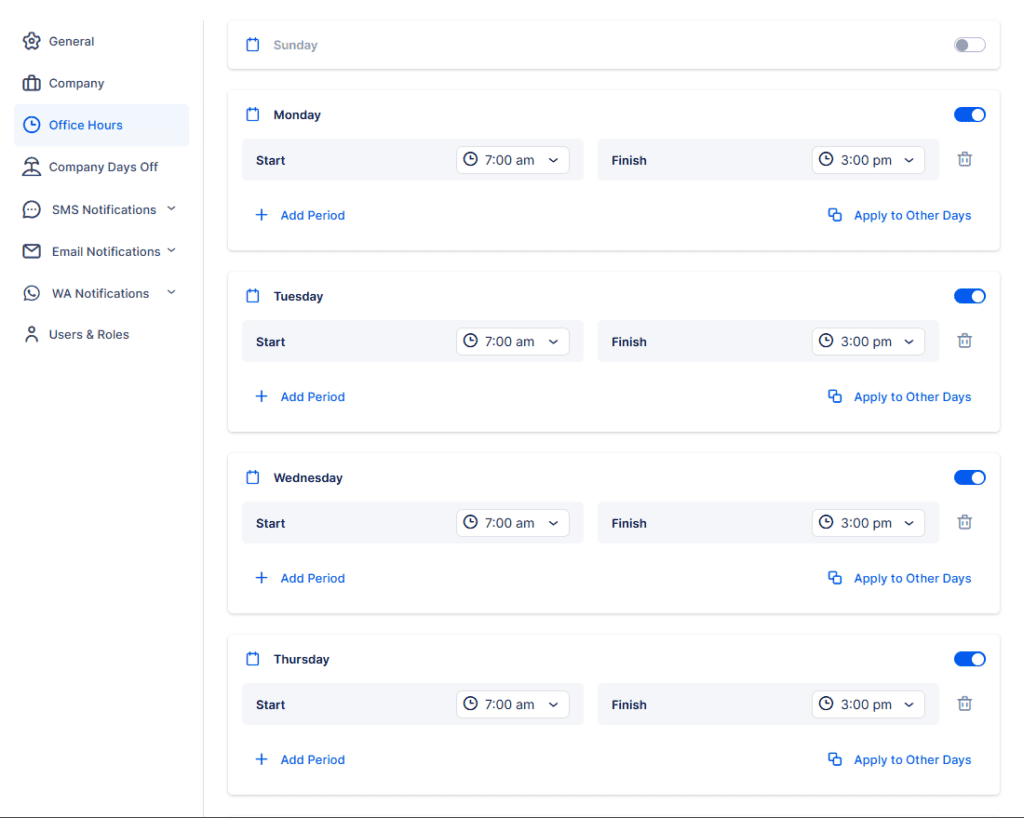
You can adjust the schedule to align with your company’s operating times. This offers you the option to:
- Split Hours: Create multiple time blocks to account for breaks or different shifts.
- Apply to All Days: Establish identical working hours across every day of the week.
- Apply to Custom Days: Set unique hours for individual days according to your business operations.
- Remove Specific Days: Eliminate particular days from your working hours setup.
For example, if your business runs from 07:00 – 12:00, then closes for lunch until 13:30, you can establish two separate time slots. This prevents bookings during the lunch break period. Refer to the image below for a demonstration:
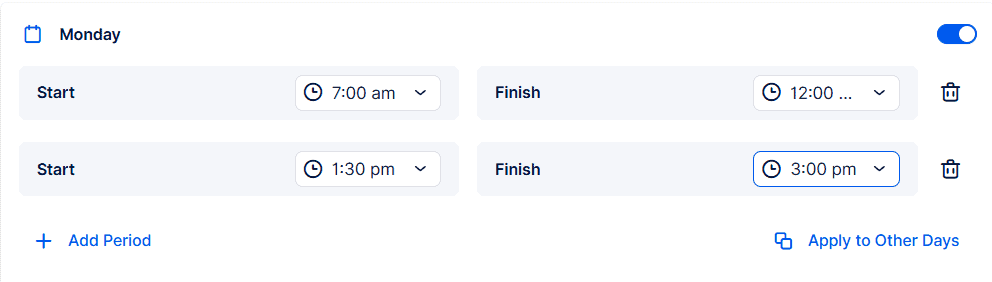
When adding multiple time slots to a single day, you must enter them chronologically. For example, input 07:00 – 12:00 before adding 13:30 – 15:00. The sequence is crucial because the first time slot you enter will restrict access to earlier times. If you input 13:30 – 15:00 prior to 07:00 – 12:00, you’ll be unable to add the morning slot later.
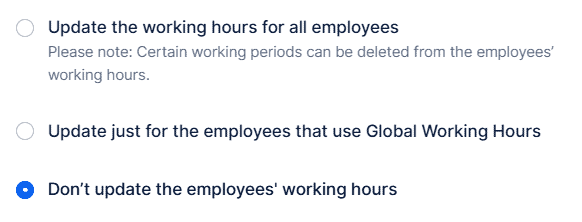
Office Hours configurations automatically apply to all newly created employees. However, when you have current employees with personalized Working Hours and you modify the office hours, you’ll be presented with three options:
- Update Working Hours for All Employees: Choose this option to update the working hours for all employees, including those who have customized their working hours.
- Update Working Hours for Employees Using Global Working Hours (Office Hours): Select this option to update the working hours only for employees who are using the Global Working Hours (Office Hours) setting. Employees with individual working hour configurations will not be affected.
- Do Not Update Working Hours: Opt for this option if you prefer not to update the working hours of your employees. This maintains their current individual working hour settings but leaves the changes you’ve made to the Office Hours redundant.