
General Settings are created to enable you to set up basic settings that will be implemented across the whole application. Presently, these settings are organized into two primary sections:
Appointment Settings
Global Settings
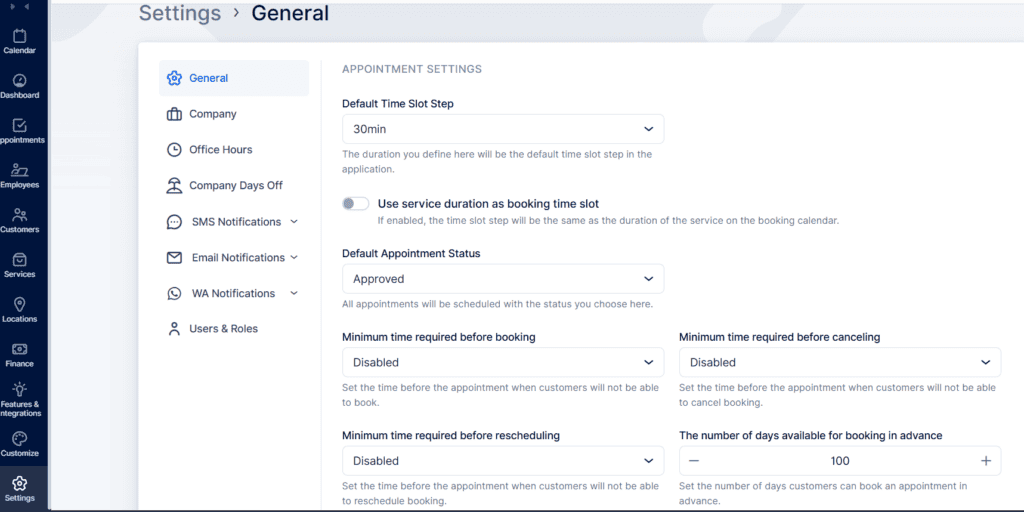
To access them, click on the “Settings” icon in the bottom left corner of your Admin section.
Appointment Settings
In the Appointment Settings section, you’ll find essential configurations for managing time slots and appointments within Bookablesites.
Default Time Slot Step
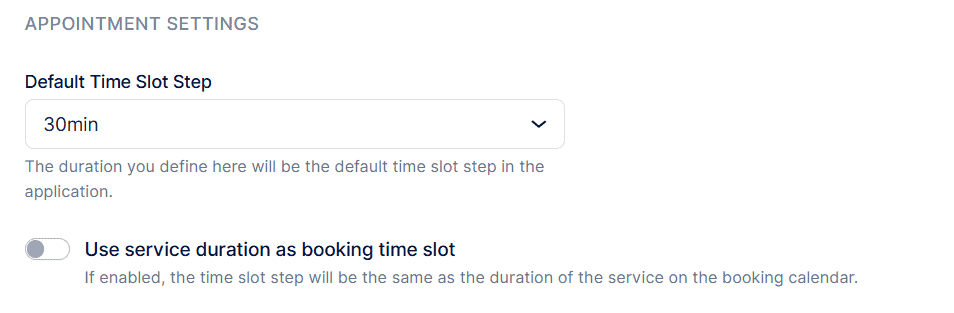
Default Time Slot Step: This setting controls the time intervals used across the application for different durations, such as staff working hours, special days, service lengths, and buffer periods. By default, it is configured to 30 minutes, but you have the option to modify it based on your requirements. It’s important to understand that all durations in Bookablesites must be divisible by this number. For instance, if you want to provide a service lasting 2 hours with buffer periods of 5 minutes, the Default Time Slot Step should be configured to “5 minutes”.
Use service duration as booking time slot: This option impacts how time slots are displayed to your customers: Disabled: With this feature turned off, the Default Time Slot Step will establish the available booking intervals. For example, if your default time slot step is configured to 5 minutes and your service runs for 1 hour, available time slots will be 09:00 – 10:00; 09:05 – 10:05; 09:10 – 10:10, and so on. When a client schedules an appointment, the service length will restrict nearby time slots. For instance, if a client reserves an appointment at 09:55, the slots preceding and following this time will be restricted due to the 1-hour service.
Enabled: When this option is enabled, the length of the appointment (service length + additional durations) will establish the available time slots. For instance, if the service runs for 1 hour and an additional 30 minutes, the appointment length will be 1.5 hours. Assuming the staff member works from 09:00 – 17:00, the available time slots will be from 09:00 – 10:30, then 10:30 – 12:00, and so on.
Enabling this option also allows you to utilize the “Add buffer time to the duration of the service when showing time slots” setting. This feature incorporates configured buffer periods into the appointment length. For example, with a 30-minute buffer period added to the previous scenario, the appointment length would be 2 hours instead of 1.5. As a result, available time slots would be from 09:00 – 11:00, then 11:00 – 13:00, and so on.
Status and Time Limitations
The following options will apply to all appointments in Bookablesites. However, please note that “Minimum Time Required Before Booking” and “Number of Days Available for Booking in Advance” can also be set up per service. If these two options are configured differently within Service Settings, they will take precedence over the global settings established here.
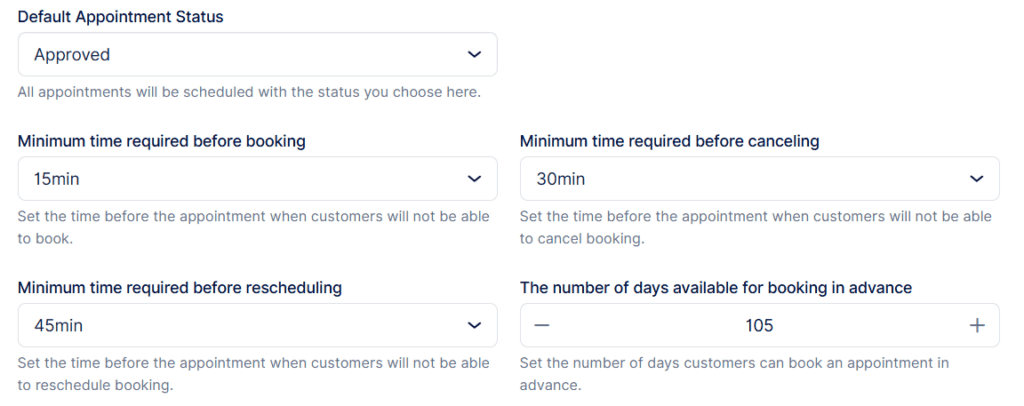
Default Appointment Status: This setting establishes the initial status of all appointments when booked. By default, it is configured to Approved, meaning all appointments will be created with the approved status. When email/SMS/WhatsApp notifications are set up, this status will automatically trigger the “Appointment Approved” notification for both clients and staff members. Modifying the status to Pending will require all appointments to be manually approved by the site admin/superadmin or the designated employee. Please note that even if the default status is configured to “Approved,” Group Appointments with a minimum capacity established above “1” will initially be in the “Pending” status until the minimum capacity is met. Once the minimum capacity is achieved, the status will automatically change to “Approved.”
Minimum Time Required Before Booking: You can set a minimum lead time before an appointment, preventing customers from booking too close to the start. For example, if you set it to 1 day, customers won’t be able to book any slot occurring within the next 24 hours from when they visit the Bookablesites page. By default, this setting is Disabled, so customers can book at any time—even as little as 5 minutes before the appointment begins.
Minimum Time Required Before Canceling lets you define a minimum notice period before an appointment during which customers can’t cancel. For example, if you set it to 2 hours, cancellations won’t be allowed within the final 2 hours before the appointment starts. By default, this is Disabled, so customers can cancel at any time—even up to 5 minutes before the scheduled start.
Minimum Time Required Before Rescheduling: Bookablesites gives you the option to block customers from rescheduling appointments on short notice. You can specify a time frame before the appointment when rescheduling isn’t permitted. For example, if you choose 1 hour, customers won’t be able to reschedule any appointment that’s set to begin within the next hour. By default, this restriction is Disabled, so customers can reschedule whenever they like, even just 5 minutes before the appointment starts.
Period Available for Booking in Advance: This setting determines the number of days in the future when customers can book appointments. The default is set to 100 days. If you prefer to limit how far in advance customers can book, simply adjust this number to fit your needs.
Global Settings
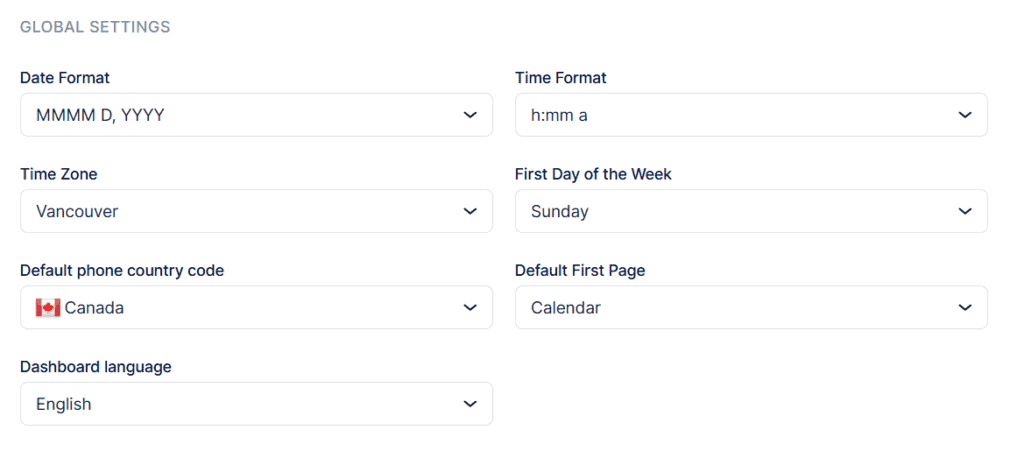
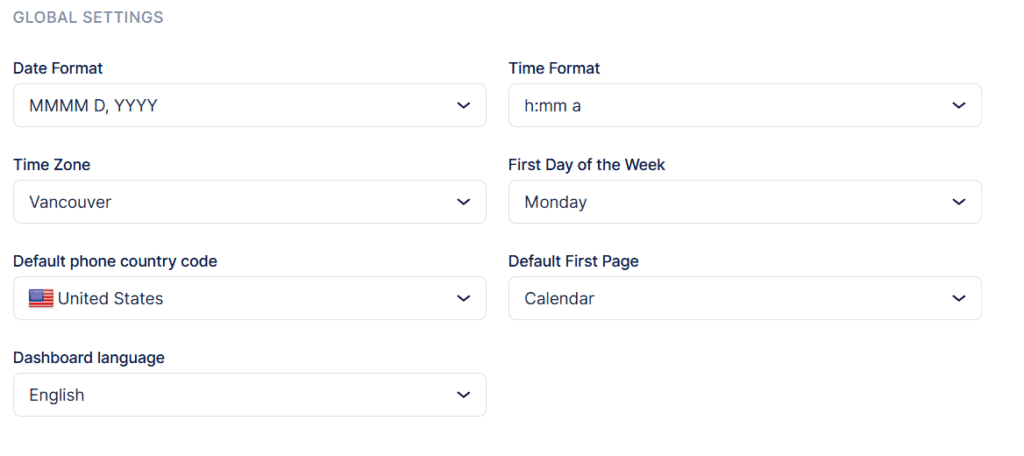
These options include the formats you use, your business’s time zone, and certain backend display preferences.
Date Format: Pick from multiple international date formats and choose the one that works best for you and your clients.
Time Format: Just like with date formats, Bookablesites lets you set your preferred time display. You can select either the 12-hour or 24-hour format.
Time Zone: Set the time zone your business operates in. This will apply to all staff unless someone works from a different time zone. You and your team can adjust this setting through the Employee panel. Choosing the right time zone helps show accurate booking times for businesses working in one location. Customers will view available slots in their own local time zone, but how this appears can be changed in the Customize section. Check that page for details on how customers see booking times.
First Day of Week: Set which day you want the work week to start on. Monday is the default, but you can pick any day. Updating this will make the calendar show your selected day as the beginning of each week.
Default Phone Country Code: Set the default phone country code used in your country. This chosen code will be applied throughout the application.
Default First Page: Select which page you want to see first when you enter the admin area. By default, it opens to “Calendar,” but you can switch it to “Dashboard” or “Appointments” if you prefer.
Dashboard Language: At the moment, the dashboard supports English, Brazilian Portuguese, Czech, German, French, Italian, Dutch, Russian, Spanish, Serbian, Swedish, and Thai. More languages will be added as translations are finished. If you’d like to help translate Bookablesites, please contact our support team at info@bookablesites.com.