
The Users and Roles page allows you to effectively control your BookableSites account by establishing different permissions through specific roles. This section displays your existing users and their corresponding role assignments. BookableSites currently offers three role categories: Superadmin, Admin, and Employee.
The Superadmin role is automatically granted to the individual who registers the BookableSites account and sets up all related employees. With Superadmin privileges, you have complete access to all functionalities, such as viewing every booking, customer information, and employee data, plus the ability to access financial pages and settings. Your dashboard presents comprehensive business analytics.
The remaining two roles, Admin and Employee, may be allocated to any staff members established by the Superadmin through the Users page, where Employee is the standard designation. When login access is provided to Employee role users, they can enter their BookableSites profile in the administrative area, viewing exclusively their scheduled appointments via the Appointments List and Calendar interface. They can also update personal details, modify passwords, and link with Zoom, Google, or Outlook Calendar based on available integrations.
Likewise, providing login access to Admin role users permits entry to all BookableSites administrative pages, except those containing BookableSites subscription and payment information.
Important: Superadmin accounts cannot be deleted, and users are unable to delete their own profiles from the Users page.
You’ll find the Users and Roles page in the Settings section. Upon opening it, you’ll see two sections: the User section showing each person’s complete name and the Role section indicating their designated role.
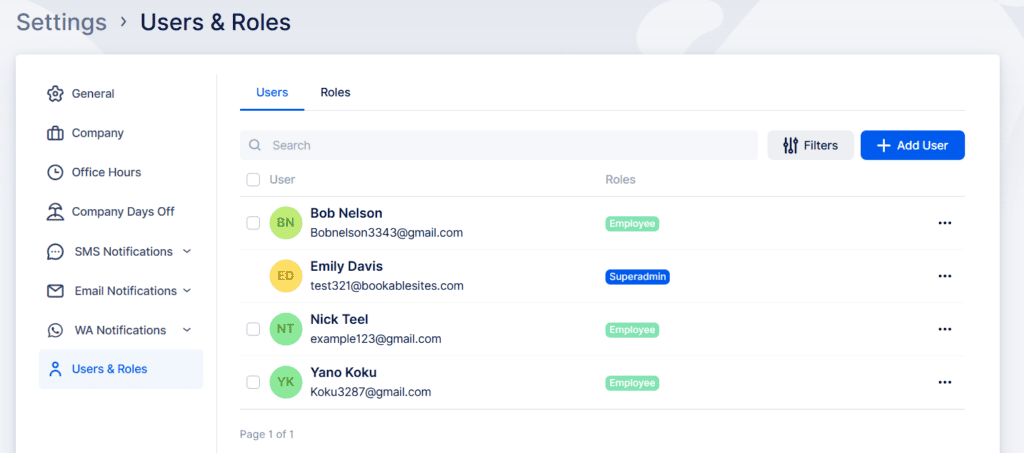
On the Users and Roles page, you can create new users by selecting the “+Add User” button. The system allows you to sort users by their assigned roles and locate specific users through name searches. To remove multiple users at once, utilize the checkbox beneath the search bar to select all current users for deletion.
Next to every user entry, you’ll see a three-dot menu ( … ) option. Clicking on it provides choices to edit, delete the user, or enable login/reset the password.
- The “Edit User” option lets you update the user’s first and last names, email address, and change their assigned role. When you enable the “This user is available for booking” setting in the edit user window, that person becomes bookable for appointments through BookableSites.
- The “Enable Login” option permits the super administrator to establish and distribute passwords for employees’ first-time account setup. You can choose to generate an automatic password by selecting “Auto-generated password” or create a custom password using the “Create password manually” option. You also have the ability to email the login credentials directly to the user through the “Send login information to the user” selection. As an alternative, you can require users to create their own password when they first log in by selecting “Require user to choose a new password on first login,” which automatically deactivates the other settings.

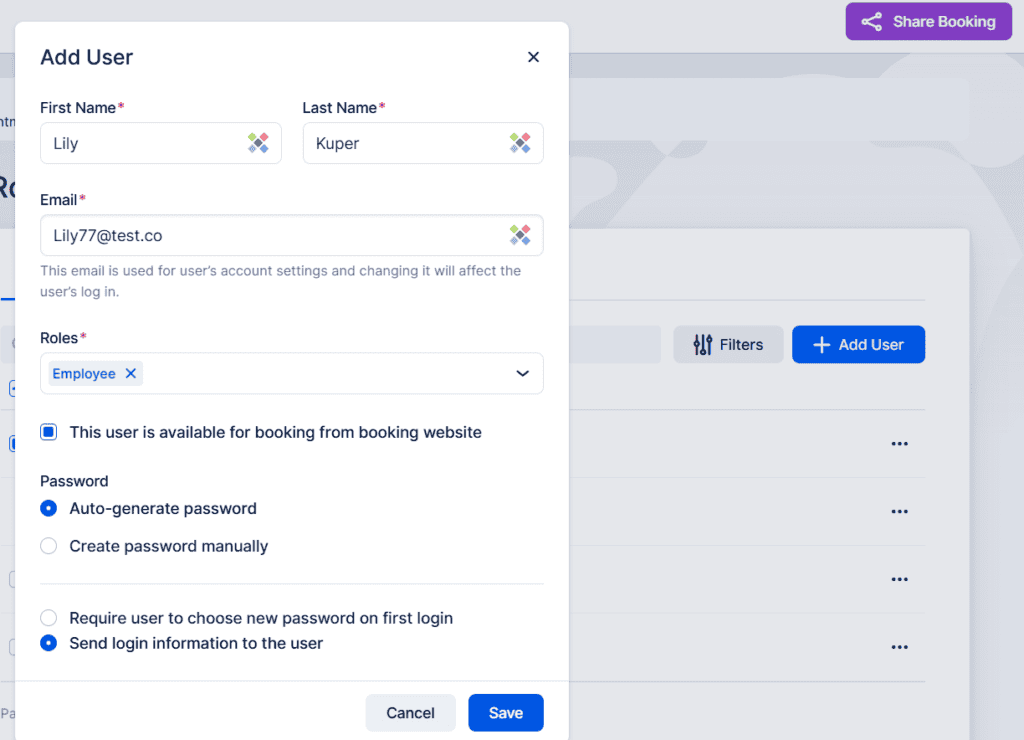
- When the user has already accessed their profile, the “Enable Login” function changes to “Reset Password,” which lets you create a new password using the same process as the initial setup.

Beyond the three standard roles available in your BookableSites account, you have the option to set up Custom Roles. This functionality allows you to design unique roles and specify exactly which permissions to grant each one.