
Payments Settings
The Payments section in Bookablesites’ Finance tab lets you set the currency, price separator, currency symbol position, and number of decimals shown to customers.
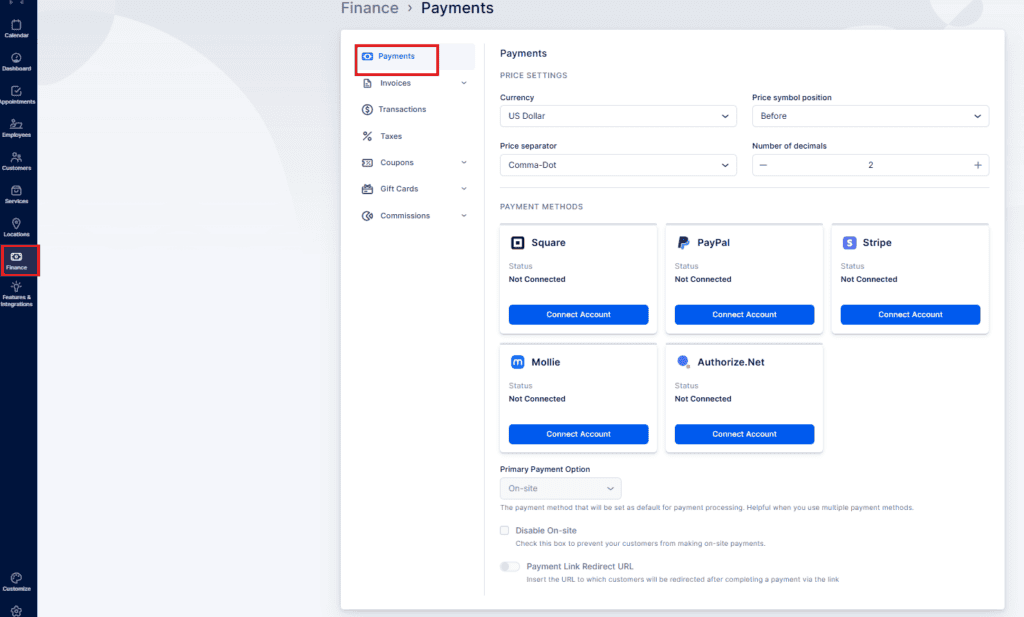
Price Settings
Currency – choose the currency displayed with prices and used for payments. You can speed up selection by searching for the currency. The default is US dollar. Note: only one currency is supported across the app.
Price Symbol Position – pick where the currency symbol appears: Before, Before with space, After, or After with space. The default is Before (example: $100).
Price Separator – choose how numbers are separated: Comma-Dot, Dot-Comma, or Space-Comma. The default is Comma-Dot (example: 15,000.00).
Number of Decimals – set how many decimal places are shown. The default is 2 (example: 15,000.00).
The default setting is 2, resulting in a price format like this: 15,000.00.
Payment Methods
The default payment method in Bookablesites is On-Site; no extra features are required. With On-Site, customers can book without paying during the booking process.
If you add your Company Bank Account Number in Company Settings, the invoices sent to customers will include it so they can pay via bank transfer.
When you first open Payments settings, you’ll see information about this and a button to go to the Features page to enable additional payment features.
To use online payment methods, first enable the Online Payments feature on the Features & Integrations page
After enabling it, available online payment methods will appear. Once at least one online method is enabled, you can:
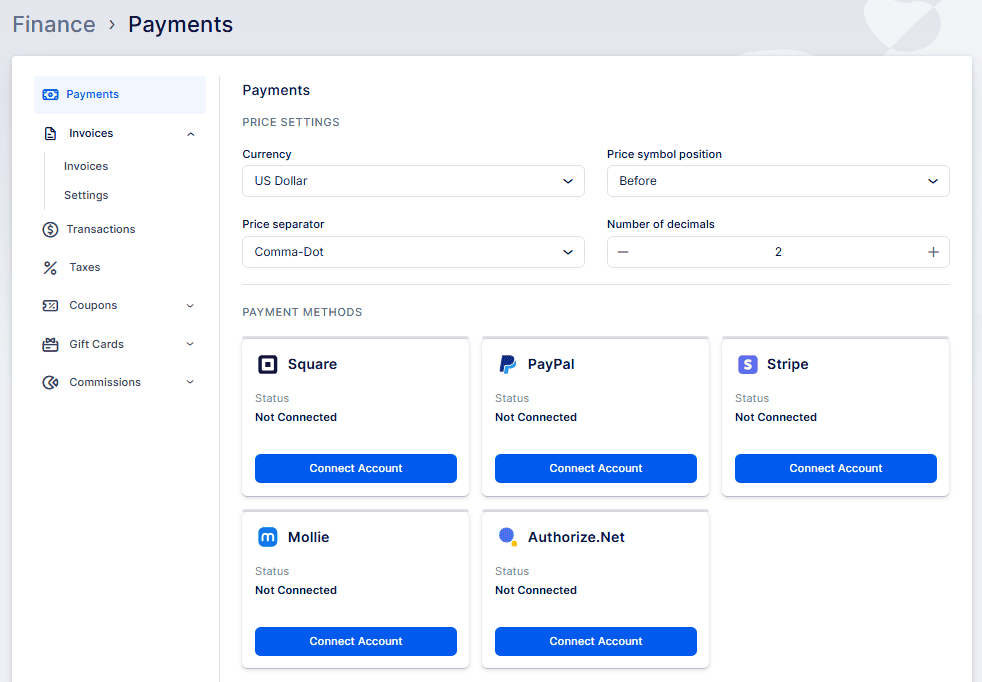
Once at least one online payment method is enabled, you will be able to:
- Change the Primary Payment option (default: On-Site);
- Disable the On-Site payment method so bookings require payment;
- Enable and configure the Payment Link Redirect URL — if you use Payment via Link, customers will be redirected to this URL after paying via the link.
To read more about Payment via Link, please click here.
PayPal
PayPal To connect PayPal, go to Features & Integrations > Online Payments and click Set Up, then Connect Account on the PayPal card. You’ll be redirected to PayPal to sign in; after successful login you’ll return to bookablesites with a confirmation showing your email.
Note: only verified business PayPal accounts are supported.
Stripe
Stripe To connect Stripe, go to Features & Integrations > Online Payments, click Set Up, then Connect Account under Stripe. Sign in on Stripe’s page; after a successful login you’ll be redirected back to Bookablesites with a confirmation.
Note: only verified business Stripe accounts are supported.
Mollie
Mollie To connect Mollie, go to Features & Integrations > Online Payments, click Set Up, then Connect Account next to Mollie.
ou’ll log in to Mollie, connect/authorize website profiles and payment methods, and can manage transactions, refunds, chargebacks, permissions, and payment page design from your Mollie account. Ensure you have at least one website profile and an active payment method in Mollie. On Bookablesites’ Online Payments page, choose the Mollie Website profile to connect.
Note: Mollie requires the currency in Bookablesites to be set to Euro, as Mollie payment profiles support only EUR.
Authorize.Net
To connect Authorize.Net, enter your Authorize login ID and transaction key. Get these from your Authorize.Net account under API Credentials and Keys: copy the API Login ID as “Authorize login ID” and create a New Transaction Key, verify your email, then copy the Current Transaction Key as “Authorize transaction key.”
After entering the necessary credentials, be sure to select the “Save Credentials” option. Subsequently, your customers will have the option to make credit card payments through Authorize.Net
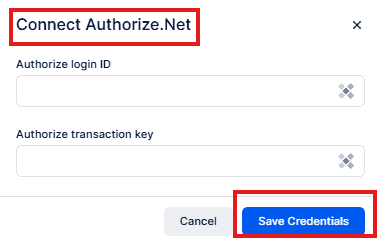
This completes the connection between Bookablesites and Authorize.Net.
Note: Authorize.Net requires Bookablesites’ currency to be set to USD or CAD. This is necessary as these two currencies are the only supported currencies across all payment profiles in Authorize.Net.
After connecting at least one online payment method, you can disable On-Site payments by checking “Disable payment on-site.”
When you finish configuring payments, click Save Settings. You can also set the Primary Payment method from the dropdown.
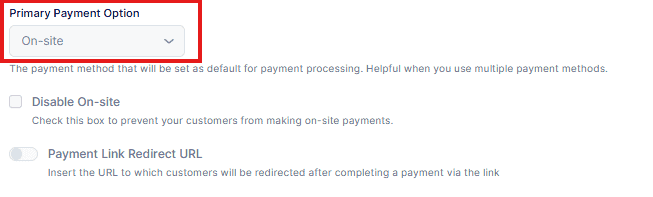
Once Online Payments are enabled and connected, you can choose the payment method per service (this option appears if “Disable payment On-Site” is enabled)
In each service’s settings, the Payment Method option (default: All) lets customers pay online or on-site. You can configure a service to accept online-only, on-site-only, or both.
Square
To connect Square, go to Features & Integrations > Online Payments, click Set Up, then Connect Account on the Square card. Sign in on Square’s page; after success you’ll return to Bookablesites with a confirmation showing your email.
Payment Link Redirect URL
If you use a payment link to collect payments, you can define the URL to which customers will be redirected after a successful payment.