
Discounts and promotions are powerful ways to retain current customers and attract new ones. Bookablesites supports coupon codes so you can create unique offers to share with clients. Customers can apply these codes during booking—whether it’s a percentage discount or a special deal—making bookings more appealing and improving customer satisfaction.
Note: Coupons are a custom feature and must be enabled in Features & Integrations before you can use them.
Creating Coupons
Once you’ve enabled the feature in Features & Integrations, open the Finance page from the left menu and click Coupons to expand that section. From the Coupons dropdown you can create new coupons, manage existing ones, or view coupon usage history. To create a coupon, select the Coupons dropdown option.
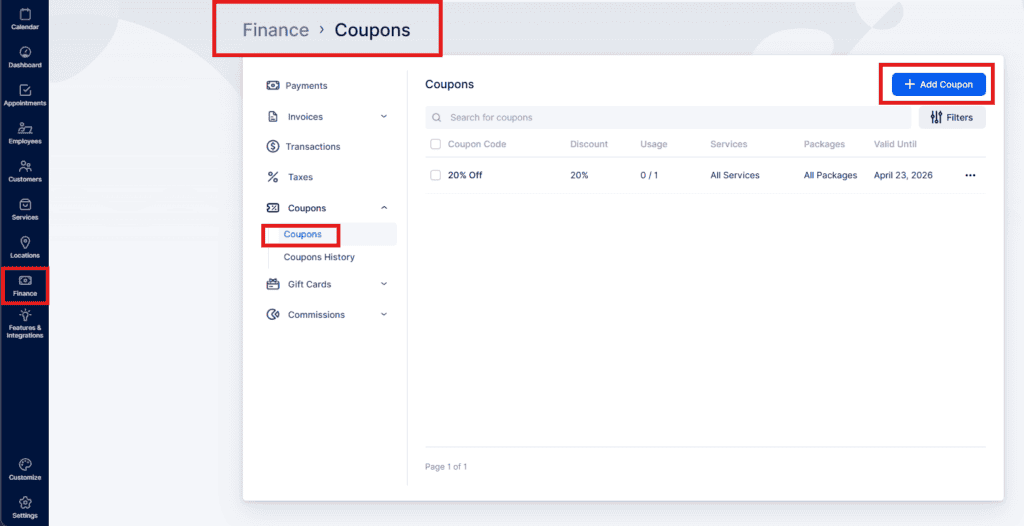
When you open this section, click the “+ Add Coupon” button at the top right to create your first coupon. Two fields are required:
- Coupon Code: The code you’ll distribute to customers (for example, BIRTHDAY2024).
- Expiration Date: The date the coupon becomes invalid.
The other settings are optional:
- Usage Limit: Total number of times the coupon can be redeemed (e.g., setting 5 allows five uses). Enable “Coupon has no usage limit” to allow unlimited redemptions until the expiration date.
- Limit Per User: How many times a single customer can use the same coupon (e.g., 1 restricts each customer to one use). Enable “Coupon has no limit per user” to remove this restriction.
- Services: Choose whether the coupon applies to all services or only specific services you select.
- Discount Type: Select how the discount is applied — a fixed amount (e.g., $10 off) or a percentage (e.g., 10% off all selected services).
- Send Coupons to Customers: This is turned on by default. If you do not enable “Manually select customers” or use “Filter customers,” the coupon will not be mailed to anyone. Disable this option if you prefer to distribute the coupon privately (for example, in person or via a direct message).
- Manually Select Customers: Pick specific customers to receive the coupon. After saving, those customers will receive the coupon by email.
- Filter Customers: Use filters to target recipients who meet certain criteria, such as customers who:
- Had appointments between two dates,
- Used certain service(s),
- Had appointments at specific location(s),
- Booked with a particular employee,
- Booked a number of appointments greater than or less than a set value,
- Have total booked appointment value greater than or less than a set amount.
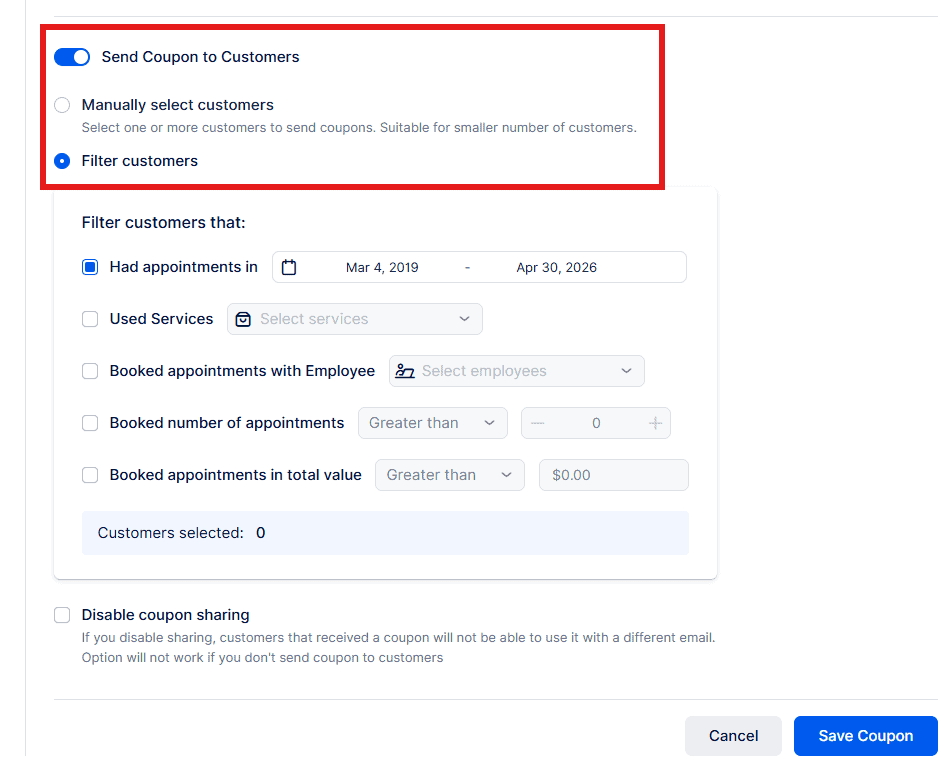
- Disable coupon sharing: When sharing is turned off, a coupon sent to a customer cannot be used with a different email address. This setting only applies when coupons are actually sent to customers.
Coupon History
In the Coupon History section you can review how each coupon was applied to appointments. The log shows which customer redeemed the coupon, which services were booked, and which employee provided the service. The last two columns display the appointment total and the discount amount applied via the coupon. You can search the history and filter results by Service, Employee, or Customer