
Integrate Zoom — a leading platform for enterprise video communication — to schedule and manage online meetings, including audio, chat, or video sessions, for services offered remotely.
The Zoom connector for Bookablesites is a premium integration and counts toward your total Custom Features & Integrations.
To configure Zoom, go to Features & Integrations in Bookablesites, locate Zoom, and click “Enable.” The card will reload and display a “Set Up” button; click it to open the Zoom configuration screen.
The setup page provides instructions to link your Zoom account. Begin by selecting “Connect Account” to start the process.
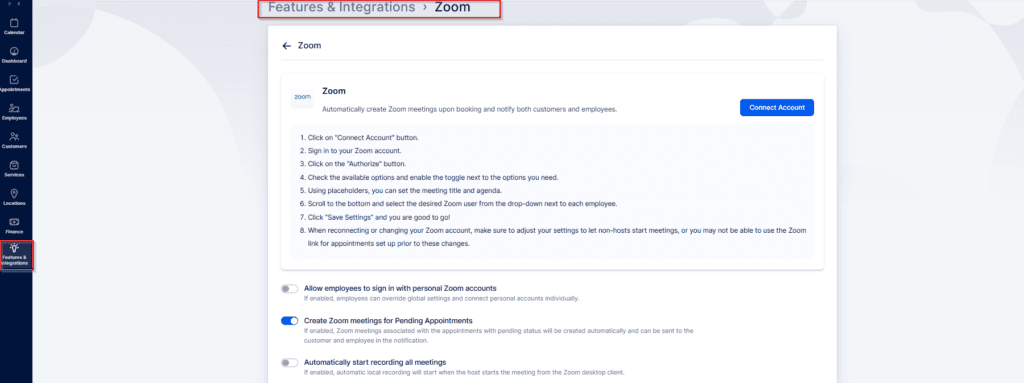
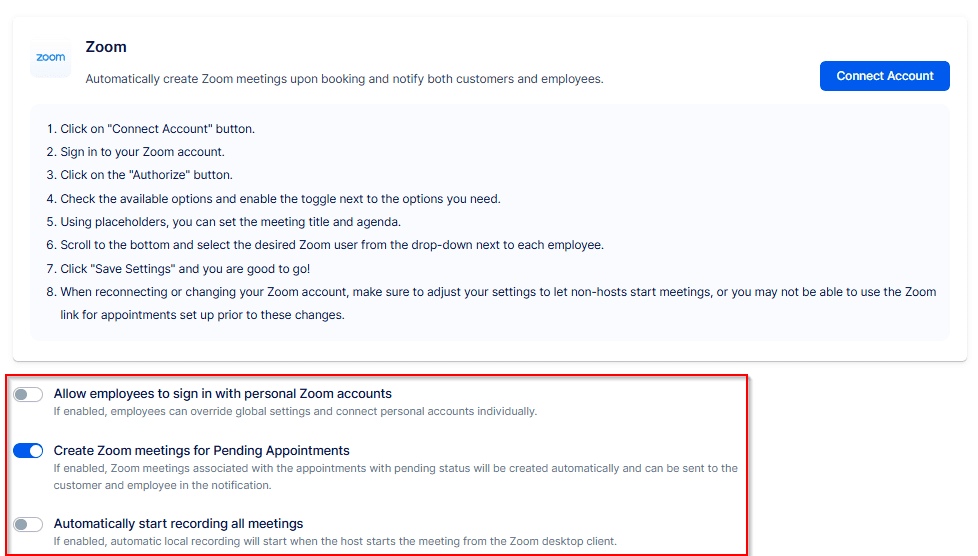
Below the connection instructions, you will find three sliders:
“Allow employees to sign in with personal Zoom accounts” – Turn this on to permit staff to link their own Zoom accounts to their Bookablesites profile. If turned off, only the admin can connect employees to Zoom users on the admin Zoom account. This does not require a paid Zoom plan, but it means meetings and users won’t be centralized under a single account.
“Create Zoom meetings for Pending Appointments” – Choose whether Zoom meetings are created for appointments with a Pending status. If disabled, meetings are only created for Approved appointments.
“Automatically start recording all meetings” – When enabled, recording begins automatically once the host starts the meeting from the Zoom desktop client.
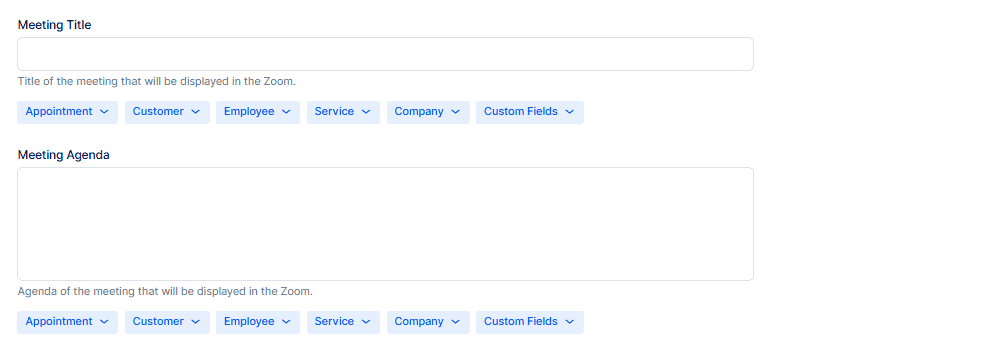
Below the toggles, two additional fields let you define the meeting title and description used in Zoom:
- Meeting Title – Enter the title that will appear in Zoom. Use the dropdowns beneath the field to insert placeholders; these will be replaced with real booking data when the meeting is created.
- Meeting Agenda – Configure the meeting agenda similarly. Select placeholders from the dropdown to include the desired details; they will populate with actual information when the meeting is generated.
At the bottom of the page you’ll see your employee roster. For each staff member you can link a specific Zoom user — note that one employee can be mapped to only one Zoom user, so only users already added to your Zoom account will appear for selection.
If you enable “Allow employees to sign in with personal Zoom accounts,” staff can connect their own Zoom accounts by signing in via Account Settings.
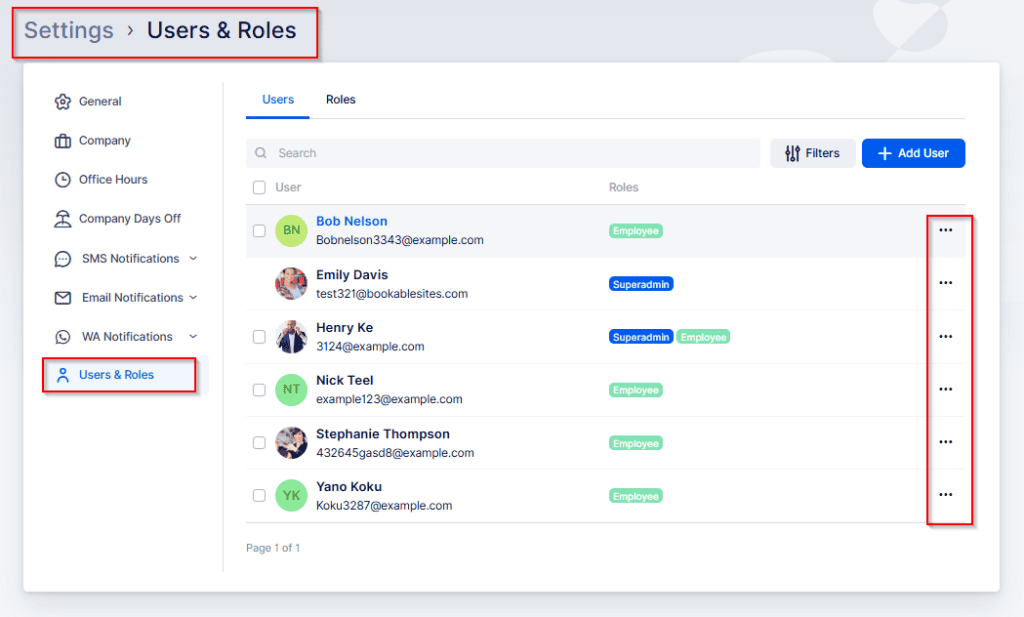
After the Admin or Superadmin creates an employee account, you must enable their login. The full procedure is in Users and Roles; summarized steps are:
- Go to Settings (lower-left of the Bookablesites admin).
- Select Users and Roles
- Find the employee, open the three‑dots menu next to their name, and choose Enable Profile.
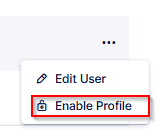
A popup will appear allowing you to choose whether Bookablesites should generate a password automatically or whether you want to set one manually for the employee. You can also specify whether the employee must change the password at first login or if you will simply send them the credentials.
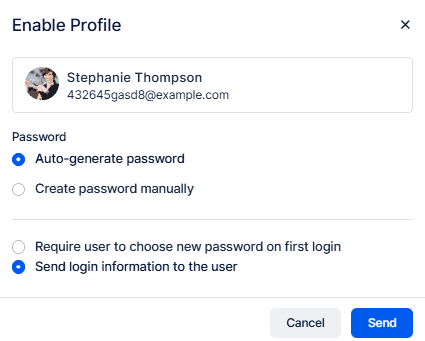
After the employee gets their credentials, they can sign in to their Bookablesites account. Instruct them to open Account Settings to connect their Google account to their employee profile.
To access Account Settings, click the user name in the top-right corner.
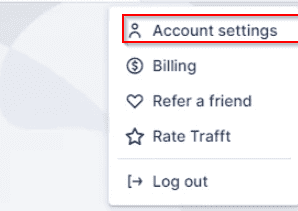
A new window will open where the signed‑in employee can edit their profile details, change their password, and manage their schedule (if their role permits). Crucially for this integration, they can open the Integrations area and sign in to their personal Zoom account.
In Integrations, select “Zoom Calendar.”
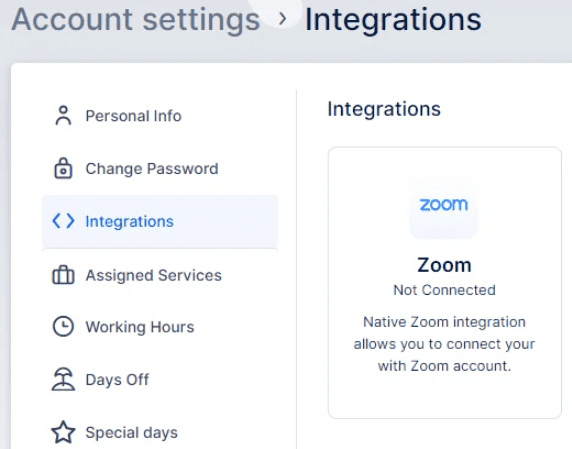
The only action available here is “Connect Account.” The employee should click it to link their Zoom account to their Bookablesites profile.
After linking, the Account Settings page in Bookablesites will reload and display a “Disconnect Account” option, plus a warning that Zoom is not yet configured in the employee’s working hours.
TThis requires the employee (or an admin) to edit the Working Hours and add “Zoom” as an available location.
Also, open the Services section and edit the service you want to deliver via Zoom. In the service details, go to the “Settings” tab on the left and check the “Where do you want to provide the service” option.
Selecting “Online” or “All Locations” permits appointments for that service to be held via Zoom; choosing “On‑Site” prevents Zoom from being used.
Configuring notifications with the Zoom link
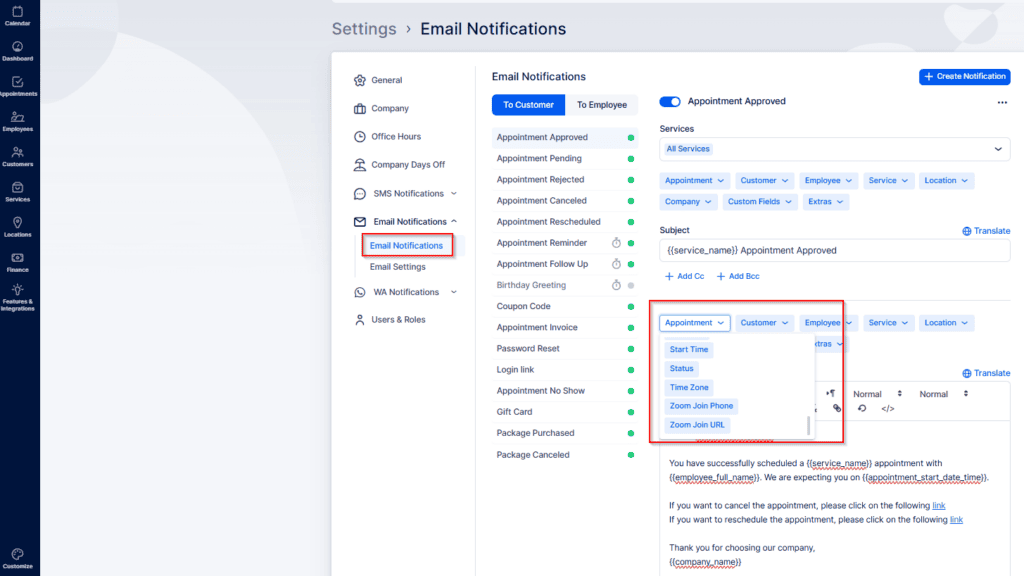
Once you’ve configured your Zoom settings, there is one final step if you want your customers and employees to receive links to the Zoom meetings through notifications. Navigate to Settings, then open Email Notifications. Within the Appointment placeholders (found in the Appointment dropdown), you will see options to include “Zoom Join URL” and “Zoom Join Phone” in both customer and employee notifications, while the “Zoom Host URL” (required by the employee to start the meeting) only in the employee notifications. After configuring these templates, click Save Settings to save your changes.
After completing Zoom setup, enable the Zoom meeting links in notification templates so customers and staff receive them. Go to Settings > Email Notifications. Under the Appointment placeholders (in the Appointment dropdown), add “Zoom Join URL” and “Zoom Join Phone” to customer and employee notifications. Add “Zoom Host URL” to employee notifications only (the host uses this to start the meeting). Save Settings to apply your changes.
Finding your link to the Zoom meeting
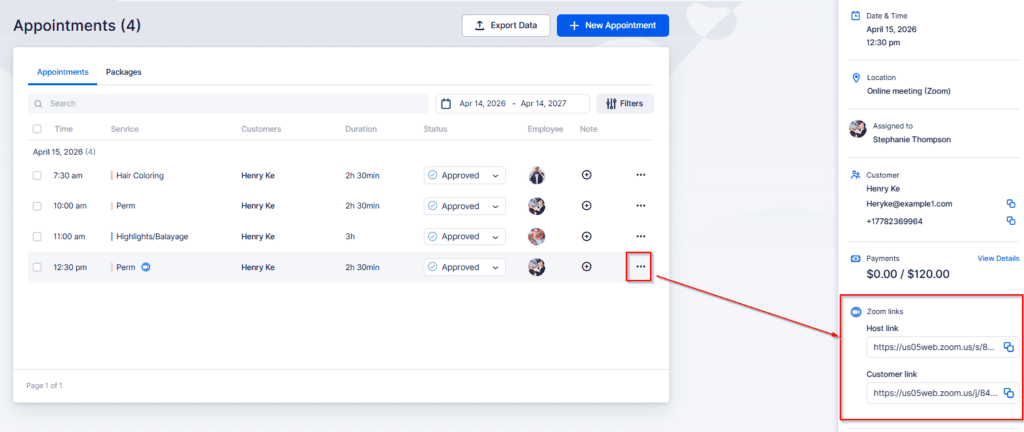
You can also find the Zoom link inside the appointment details. On the Appointments page, online bookings are marked with a camera icon beside the service name. Click an appointment with that icon and the appointment details will display both the Host and Join links for quick access.
Uninstalling the Trafft App from your Zoom Account
To remove the Bookablesites app from your Zoom account, follow these steps:
- Sign in to your Zoom account and open the Zoom Marketplace.
- Search for “Bookablesites” and select the app, or go to Manage > Installed Apps to find it.
- Click “Uninstall” next to the Bookablesites app.
- Confirm the prompt by clicking “Uninstall” again.
Once completed, the Bookablesites app will be removed from your Zoom account.
If you require further assistance or technical support, contact us at info@bookablesites.com or use the support beacon in the bottom‑right corner of the application.