
The Special Days feature lets you set one-off schedules for employees that differ from their regular working hours. These schedules apply only to specific dates or date ranges and do not repeat like standard daily or weekly hours.
Adding Special Days for Your Employee
- Special Days provide flexibility by allowing custom availability for individual dates or ranges, in addition to an employee’s normal schedule.
Before you start
- Make sure Special Days is enabled on the Features & Integrations page.
How to add Special Days for an employee
- Go to Employees in Bookablesites.
- Click the three-dot menu beside the employee you want to edit and choose Edit Employee.
- Open the Special Days tab to create or manage date-specific schedules.
Note: If you don’t see the Special Days tab, confirm that the Special Days feature is enabled under Features & Integrations in Bookablesites.
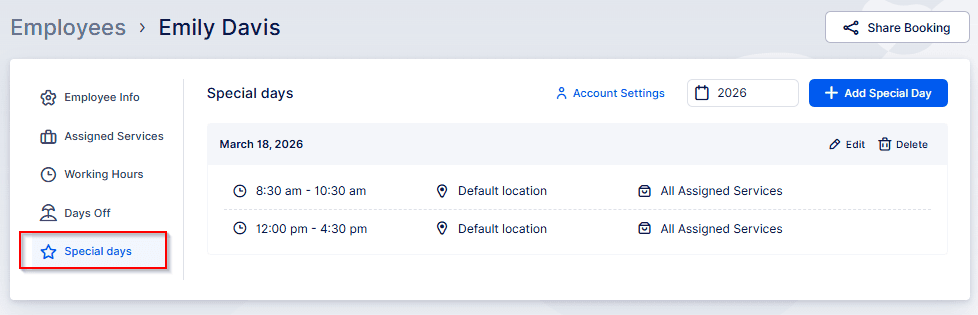
After opening the Special Days tab, click the “+ Add Special Day” button in the top-right corner. A pop-up window will then appear to allow you to configure the special day, as shown in the example image.
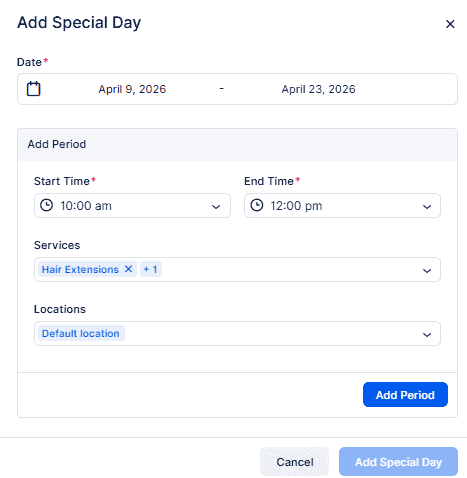
To set up a special schedule for an employee in Bookablesites, begin by choosing the date or date range the special schedule should cover. Double-click a single date to select it, or click the start date and then the end date to pick a range.
Then add one or more time periods for that Special Day. Always create periods in chronological order — start with the earliest period first. After you add the first period, you cannot create another period that begins before it. To change existing periods, edit the first period’s start time, then update later periods as needed.
Next, choose which services the employee will offer during this special schedule. You can select “All Assigned Services” or pick specific services from the Services dropdown. Likewise, set the location: either the employee’s Default Location or one or more specific locations via the Locations dropdown. If you leave services or locations empty, the system will default to All Assigned Services and the employee’s Default Location.
After you’ve specified the date range, time periods, services, and locations, click Add Period to save that period to the Special Day. Then:
- For a single-period special day: click Add Special Day, then Save Changes at the bottom of the page.
- If you add multiple time blocks, each one will appear in the list at the bottom of the Special Day popup, letting you stack consecutive periods for the same Special Day. Use the down-arrow next to any listed period to expand and edit its details. Keep adding periods until the schedule is complete, then click Add Special Day and finally Save Changes at the bottom of the page.
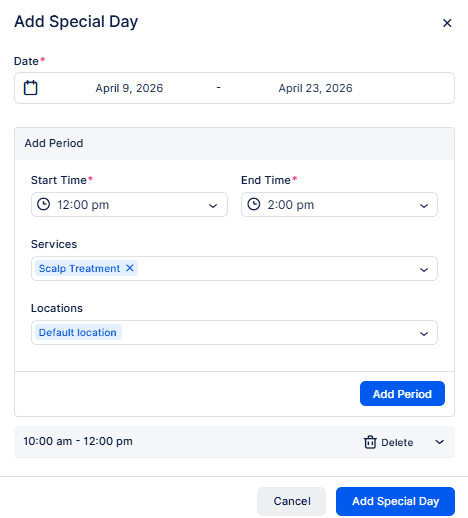

This feature is ideal for holidays, events, or temporary shifts in working hours. You can add one or several time blocks within a Special Day, giving you flexibility to handle unique scheduling needs. Special Days simplify employee scheduling and accommodate exceptional situations. For example, if an employee has a dentist appointment during work hours, create a Special Day that includes the employee’s working blocks while leaving a gap for the absence. You can also change an employee’s location for specific dates or assign them to multiple locations for a Special Day. In short, Special Days provide flexible options to manage exceptional work schedules in bookablesites.