
Locations in Bookablesites are intended for businesses operating from more than one place. Managing multiple locations is a custom feature and will be enabled by default during your trial.
If you run a single-location or fully online business, you don’t need to set up additional locations. Just enter your primary location in Company Settings—for example, use “Zoom” if you only offer services remotely.
If you do need multiple locations, this guide explains how to create and manage them in the Bookablesites booking system.
Multiple Locations is a premium Bookablesites feature and counts toward your total Custom Features & Integrations allowance.
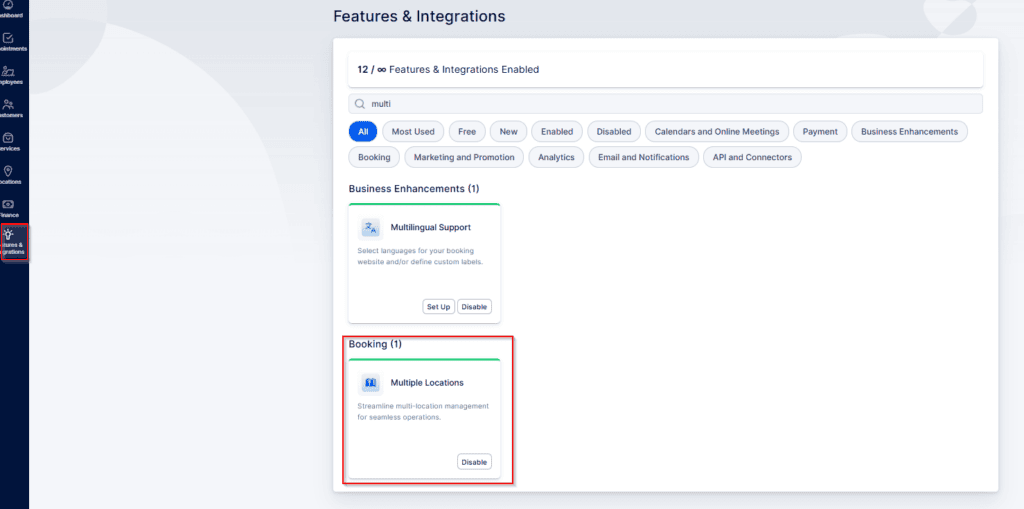
To start adding locations, first make sure the “Multiple Locations” feature is enabled on the Features & Integrations page. You’ll know it’s active if the card shows a “Disable” option. If it’s not enabled, the Locations item won’t appear in the left menu. Once enabled, click Locations to begin creating your locations.
Creating Locations
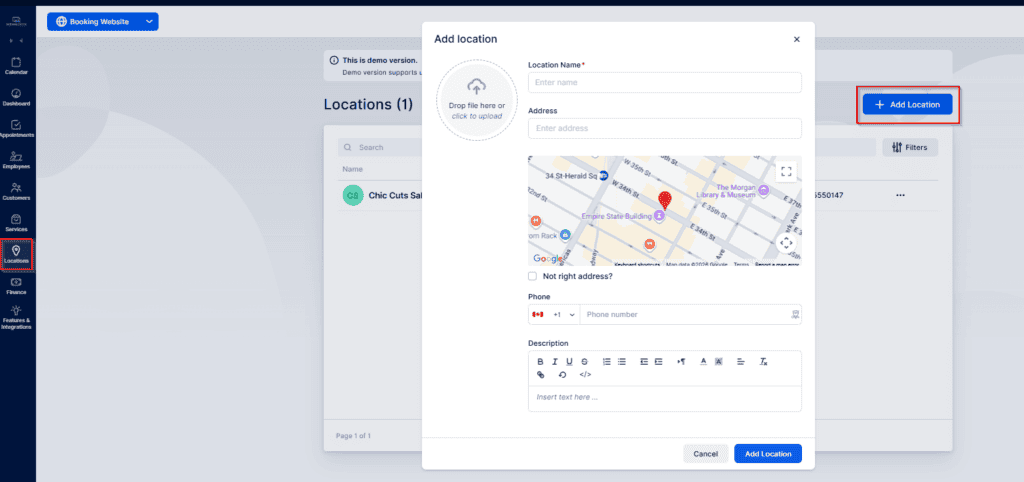
When you open the Locations section, click “+ Add Location” to open a popup where you enter the location details:
- Location Photo: Upload the main image that will appear on the Locations page in the admin dashboard and on the booking form. Click the circular area to select a file or drag and drop the photo.
- Name: The only required field — you must provide a name.
- Address: Enter the address and it will be searched via Google Maps to place the pin. The map will be shown on your booking site’s Locations page. If you add multiple locations, they will all appear on a dedicated page for customers.
- “Not the right address?”: If Google Maps can’t locate the address, enable this option to manually enter Latitude and Longitude fields.
- Pin: Choose one of four pin styles to customize how the location appears on the booking site’s map.
- Phone: Add a phone number specific to this location so different locations can display different contact numbers on the booking site.
- Description: Provide additional information for customers; this text will display on the booking form when they select the location.
Online locations (Zoom, Google Meet, Microsoft Teams): These appear automatically when you enable their integrations — there’s no need to set them up in the Locations section. Bookablesites will treat these as online meeting options.
Other online meeting tools: If you use an online meeting tool that isn’t directly integrated with Bookablesites but have static meeting URLs, create a location called “Online” and paste the meeting link into your email notification templates. This lets customers join meetings from their appointment confirmation emails. Note: Bookablesites will treat this as an on-site location, so when configuring the service don’t select the “Online” option under “Where do you want to provide the service.” Only directly integrated meeting tools are recognized as true “Online” locations.
Phone call services: For phone-based services, you can create a placeholder location named “Phone Call” without an address. Customers can then select “Phone Call” as the location when booking.
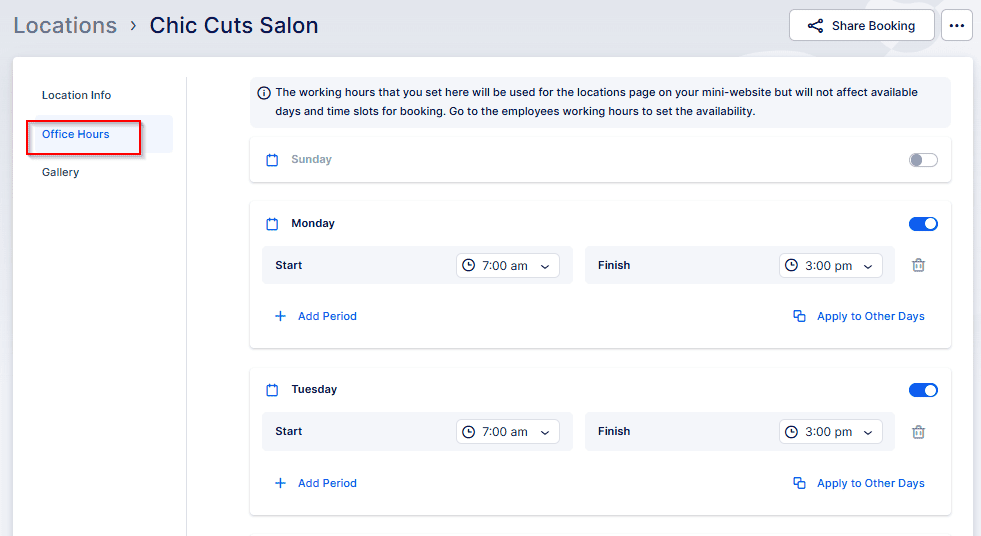
After adding a location, you can customize it with specific office hours:
- Go to the Locations page and locate the location you want to edit.
- Click the three-dots menu next to it and choose Edit Location.
- In the Edit Location window, use the Office Hours section to specify that location’s working hours.
How office hours are used:
Office hours on the location are informational and aren’t applied directly for booking availability. Bookablesites checks availability in this order:
- The assigned employee’s individual working hours.
- The general working hours set in General Settings.
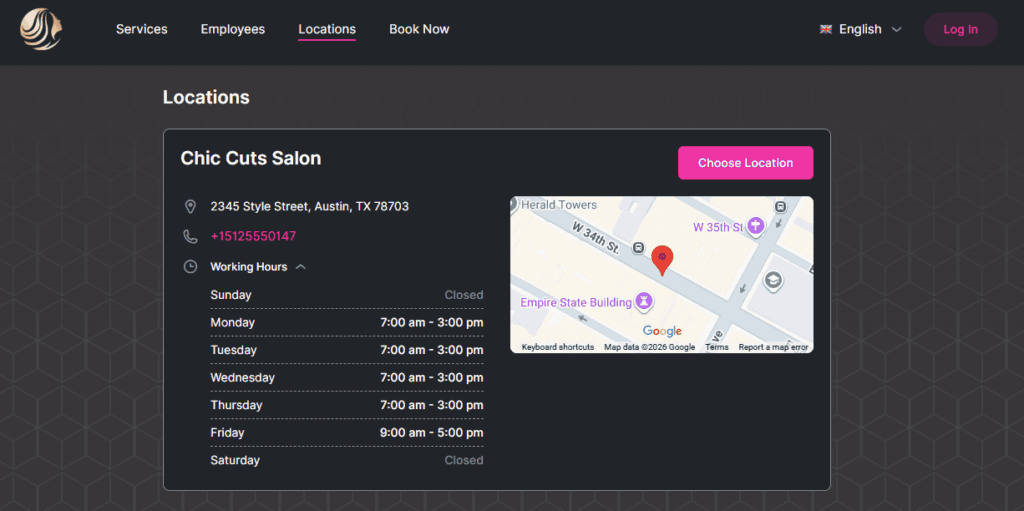
Location office hours are shown to customers on the booking form so they know when the location is typically open.
Gallery – After editing a location, you can build a gallery to display images of that site. This gallery appears to customers when they choose the location during booking in Bookablesites.
Uploading photos:
- Upload one or multiple images from your computer.
- Customers will view these photos when they select the location while booking.
- Use the gallery to highlight the location’s ambiance, facilities, and atmosphere.
- You can add as many photos as needed; each image must be under 20 MB.
Tips for a better gallery:
- Use high-quality images that accurately represent the location.
- Include interior, exterior, amenities, and other relevant shots.
- Show multiple angles to give customers a clear sense of the space.
Once you have configured the office hours and uploaded photos for a location in Bookablesites, this information will be prominently displayed on your Booking website, on the Locations page.
Note: Locations will only be offered in the booking flow if they are assigned to employees in the Employee Info and Working Hours sections. Set a default location for each employee and choose locations for each working period so employees can cover different locations in their schedule.
Viewing and Managing Locations
All created locations appear as a list on the Locations page. The list shows basic details such as name, address, and phone number. Clicking a location opens a sidebar with additional information:
- Office hours for the location
- Address shown on a map
- Gallery images (if any)
Use the three-dots menu on the sidebar to edit the location.
Search and actions
- Use the search bar to find locations by name if you have many.
- Each location has a three-dots menu for editing or deleting.
Actions:
- Edit: Modify the location’s details.
- Delete: Be careful — if a location has past or future appointments linked to it, you will receive a warning. Deleting a location will remove all associated appointments, both past and future.