
Managing appointments across different time zones can be challenging, but with Bookablesites’ Time Zone feature, it becomes simple. Bookablesites provides Time Zone settings in General Settings and individually for each employee, making it easy to coordinate schedules and bookings. This is especially useful for businesses and teams operating across multiple time zones, ensuring appointments are scheduled and shown correctly for both employees and customers.
Global Time Zone
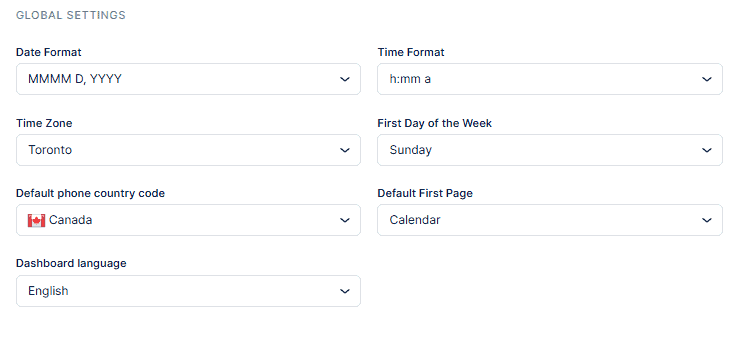
In Bookablesites’ General Settings, you can set the global time zone for your business. Navigate to the bottom of the screen to choose the time zone that applies to your company. If this time zone fits all employees, no further changes are needed.
Employees’ Time Zone
Employee time zones are important for businesses with global teams or those offering services across different zones. bookablesites’ Starter and Scaling plans let employees access their personal dashboard to set their time zone, working hours, special days, and time-off preferences. For users without dashboard access, admin and super admin users can manage these settings.
To set your schedule as an employee, log into the dashboard, go to Account Settings > Personal Info, and choose your Time Zone. Then go to Working Hours to define your availability. Appointments will display according to your time zone, working hours, days off, and special days. Customers can select their time zone during booking, and administrators can set a default time zone for the admin dashboard so appointments align across customer, employee, and admin views.
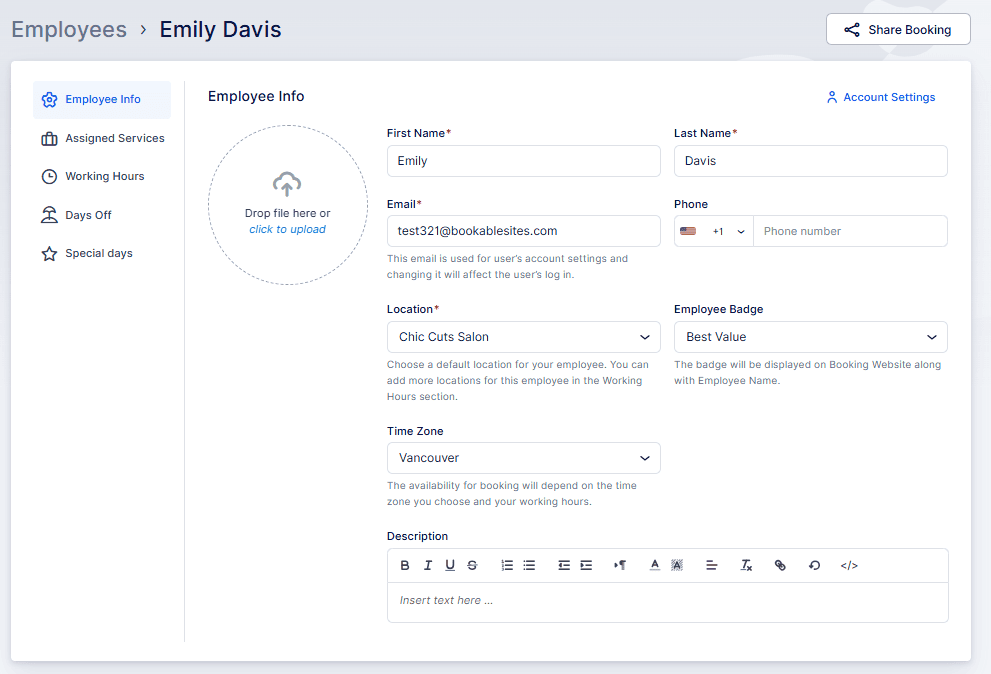
Admins can also set an employee’s time zone in the Employees section when editing an employee; the Time Zone option is located in the Employee Info tab.
Account Settings
Employee Info
The Working Hours page always displays the selected time zone above the schedule, ensuring clarity and avoiding any confusion.
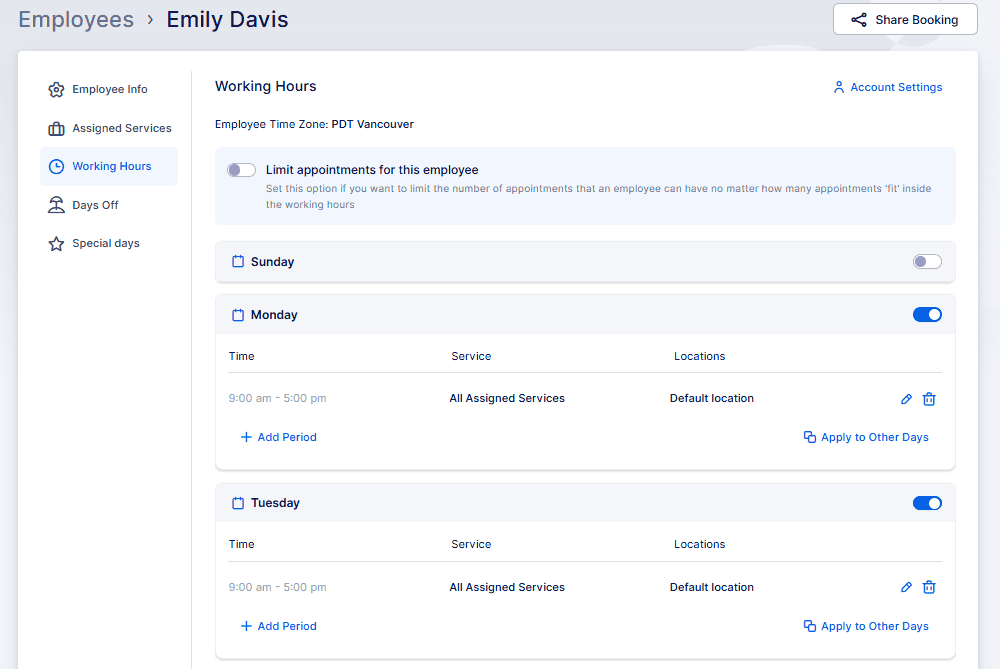
This time zone setting applies when the employee has chosen a time zone in their account; if none is selected, the Default Time Zone from General Settings will be used. Note: changing an employee’s time zone after it was already set will affect their availability.
After all time zones and schedules are configured, notifications are adjusted accordingly. Customers receive notifications with dates and times in their own time zones (including reminders), and employees receive notifications based on their personal time zones, making global operations smoother.