
Bookablesites also provides SMS notifications, allowing you to send text messages to both your clients and staff to keep them informed about their bookings. You can examine previous SMS records and modify preferences in the SMS settings, which can be located in a dedicated section within the Settings page, similar to Email Notifications.
Unlike email notifications, SMS messages involve a fee. On the complimentary plan, you’ll need to buy all credits, while subscription plans include a specific number of SMS credits that you can replenish if extra ones are required.
Please Note: That 1 SMS Credit doesn’t necessarily equal 1 SMS Message. The expense of each message sent is usually less than 1 SMS Credit per Message. For example, if the cost of one segment is 0.01125andyoubuy0.01125andyoubuy10 credit, you can send roughly 888 segments.
It’s crucial to understand that a single message can contain multiple segments, based on the character count used in the message and the inclusion of special characters. A standard segment (in Latin) contains 160 characters. If you write a lengthy message, it will be divided into multiple segments and billed per segment. Incorporating special characters or emojis will transform the message to Unicode, decreasing the character limit to 70.
For precise information about SMS pricing in your region, please contact our support team through the website support beacon or via the in-app chat.
How to purchase SMS credits?
To purchase SMS credits, navigate to Settings > SMS Notifications > SMS Settings and click on the Add Credits button in the upper right corner
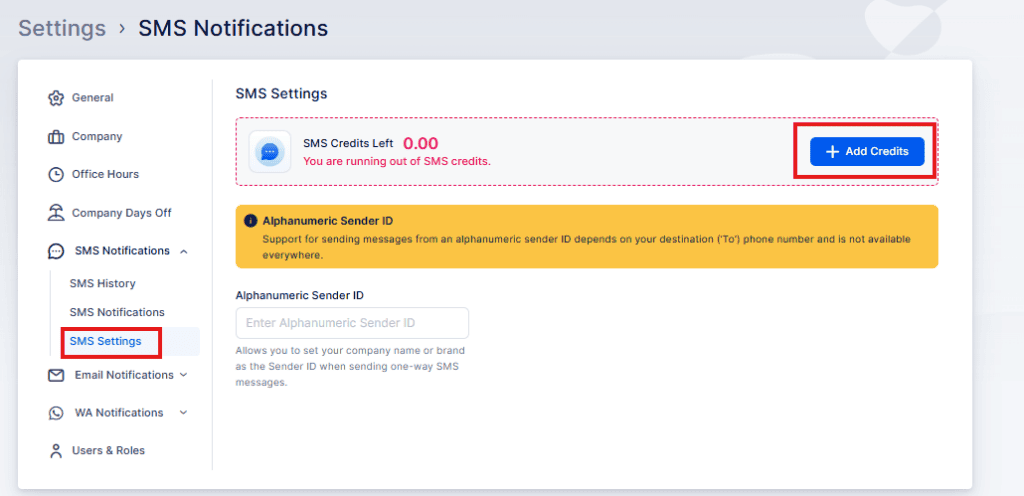
One-time purchase
One-time payment allows you to purchase credits at your own pace.
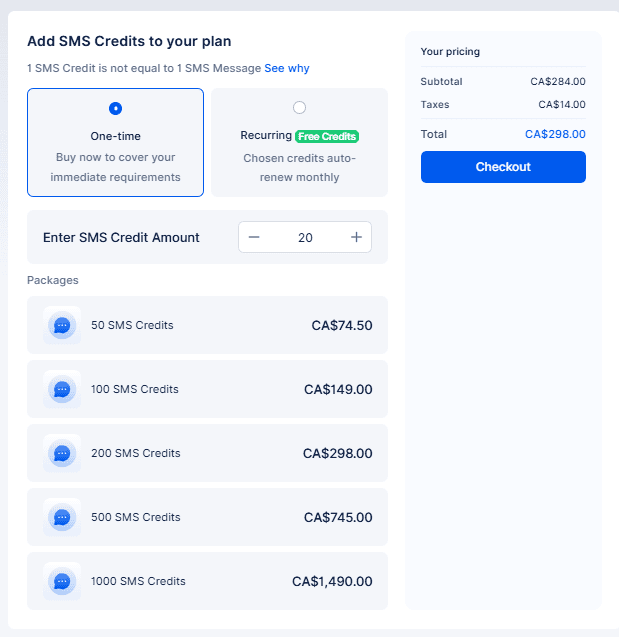
Recurring SMS purchase
This feature allows you to enroll in an SMS package that automatically replenishes your credits on a monthly basis. Every package provides monthly additional credits, with premium packages delivering greater bonuses. Select the package that aligns with your business requirements and experience an effortless method to maintain communication with your clients while optimizing value through included bonuses!
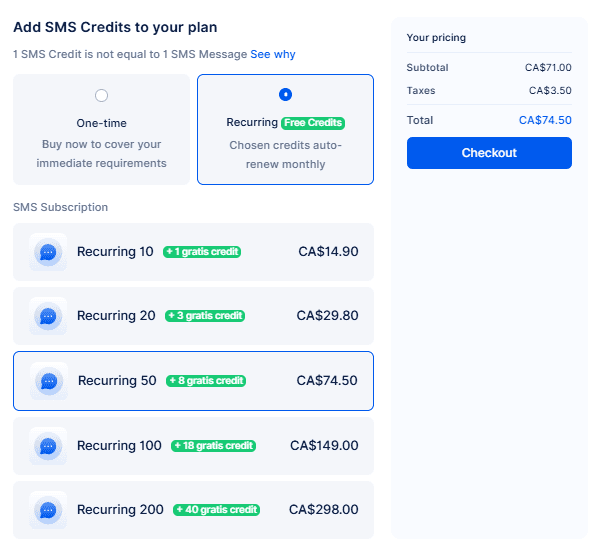
Our selected monthly plan includes 100 SMS credits, with an attractive bonus of 18 additional credits each month.
In case of choosing Recurring SMS credit purchase, the invoice will be generate and it can be found under Billing > Payment History
SMS options
To configure your text message notifications, simply click on “SMS Notifications” within the Settings menu, located in the lower-left corner of your administrative dashboard. The system provides you with three distinct management sections:
- SMS History
- SMS Notifications
- SMS Settings
SMS History
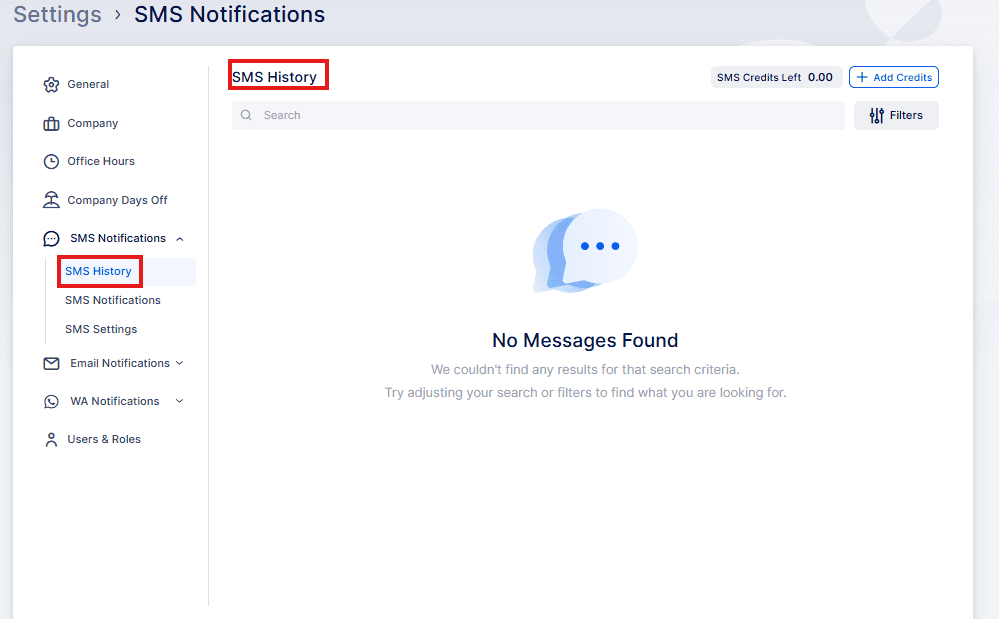
Bookablesites’ SMS History feature provides a detailed tracking mechanism for all your sent communications. Each message log includes comprehensive details such as:
- Transmission date
- Recipient identification (name and contact number)
- SMS credit consumption
- Message segmentation breakdown
The message’s segmentation depends on character count and type, determining how the text is split across multiple segments. Users can easily expand message details by using the dropdown arrow, enabling full message content review.
Additionally, the interface allows seamless filtering, searching, and monitoring of your remaining SMS credits, ensuring transparent and efficient communication management.
SMS Notifications
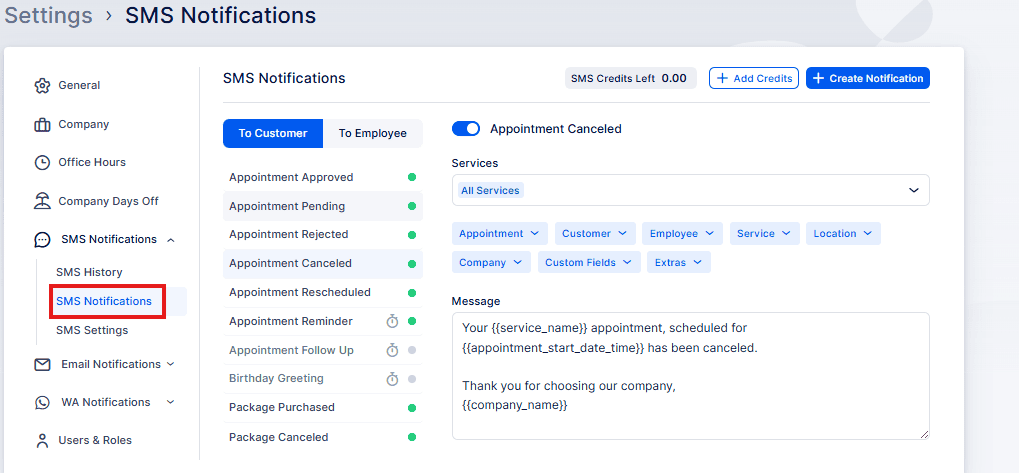
The SMS Messaging section operates similarly to the Email Communications section, enabling you to personalize different message formats for both Clients and Staff. You can integrate various placeholders to customize your message content and establish the timing for your automated notifications.
These messages can be sent instantly after a particular action, at a predetermined time before or after an appointment, or at a specific time during the day. There’s also a “Send Test SMS” feature, which only requires entering a phone number to receive a sample notification. To utilize this feature, click the three-dots menu in the upper right corner of any SMS template -> “Send Test SMS”.
SMS Settings
Within this area, like all previous sections, you can view your SMS Balance and purchase Additional Credits when needed. Furthermore, there’s a possibility to personalize your “Alphanumeric Sender ID” based on the recipient’s (‘To’) phone number, although this capability isn’t supported in all regions.
This enables you to specify your business name, personal name, or any preferred identifier to appear as the sender when recipients get messages. When setting a custom sender ID isn’t possible for your target locations, an automatic ID will be attached to your messages.
Incorporating the Rescheduling Link in SMS Messages
Your clients can easily reschedule appointments directly from received notifications by including the “Reschedule Link” placeholder.
This placeholder is found in the Appointment menu and when added, the placeholder becomes a clickable link in your messages, allowing clients to choose a new date and time for their appointment. The appointment will then be successfully rescheduled.
Adding the Cancelation Link in SMS Notifications
If you want to allow your clients to cancel appointments directly through SMS messages, you can add the “Cancel Link” placeholder found in the Appointment menu.
This placeholder, when added, becomes a clickable link within your SMS messages, permitting clients to cancel their appointments with one click. Moreover, on the Customize section, you can configure redirect destinations.
If you activate the “Use custom appointment cancellation URL” setting and provide URL destinations for successful and failed cancellations, clients will be redirected appropriately. If you decide not to set up these destinations and keep the setting disabled, clients will be taken to designated pages on your booking platform confirming either successful or failed cancellation.
Please Note: Rescheduling and Cancelation links have two placeholders (each):
- {{appointment_reschedule_link}} – sends out the full reschedule link that includes a unique appointment token
- {{appointment_reschedule_link_short}} – sends out a shortened version of the reschedule link
- {{appointment_cancel_link}} – sends out the full cancelation link that includes a unique appointment token
- {{appointment_cancel_link_short}} – sends out a shortened version of the cancelation link
We recommend using the Short Links for SMS messages since standard links consume many characters which, as previously mentioned, can divide your messages into multiple parts, resulting in extra costs.
Custom Notifications and WhatsApp Notifications
Custom Notifications is a custom feature that needs to be enabled in the Features & Integration section on the left-hand side menu.
Once enabled, you can click on the “Create Notification” button in the top right corner of SMS Notifications and create new (custom) notifications for specific services, specific appointment statuses, or custom scheduled notifications.
You can read more about this feature on this page.
WhatsApp integration is a specialized option that enables you to send WhatsApp messages and functions as the third method for informing your clients and staff about their appointment statuses and changes.