
To automatically request payments via a payment link, first enable Online Payments under Features & Integrations and connect at least one payment method in Settings → Payments.
After configuration is complete, a payment link placeholder will appear under the Appointment dropdown in the Email/SMS notification settings in Bookablesites.
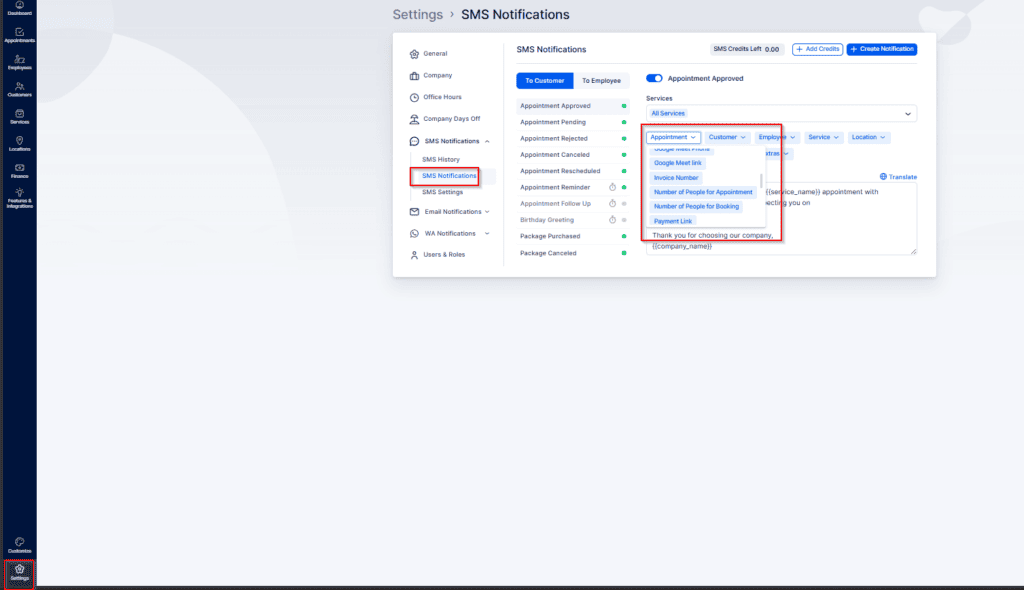
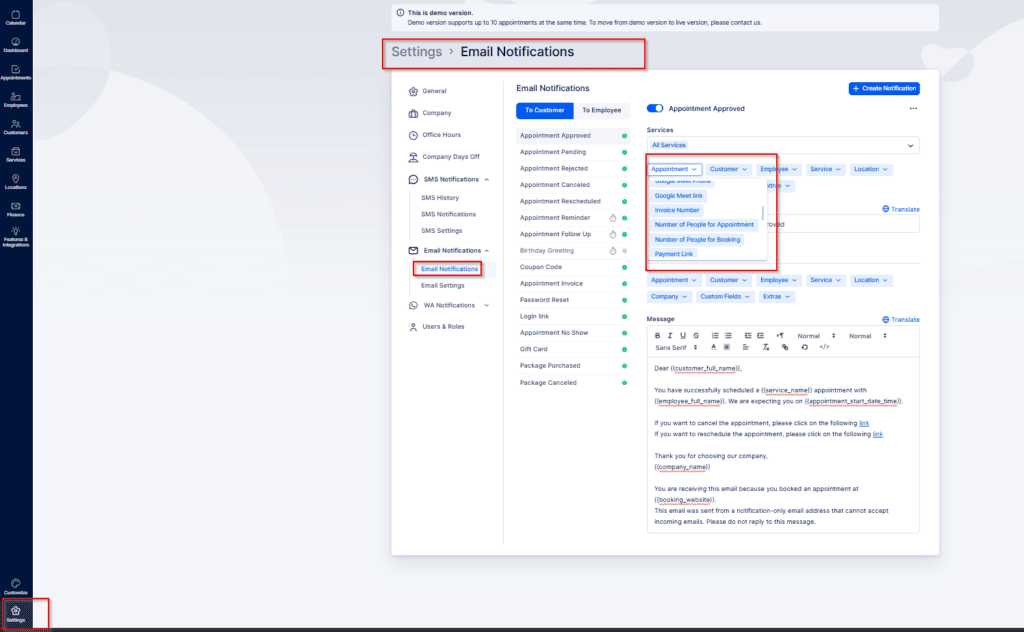
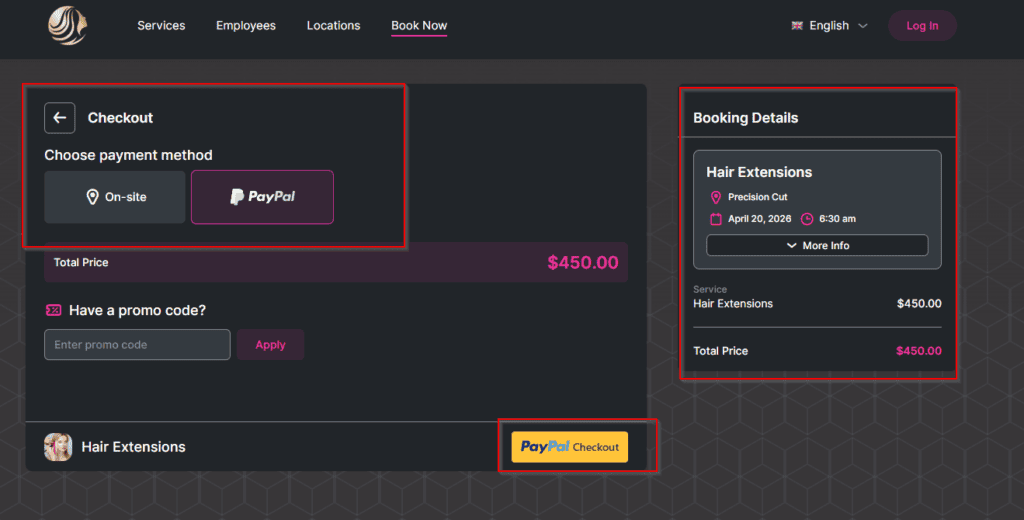
When customers follow the link sent via email or SMS, they will see all payment methods you have enabled and can choose their preferred option in Bookablesites.
If a customer does not receive the email or SMS for any reason, the identical payment link is available in the sidebar of the related invoice in Bookablesites.

Customer Panel
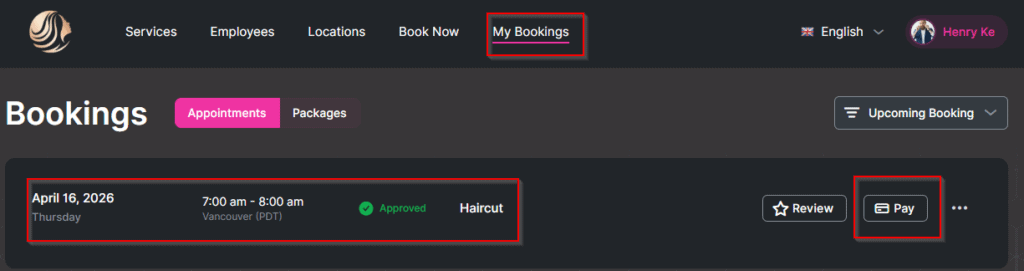
If customers have registered accounts, they can access the payment link by selecting the “Pay” button on their Appointments page in Bookablesites.
Payment Link Redirect URL
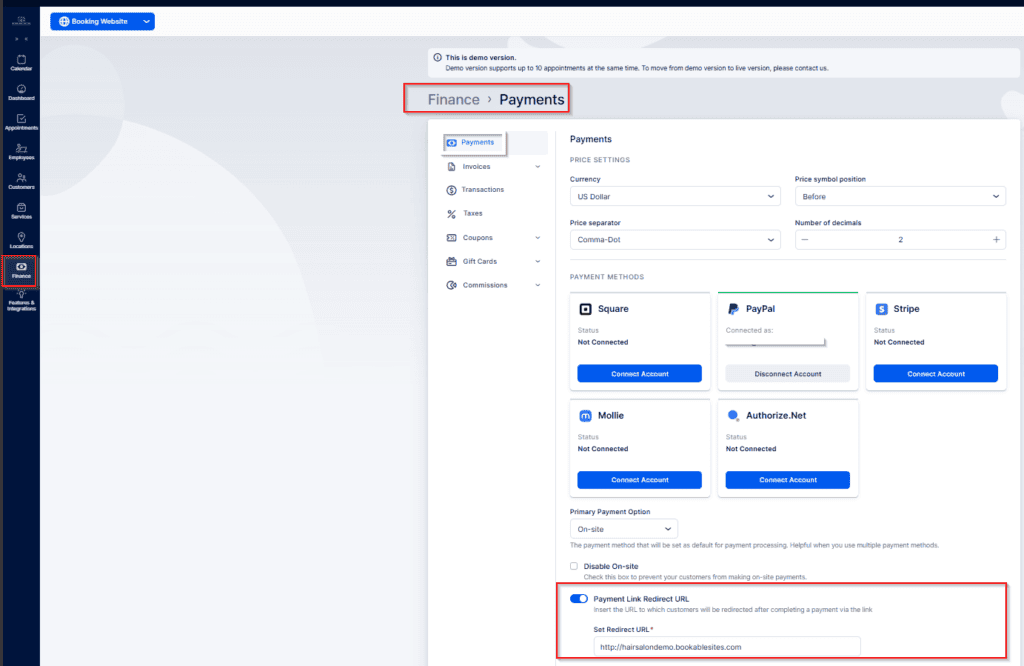
In Settings → Payments (bottom of the page) you can set the redirect URL customers are sent to after a successful payment. This should be an external page (outside Bookablesites) that confirms the payment was completed.
Use case example
Service with deposit:
For services that require a deposit at booking, customers pay a predetermined amount up front. You can create a custom notification containing the payment link placeholder (for example, sent three days before the appointment) to remind them to settle the remaining balance. Alternatively, you can copy the payment link from the invoice and send it directly whenever needed in Bookablesites.
Service without deposit:
When no deposit is required, customers reserve the appointment without paying immediately. In that case, you can schedule a custom notification (for example, a “Customer Payment” message sent five days after booking) or include the payment-link placeholder in Appointment Pending/Approved/Reminder templates. That will automatically attach a link for the full amount so customers can complete payment.