
Allowing partial payments is essential for many businesses, and deposit payments provide that capability. By requiring a portion of the total price as a deposit at booking, you lower the risk of no-shows and cancellations. Customers pay the deposit during the booking process and settle the remaining balance on the appointment date.
Note: At least one online payment provider must be connected to enable deposit payments.
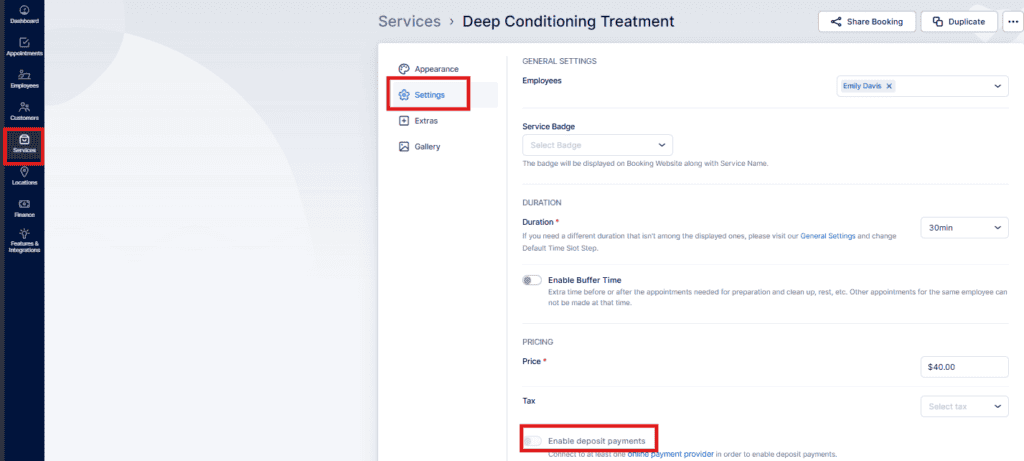
Deposits are configured per service. On a service’s Edit page, open the Settings tab and enable “Enable deposit payments” to reveal the additional deposit configuration options in Bookablesites.
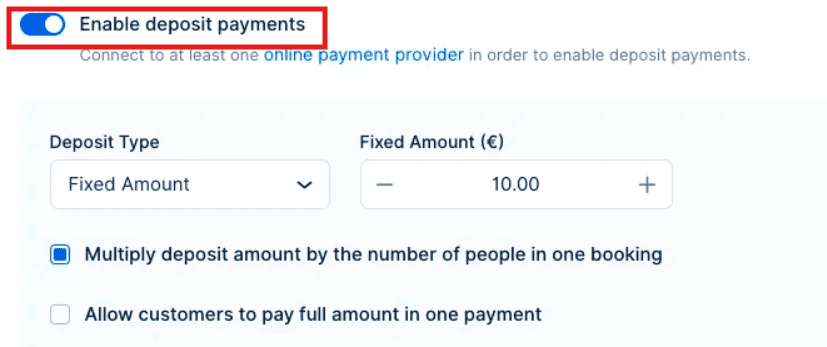
- Deposit Type: Select either Fixed Amount or Variable Amount. A Fixed deposit requires a set sum, while a Variable deposit charges a percentage of the total appointment cost.
- Fixed/Variable Amount: Enter the deposit value according to the selected deposit type.
- Multiply deposit by number of people in a booking: Available only for Fixed deposits when Group Booking is enabled. If checked, the fixed deposit is multiplied by the number of participants in that reservation.
- Allow customers to pay the full amount at booking: Enabling this option adds a choice on the final booking step (General Information) so customers can opt to pay the entire appointment fee during booking instead of only the deposit in Bookablesites.
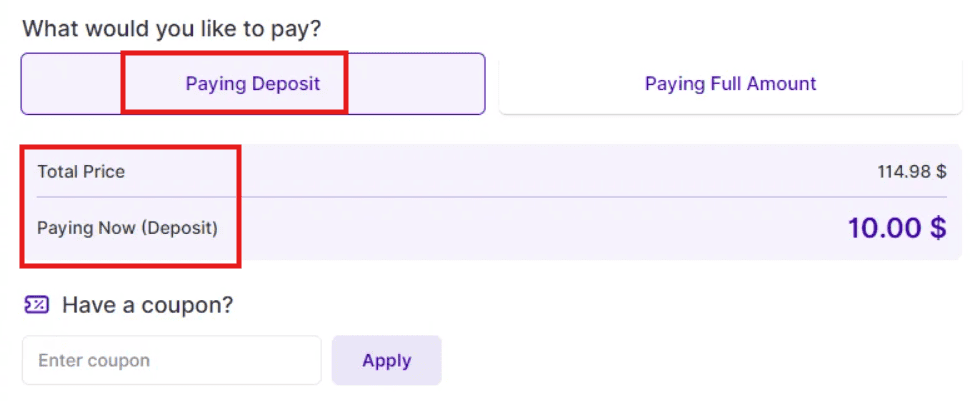
When a customer pays the deposit on the booking site, the system creates an invoice marked as “Partially Paid” and records a transaction for the deposit.
When the remaining balance is collected in person, you can mark the invoice as “Paid” manually; doing so records a second transaction for the outstanding amount.
Alternatively, you can collect the remainder using Payment via Link—send the link via email notifications or share it manually with the customer. For more details, refer to the Payment via Link documentation in Bookablesites.