
Connect Google Analytics 4 to your Bookablesites account to monitor visitor behavior on your Booking Website. This lets you track interactions, conversions, and other metrics to improve the booking experience and performance.
The Google Analytics 4 connector for Bookablesites is free and does not count against your allotment of Custom Features & Integrations.
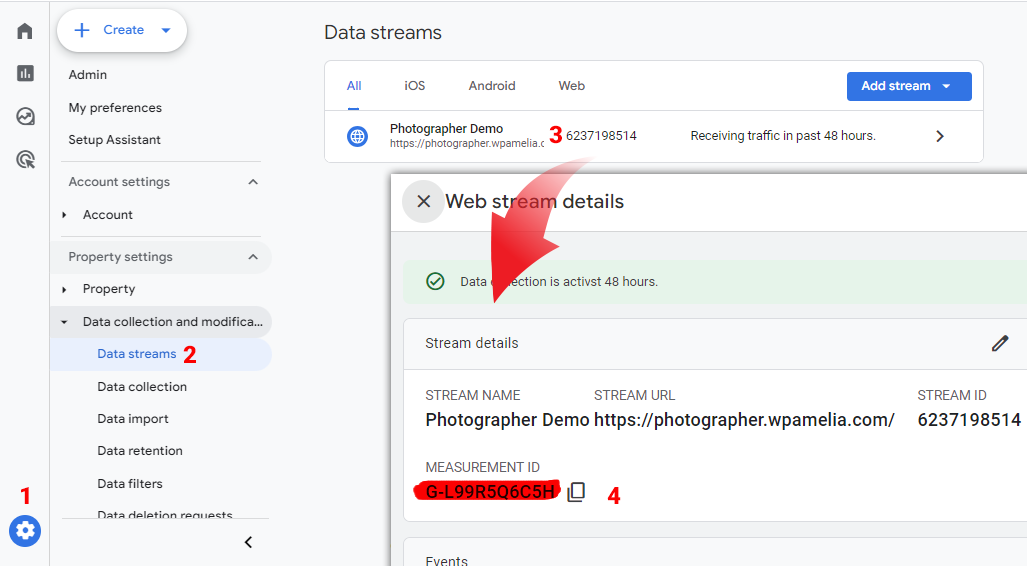
Before linking Bookablesites with GA4, locate your GA4 Measurement ID:
- Open Google Analytics 4 and click Admin (the gear icon) in the lower-left corner.
- Under Data Collection and Modification, go to Data Streams.
- Select the relevant data stream and copy the Measurement ID shown.
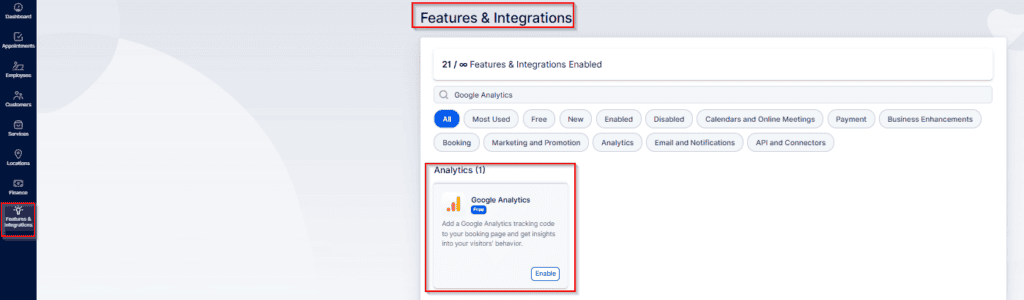
In Bookablesites, go to Features & Integrations, find the “Google Analytics” integration, and click “Enable” to turn it on.
After you enable the integration in Bookablesites, the card will reload and show a “Set Up” button. Click it to open the setup page, which includes instructions for locating your Google Analytics 4 Measurement ID and a field where you can paste that ID.
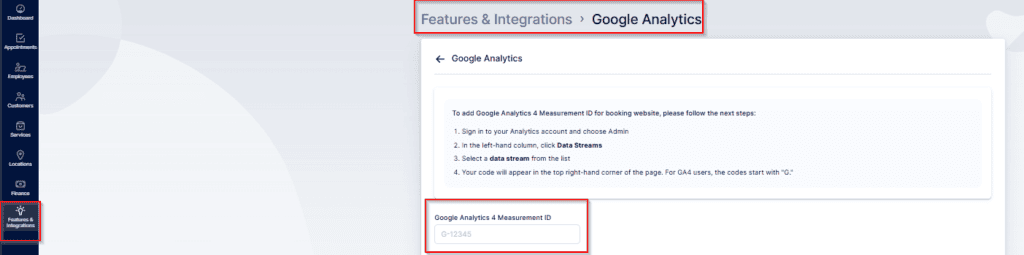
Paste your Google Analytics 4 Measurement ID into the field and click “Save Changes” at the bottom of the page to finalize the connection between your GA4 property and your Bookablesites account.
Configuring cross-domain tracking in Google Analytics 4
f your main site (example.com) and your Bookablesites booking domain (example.bookablesites.com) are separate, you’ll need cross-domain tracking.
Prerequisite: both domains must use the same GA4 property. The tracking code may be implemented via gtag or through Google Tag Manager (GTM), but both sites must report to the same GA4 property.
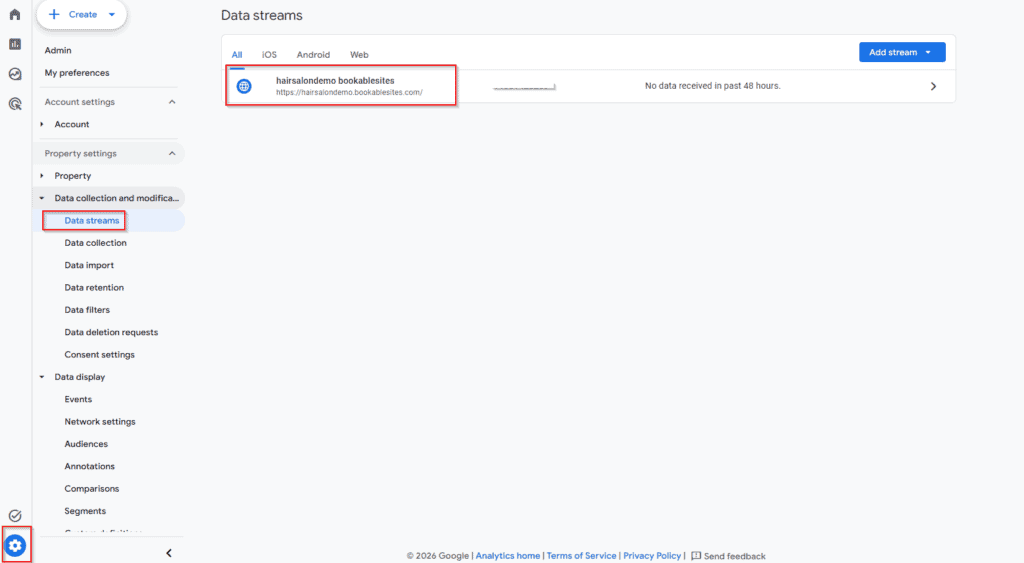
Step 1: In GA4, click the Admin (gear) icon in the lower-left corner → Data Streams, then open your web data stream.
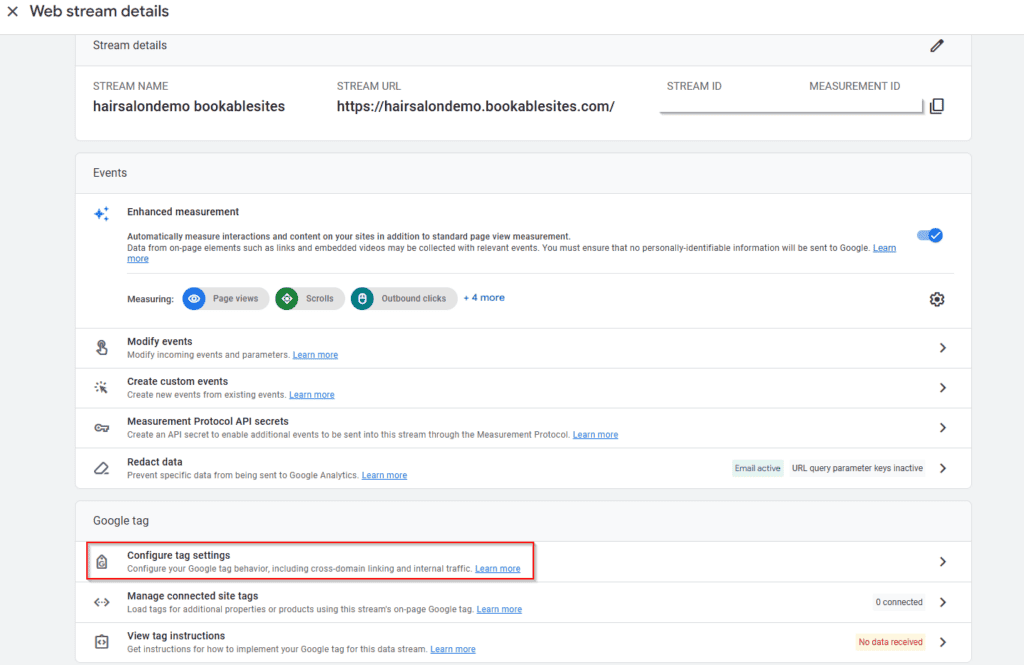
Step 2: Click on “Configure Tag Settings“:
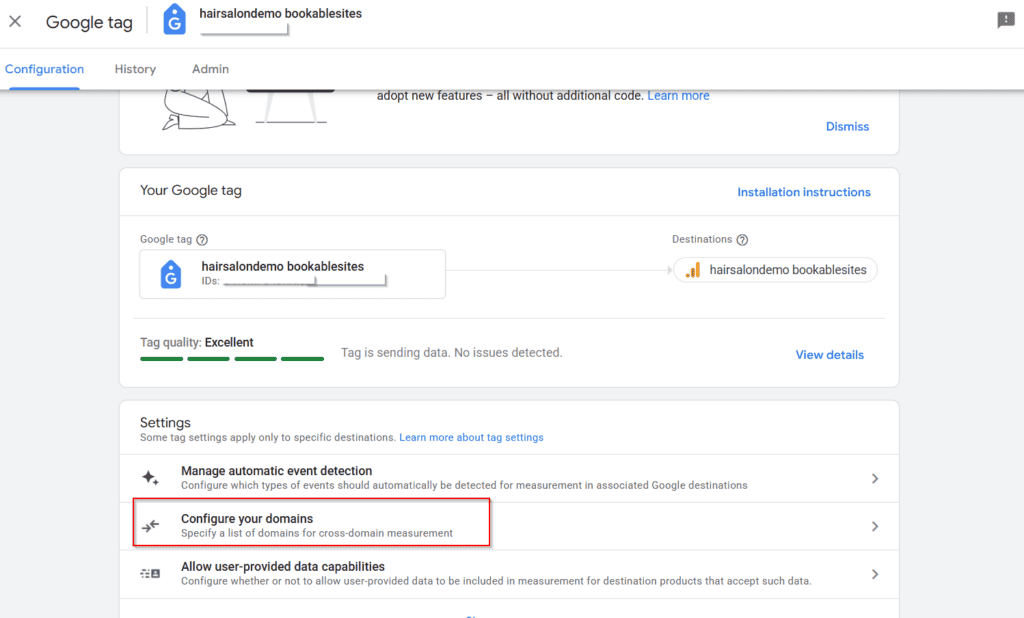
Step 3: Click “Configure your domains“:
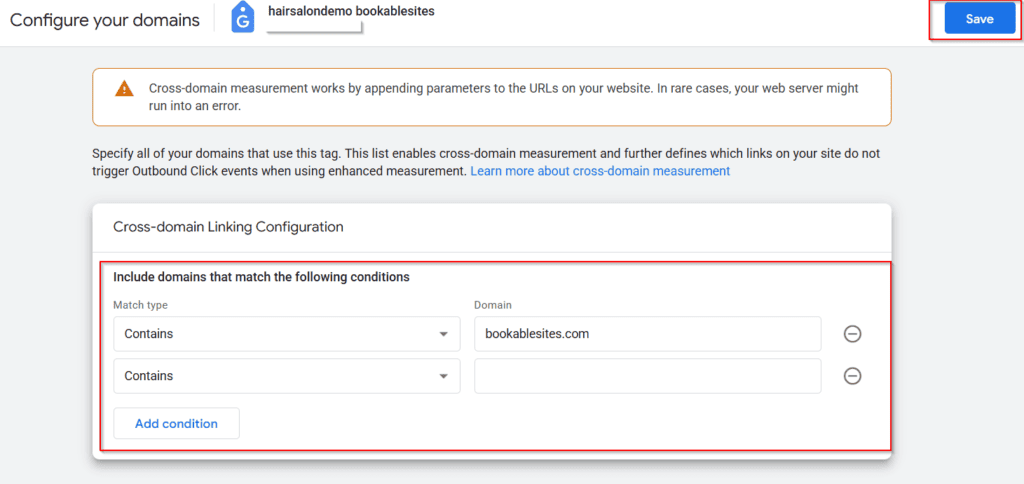
Step 4: Add every domain you want included in the cross‑domain tracking configuration, then click “Save” in the top‑right corner.
That’s it — no manual referral exclusion setup is required. Google Analytics 4 will handle that automatically.