What are packages in Bookablesites?
Packages in Bookablesites allow you to sell grouped services or multiple sessions as a single offering, so clients don’t have to book each appointment separately. This is ideal for offering discounted multi-appointment deals, loyalty bundles, or prepaid blocks of sessions.
When a client buys a package, they receive a set number of appointments or hours to redeem via your booking page. Each booking that uses the package reduces the remaining sessions by one until the package is exhausted or reaches its expiration.
How do clients buy and use packages?
Clients can buy packages right from your booking page. After payment, the package is attached to their client profile in Bookablesites.
They can redeem package credits to book appointments for the included services. During booking, Bookablesites will automatically apply the package instead of charging again, provided the package is still valid.
If an expiration date is set, clients must use their sessions before the package expires.
How do I create a package in Bookablesites?
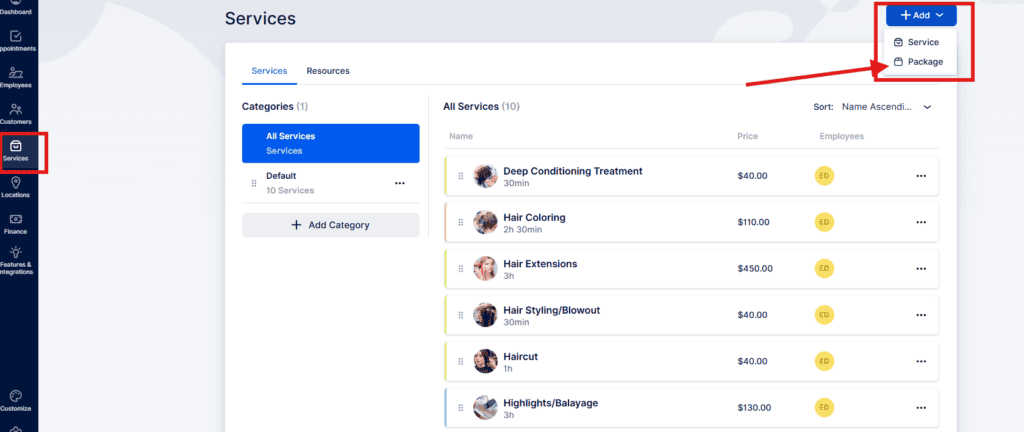
You can create packages in the Services area of your Bookablesites dashboard. Each package can have a name, description, price, and rules defining how it works.
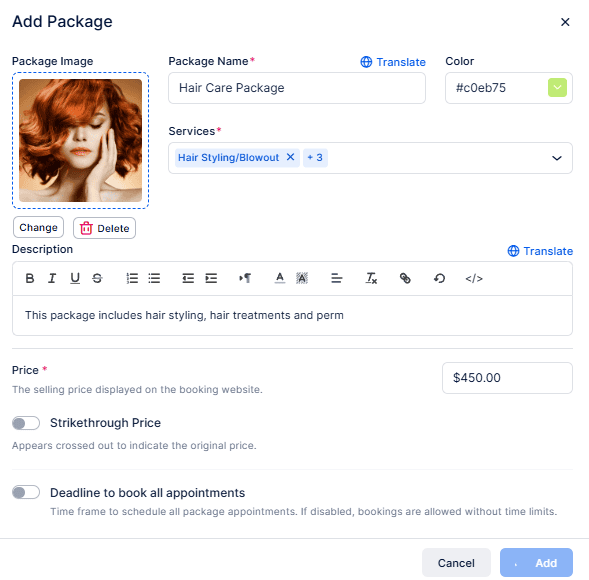
The modal below lets you create a new package for your booking page in Bookablesites, including an image, name, color, covered services, description, and price. You can showcase discounts, set expiration deadlines for session use, and control how the package is displayed on the booking page. Once created, the package is attached to client profiles, tracks remaining sessions, and updates automatically when clients book included services.
How to edit a package?
Once the package is created, you can further modify its settings. On the Appointment tab, click the three dots next to a package and choose Edit Package.
Details
- Edit the same fields you set when creating the package: name, image, color, description, and expiration deadlines.
Services
- View all services included in the package. You can define minimum and maximum bookings per service and a total cap for all appointments within the package.
Example:
- If the package includes Massage and Facial, you might allow 2–5 massages and up to 3 facials.
- You can also set a total limit of 6 appointments for the package, so the client could book any combination (e.g., 4 massages + 2 facials) provided the total does not exceed 6.
This gives you control over how clients redeem their package and helps balance bookings across services.
Price
- Update the selling price, original/strikethrough price, taxes, and accepted payment methods. You can also enable deposit payments if needed.
Gallery
- Add multiple images to showcase the package; these will appear under More Info on the booking page.
Settings
Define a custom redirect URL where clients will be sent after successfully booking the package in Bookablesites.
How do packages appear on the booking page?
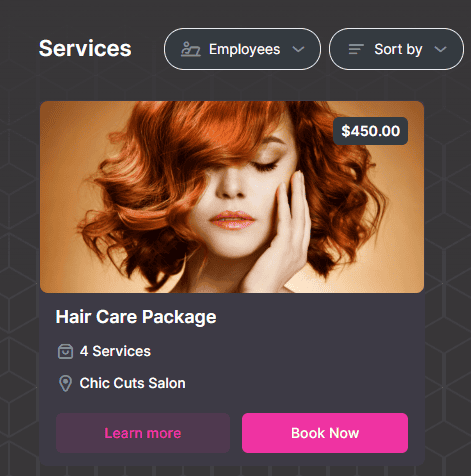
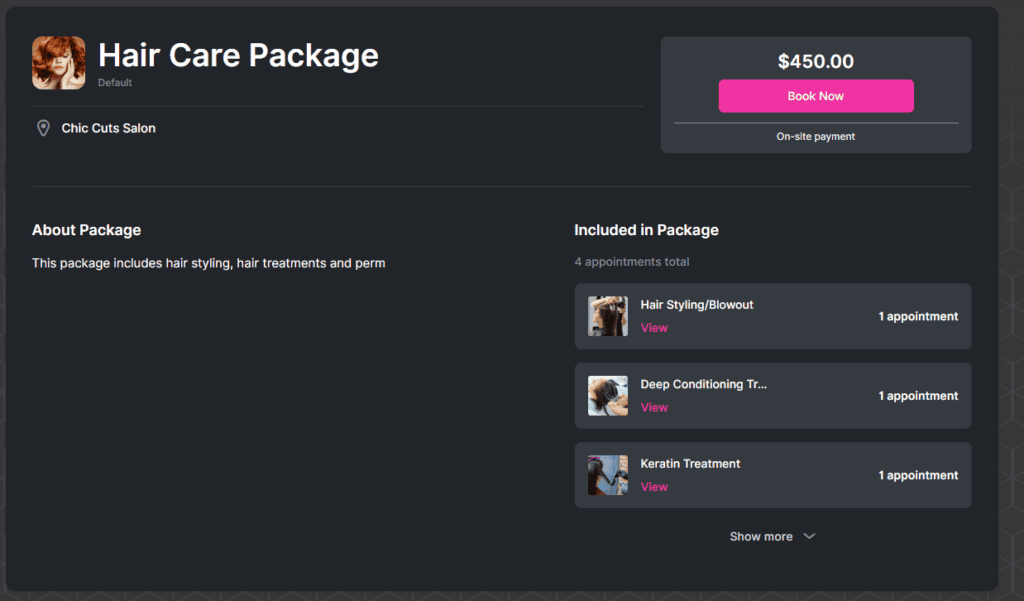
Packages appear together with your standard services on the booking page in Bookablesites. Instead of showing duration, they display the number of sessions included, which distinguishes them from individual services.
How to book a package?
Each service in a package is shown as a dropdown. Expanding it lets the client choose employee, location, and date & time for that service. If only one employee or location is available, it will be selected automatically.
The Date & Time step can be skipped once the package’s minimum number of appointments has been booked.
How to track and manage packages?
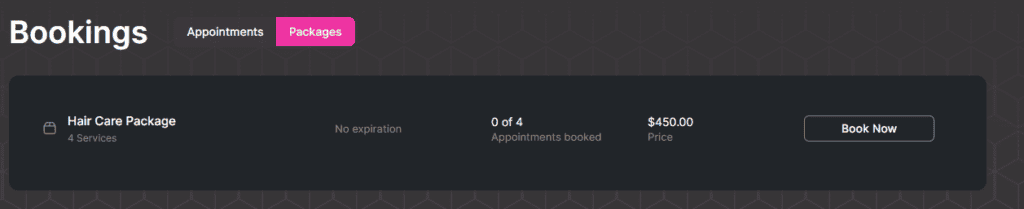
When customers sign in on your booking page, they’ll find a Packages tab beside Appointments. There they can view:
- Package name
- Expiration date (if set)
- Number of appointments already booked, with the chosen date and time for each
- Package price
- Option to book any remaining sessions in the package
This makes it easy for customers to monitor their package usage and schedule outstanding appointments in Bookablesites.