
Automatically forward customer information from your Bookablesites booking system to your Mailchimp lists.
When Mailchimp is connected, contact details collected via Bookablesites booking forms are sent directly to the Mailchimp list you choose. This streamlines customer communications, so you can send emails, newsletters, and promotions from Mailchimp based on your Bookablesites bookings.
The Mailchimp connector for Bookablesites is a premium integration and counts toward your total Custom Features & Integrations.
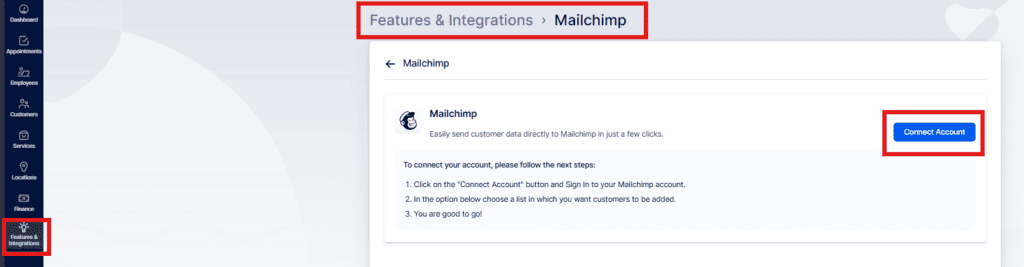
To enable Mailchimp, go to Features & Integrations, find Mailchimp, and click “Enable.” The card will reload and show a “Set Up” button; click it to open the Mailchimp configuration page.
The setup page provides instructions for linking your Mailchimp account. Begin by selecting “Connect Account” to start the process.
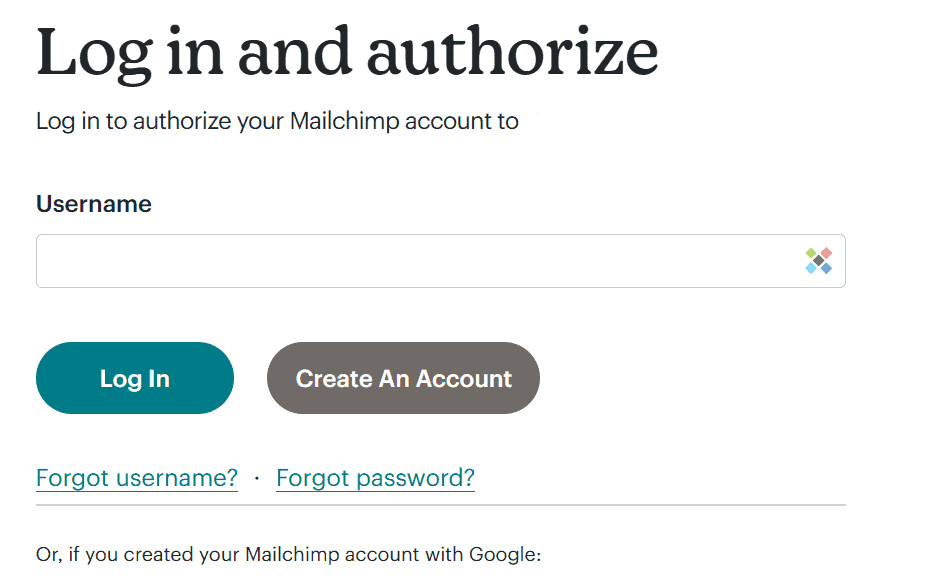
After selecting “Connect Account,” you will be asked to sign in to Mailchimp if you aren’t already authenticated. Once signed in, Mailchimp will request your approval to grant Bookablesites access — click “Allow” to continue.
After your Mailchimp account is connected to Bookablesites, a dropdown will appear showing your Mailchimp lists. Make sure the list you plan to use exists in Mailchimp, then choose it from the dropdown.
After choosing the Mailchimp list you want, click “Save Changes” at the bottom of the page. From that moment, customer details collected through your booking site will be automatically added to the selected Mailchimp list.
Your booking page will also display a “Subscribe to email list” checkbox. If customers select it during booking, their contact information will be sent to the Mailchimp list you configured.