In the world of Bookablesites, personalization extends far beyond the standard configuration options. For users who want a truly customized experience, the “Custom Code” section opens the door to deeper modifications. It allows you to insert your own CSS or JavaScript directly into your booking site for advanced visual and functional adjustments.
Whether you want to embed a unique widget, refine the layout to reflect your branding, or connect with third-party tools, the Custom Code feature gives you full creative control over your site’s design and behavior. Let’s explore how you can use custom code to craft a distinctive booking experience for your customers.
Custom CSS
Within the “Custom CSS” area, you can add your own Cascading Style Sheets (CSS) to fine-tune the look of your booking website. This powerful option enables you to modify fonts, colors, spacing, visibility of elements, and more—offering full flexibility to design your site exactly as you envision it.
Example:
By default, Bookablesites’ booking form shows the start time of appointments. If you prefer to hide the end times, you can easily do so with a short custom CSS snippet:
/* Hide end time */
.bs-dt .booking-ts div:last-child,
.bs-dt .booking-ts > span:not(:first-child) {
    display: none;
}
How It Works
This CSS snippet targets specific elements within Bookablesites’ booking form to remove the visibility of appointment end times.
To implement this custom CSS:
- Go to Customize → Custom Code → Custom CSS in your Bookablesites dashboard.
- Copy and paste the CSS snippet into the Custom CSS editor.
- Click Save to apply your changes.
Once saved, the booking form will no longer display end times for appointments, giving your customers a cleaner, more simplified booking interface.
Custom JS
The “Custom JS” section in Bookablesites is designed for users who want to extend their site’s functionality with JavaScript. By adding your own JS code, you can introduce interactive elements, automate tasks, or connect your booking site with third-party tools and services. This flexibility allows you to craft a more dynamic, engaging, and responsive booking experience for your customers.
Example:
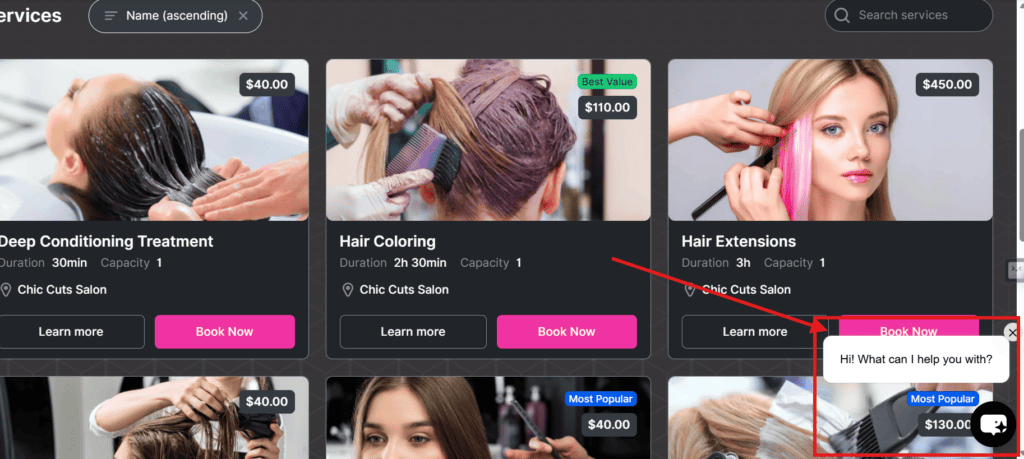
A popular application of custom JavaScript is embedding a Chat Widget on your booking website. Many live chat providers supply a JS snippet that lets you easily integrate their chat tool into your site. Here’s an example of how you could use custom JS in Bookablesites to achieve this integration:
<script>
window.embeddedChatbotConfig = {
chatbotId: "AmQrTbkLePxDfHNsJyuRcWaZ
",
domain: "www.chatexample.com"
}
</script>
<script
src="https://www.chatexample.com/embed.min.js"
chatbotId="AmQrTbkLePxDfHNsJyuRcWaZ"
domain="www.chatexample.com"
defer>
</script>

<script type="text/javascript"></script>
How It Works
This JavaScript code configures the Chat Widget supplied by your chat support service.
To add your chat widget using custom JS in Bookablesites:
- Replace ‘AmQrTbkLePxDfHNsJyuRcWaZ’ with your actual Chat Widget appId provided by your chat platform.
- Copy the provided JavaScript code snippet.
- Navigate to the Customize → Custom Code → Custom JS section in your Bookablesites dashboard.
- Paste the snippet into the Custom JS editor.
- Click Save to apply your changes.
After saving, the Chat Widget will appear on your booking site, making it simple for customers to contact your support team directly while scheduling appointments.