
Group bookings are useful for handling classes, seminars, sports sessions, and other multi-attendee events. To allow group reservations, enable the Group Booking custom feature on the Features & Integrations page in Bookablesites.
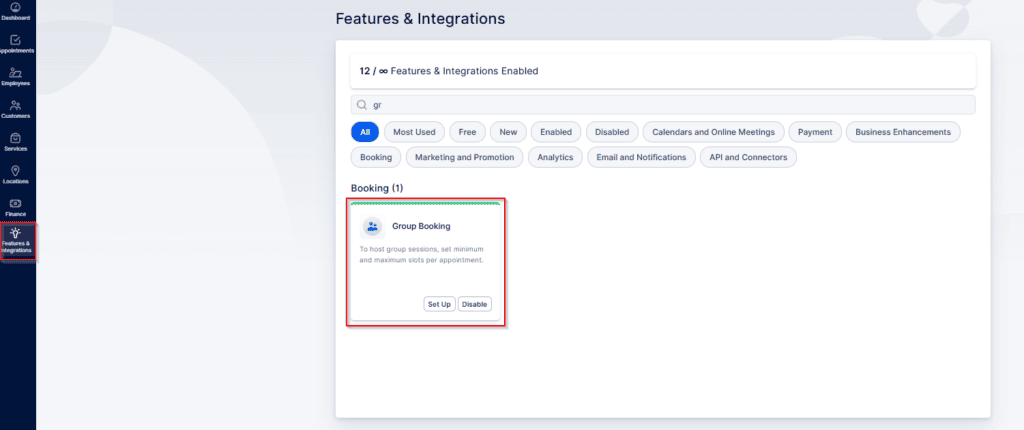
If you are still on a Free Trial, this feature will be automatically activated, and you will see the options “Set Up” and “Disable” in this feature’s card on the If you’re still on a Free Trial, this feature is enabled automatically and its card on the Features & Integrations page will show “Set Up” and “Disable.”
To configure group bookings, click “Set Up.” A popup opens with one option: “Enable Group Bookings for Multiple Customers.”
How this option works:
-
Enabled:
- Multiple people can join an appointment until the maximum capacity is reached.
- Even if a service has a Minimum Capacity of 2 or more, a single customer can book; the appointment will remain in Pending until the minimum capacity is met.
-
Disabled:
- Bookings require the minimum capacity to be met at the time of reservation. For example, if Minimum Capacity is 2, a booking must be made for at least 2 people.
- Once a booking is completed, that time slot closes. For instance, if Maximum Capacity is 20 and someone books 5 spots, no additional bookings can be made for that same slot.
To mark a service as a group service, go to Services, open the three-dots menu next to the service, select Edit Service, then choose Settings and scroll down to Enable Group Booking in Bookablesites.
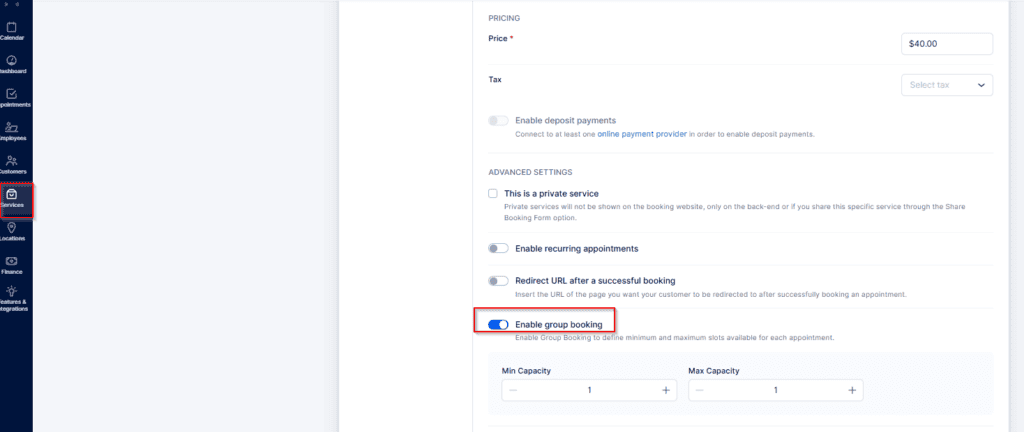
To configure a service for group bookings, set the Min Capacity and Max Capacity values. If you enable “Customers can choose the number of people when booking the appointment,” clients will be able to pick how many attendees they are booking for. If that option is off, each customer can only book for themselves.
If multiple employees provide the same service and you want different capacities per employee:
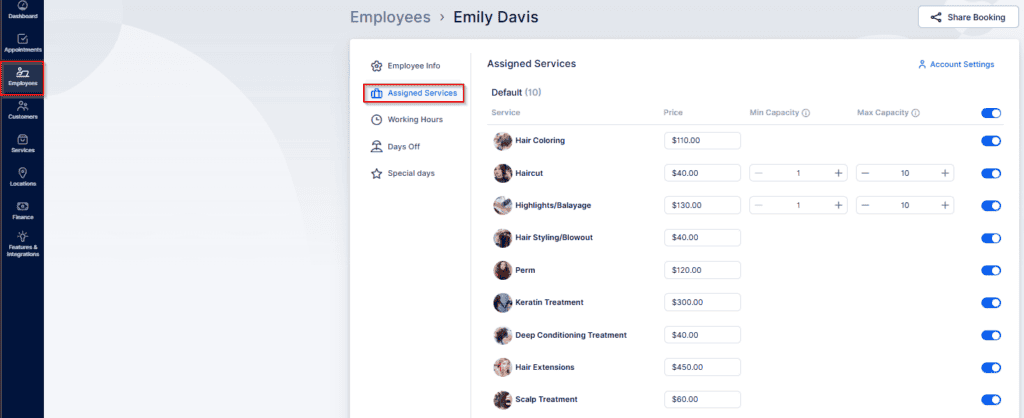
- Open Employees and select the employee you want to edit.
- Go to Assigned Services for that employee.
- For each assigned service, set a custom minimum and maximum capacity for that employee.
The capacities defined on the Service level remain the default for employees you do not customize.
If you later update the service’s Min or Max Capacity and some employees have unique capacities, when you click Save Service you’ll be prompted whether to apply the change to employees with custom capacities or only to those whose capacities matched the service before the update.
Booking Group Appointments
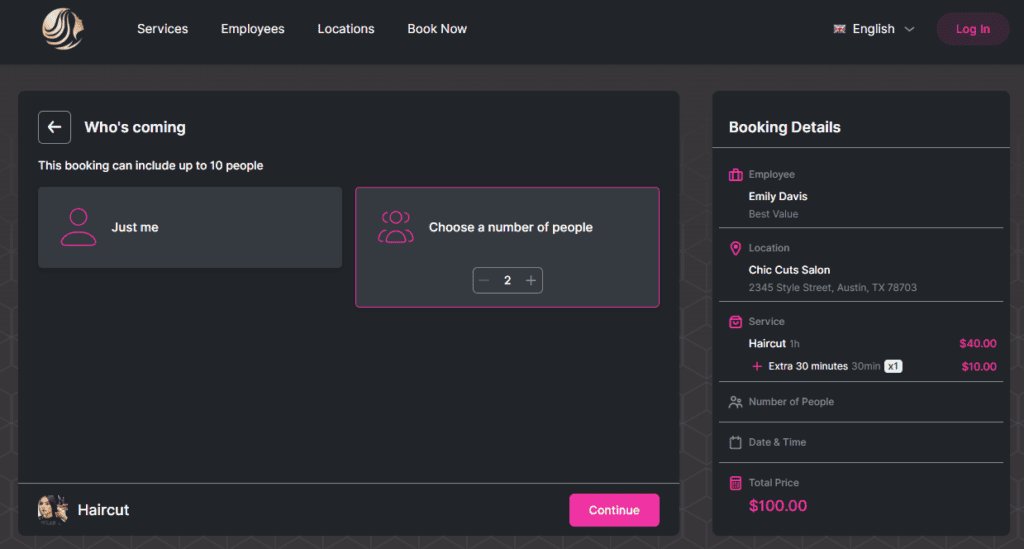
If you’ve configured group capacities for services and employees, customers will be prompted during booking to indicate whether they’re attending alone or booking for additional people. If they choose to add more attendees, they can only enter details for themselves — there’s no option to provide information for the other participants. The appointment will show the total number of people in the Appointment Details and in the Detailed Pricing in Bookablesites.
From the admin view, the administrator can also see the total number of additional people included in each appointment in Bookablesites.