
Extras let you offer add-on services or products that customers can include with their main booking. Each service can have its own set of extras.
To add extras, go to Services, open the service you want to change, click Edit Service, and select the Extras tab.
Click Add Extra to open a setup panel where you define the extra’s name, description, price, and duration. You can choose to hide the extra from the public booking page (making it available only for internal bookings). If you set a price, you can also opt to have that price multiplied by the number of people for group bookings in Bookablesites.
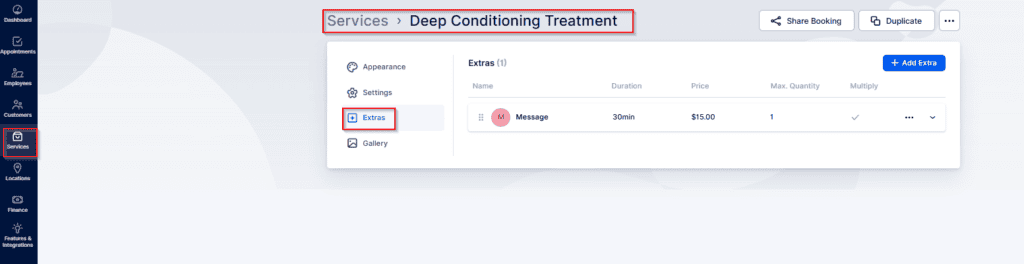
To create an Extra, do the following:
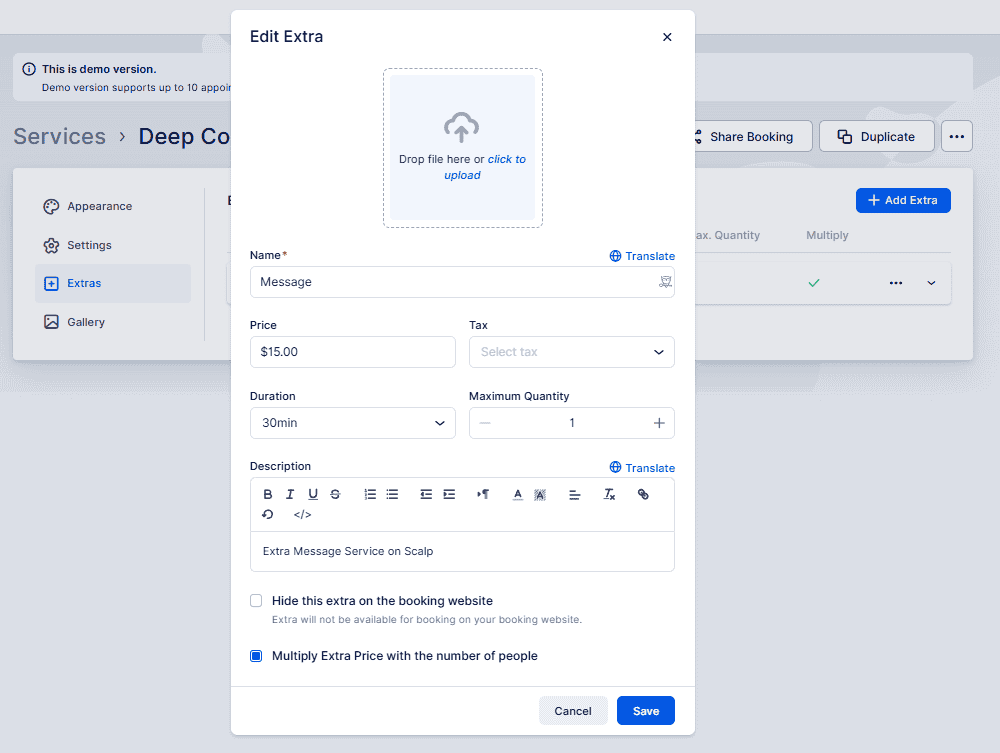
- Open the Extras tab and click “+ Add Extra.” A popup will appear with these options:
- Image: Upload an image for the extra to display on the booking form so customers can see what you offer.
- Name: Enter a name for the extra. This is required — you cannot create the extra without it.
- Price: Set the extra’s price. It defaults to 0, which you can keep if the extra is free. Currency position, decimals, and separators follow your Payment Settings (changeable under Settings > Payment).
- Tax: Choose one of your created tax rates to apply to the extra (if applicable).
- Duration: Specify a duration if the extra adds time beyond the main service. Available time slots depend on the Default Time Slot Step in General Settings; adjust that setting if needed.
- Maximum Quantity: Set the maximum number of this extra a single customer can add to a reservation. The default is 1 but you can increase it.
- Description: Add and format a description for the extra. This appears on the booking form to give customers more details.
- Hide this Extra on the Booking Website: Enable this to hide the extra from the public booking page; it will remain available for admins to add from the dashboard.
- Multiply Extra Price with the Number of People: If enabled, the extra’s price is multiplied by the number of attendees on group bookings and added to the service price. If disabled, the extra’s price stays the same regardless of group size.
All extras created here will appear on the booking form for the associated service (unless hidden) and follow the pricing and display rules you configure in Bookablesites.
After you finish entering the extra’s details, click “Add” — the extra will then appear on the page. Customers will see extras on the Service Details page and inside the booking form when they choose a service that offers extras in Bookablesites.