
Hello and thank you for choosing Bookablesites! We’ve prepared this tutorial to help you establish your complimentary user profile. Use the easy instructions provided below to set up your Bookablesites profile and start organizing your bookings and business offerings.
First, locate and select the “Get started for free” option on the Bookablesites main page. You’ll then be directed to the registration area, where you’ll input your personal information and establish login credentials for your new profile.
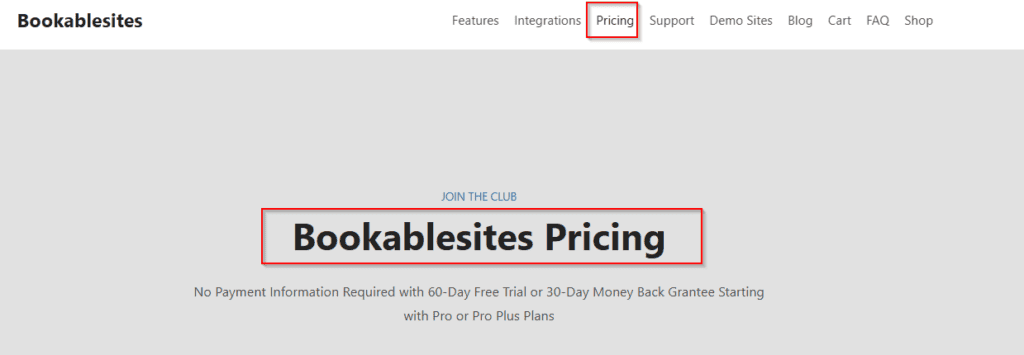
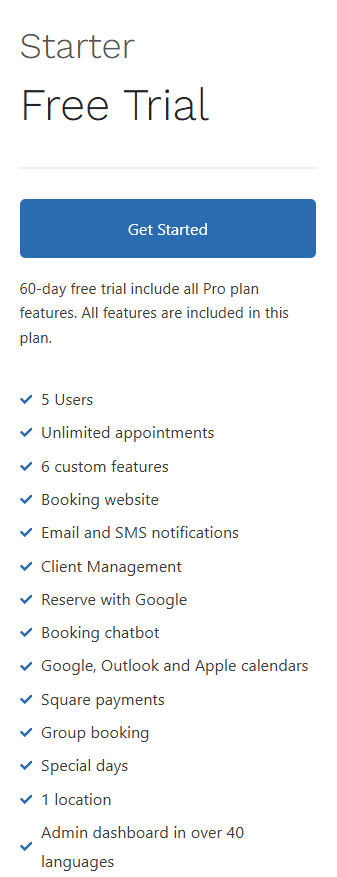
Start your Bookablesites adventure through our no-cost registration system. Credit card information isn’t required – just build your profile and access our 30 day evaluation period. Once you check out with the free plan, you will receive a login credential through your email address. Within this timeframe, you’ll have unrestricted use of every tool and connection available, enabling you to fully test Bookablesites’ complete range of capabilities while deciding on the most suitable subscription option for your business.
Once you’ve provided your information, you’ll advance to a configuration screen where you’ll customize several options for your company. Bookablesites will then create demo content within your profile, enabling you to immediately start exploring the platform.
By using our platform, you are accepting our Service Agreement under Terms of Use.
Once you’ve completed these choices, select “Create Your Account” at the page’s bottom, and you’re ready to start utilizing Bookablesites!
Our Onboarding Process
To get stared, please following points.
- Create employees and set their working hours
- Create Service and link them to the employees
- Enable Feature & integrations you need
- See your Book Website
Please note: Throughout the registration procedure, Bookablesites creates sample information based on the details you supplied. You can effortlessly adjust this information to match your requirements or remove it completely if you wish to begin with a fresh account.
Log in
To access your current Bookablesites profile, navigate to bookablesites.com and select the “Sign In” option in the upper right corner. You’ll be asked to provide your email address and password. Once you’ve input your password, select “Continue” to enter your Bookablesites dashboard.
Based on your registration method, you’ll be able to utilize social authentication (Gmail, Facebook, LinkedIn, or Apple) or provide the email address and password you established during your Bookablesites enrollment.
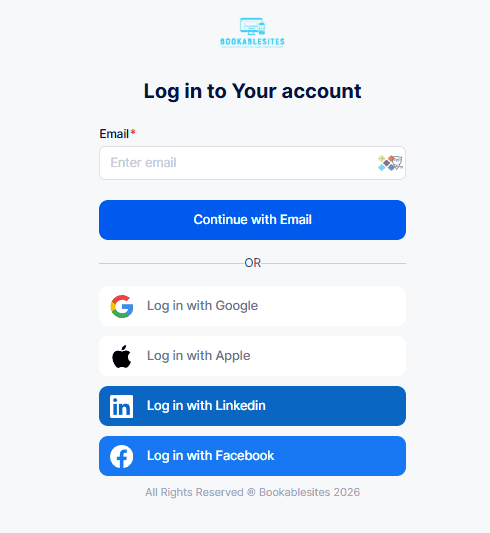
Accessing your account via this page functions for all system users (administrators, super administrators, and staff members) but excludes your clients. If you permit only registered customers or a mix of registered and guest customers through your Customization settings, registered customers will need to go to the booking portal and sign in from that location.
For instance, please click the following. Bookablesites | Login
Forgot password
If you’re unable to recall your password, there’s no cause for concern. Select the “Get Help” link beside “Forgot your password?” and provide the email address you used when establishing your Bookablesites profile. Select “Reset”.
As the email address is automatically validated when you input it in the preceding step, you’ll immediately see whether the email you’ve provided is valid or invalid, but please be cautious if you maintain several profiles and email addresses. After selecting the “Reset” option, we will deliver an email containing a link to establish a new password. With your new password ready, you can combine it with your email address to enter your administrative panel.