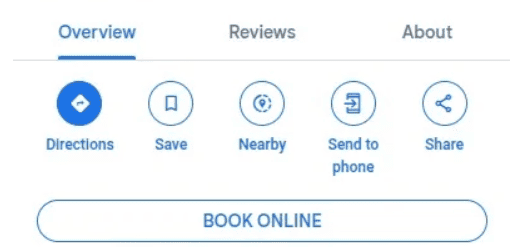
Bookablesites integrates with Google Reserve, allowing customers to book services directly from Google Search and Maps, which helps increase bookings and online visibility.
The Reserve with Google connector for Bookablesites is free and does not count toward your Custom Features & Integrations limit.
Note: Google may impose country- or industry-specific restrictions (see the linked details).
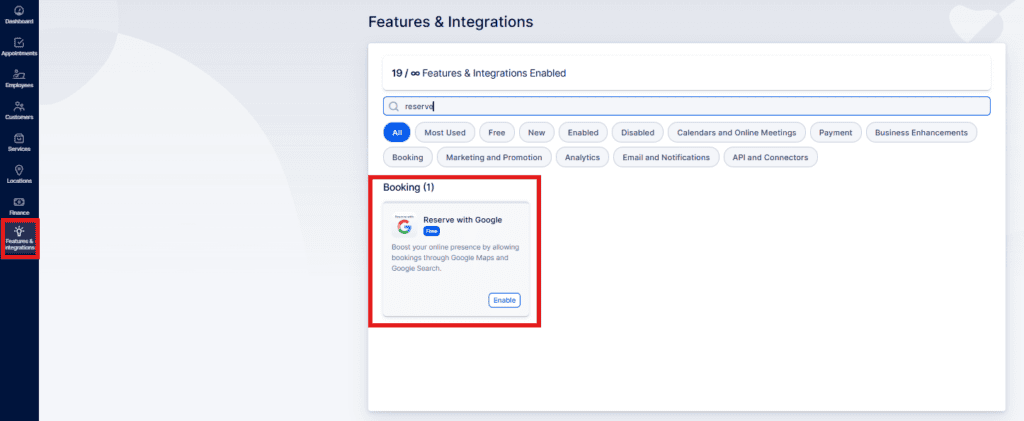
To enable Reserve with Google, go to Features & Integrations in Bookablesites, find Reserve with Google, and click “Enable.” After activation the card will display a “Set Up” button — click it to open the configuration page..
Google Reserve login
Here you can link your Google Business account and associate each Bookablesites location with the corresponding Google location.
Detailed instructions and requirements are provided below:
- Click “Connect Account.”
- Sign in to the Google account you want to link.
- Click “Allow” to grant the requested permissions.
- Match the locations you created in Bookablesites with the corresponding Google Business locations.
After locations are connected successfully, the working hours and services configured in Bookablesites will be published on Google and become bookable.
Notes on timing and content:
- The initial connection to Reserve with Google typically takes about 24–48 hours to complete. Subsequent changes on your dashboard (for example, adding services or updating working hours) usually take around 24 hours to appear in Reserve with Google.
- Each service name must be unique and should not include pricing, duration, numbers, or numbered lists.
- Service descriptions must be clear, unique, and detailed so that similar services (for example, on‑site vs. online) are distinguishable.
When connecting locations, use the dropdown to pair Google Business locations (shown on the left) with the Bookablesites locations from your account (listed on the right).
Google may take up to 48 hours to review and approve your request; making further changes can lengthen this timeframe.
Once verification is complete, the “Book Online” button should appear when your business is searched on Google Maps. If it does not, please contact our support team.