
The Webhooks feature in Bookablesites lets you send real-time event data from the platform to external applications via custom URLs. Use it to automate notifications and push booking data to other systems for streamlined integrations.
The Webhooks feature for Bookablesites is a premium option and will count toward your total Custom Features & Integrations.
Getting started
- Enable Webhooks on the Features & Integrations page.
- After enabling, click Set Up to open the webhooks management page. Initially there will be no webhooks, so create new ones using the Create Webhook button in the top-right
Available webhook event types You can create one webhook for each of these events. Click the “create webhook“:
- Appointment Booked
- Appointment Canceled
- Appointment Rescheduled
- Appointment Status Changed
- Customer Created
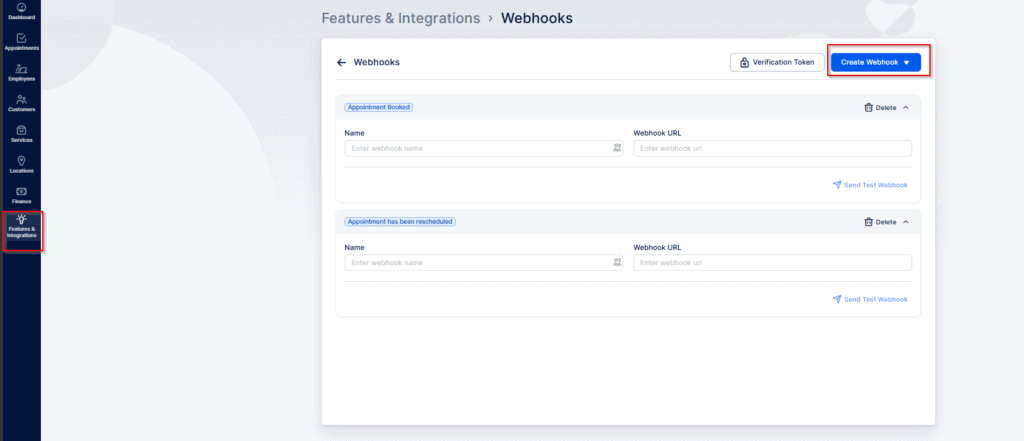
Please note that, at this stage, you can only create a single webhook for each type. This means there can be only one ‘Appointment Booked’ webhook, one ‘Appointment Canceled’ webhook, and so on.
Configuration options When creating a webhook you can set:
- Name — a descriptive label for the webhook.
- Website URL — the endpoint where bookablesites will POST the event payload.
Testing and payload your Webhooks:
Send Test Webhook — sends sample data to the configured URL so you can verify the payload and mapping. Test payload includes details such as:
- Appointment status, start/end dates and times, combined start/end datetime
- Appointment price
- Customer full name, first name, last name, email, phone
- Employee full name, first name, last name, email, phone
- Service category, name, duration, price
- Extras
- Location name, address, phone
- Custom fields
This allows you to ensure that the webhook is correctly configured to send the necessary information for your integration needs.
Notes
You can create only one webhook per event type (for example, a single Appointment Booked webhook).
Payload formatting follows the settings you’ve chosen in bookablesites. Events are delivered via HTTP POST requests.
Security
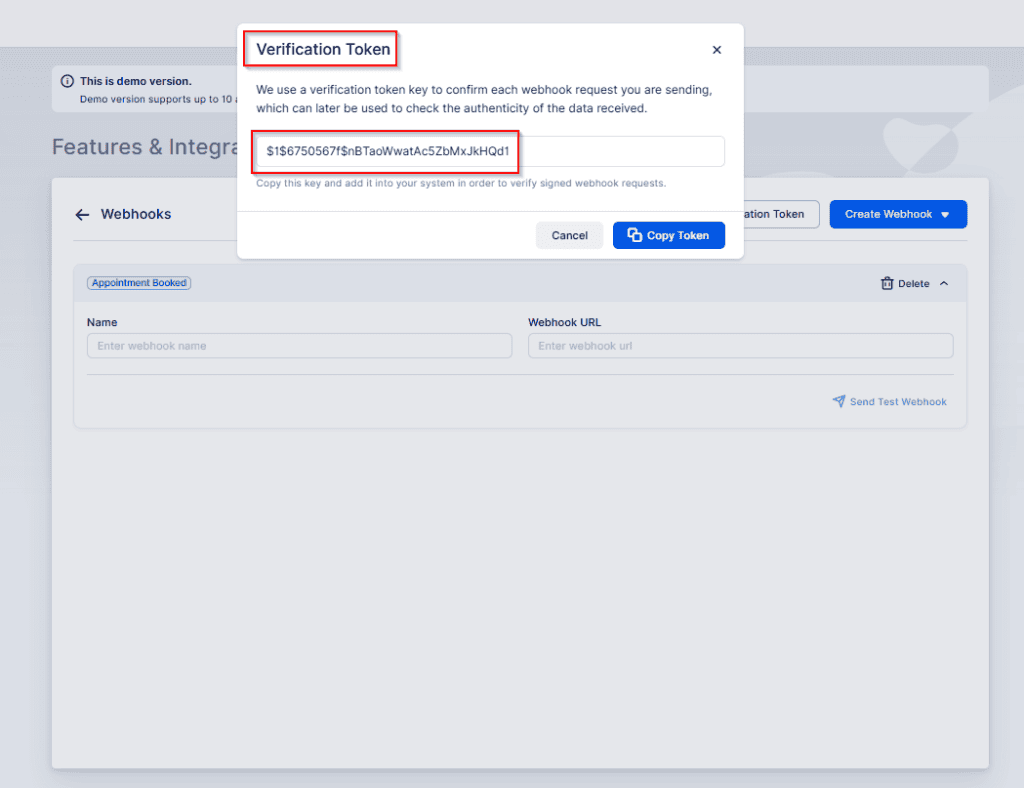
Verification Token — click the Verification Token button (near Create Webhook) to view and copy your token. When included in the Authorization header of each webhook request, this token lets you authenticate incoming requests and confirm they originate from Bookablesites.
Examples and integrations
Third-party integrators such as Pabbly and KonnectzIT have built integrations using Bookablesites webhooks, demonstrating how you can connect the platform with external automation and workflow tools.